
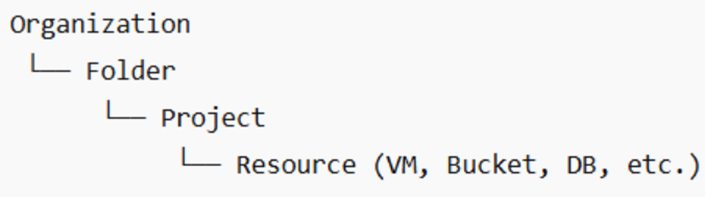
Google Cloud Identity and Access Management (IAM) specifies who can access various resources and the actions they are permitted to perform within the cloud environment. By assigning roles to users, groups, service accounts, and workloads at different levels, such as organization, folder, project, or resource, IAM enables centralized and detailed access control. Because IAM policies inherit permissions in a downward manner through the resource hierarchy, any misconfigurations can lead to significant security risks if not monitored continuously.
The GCP Cloud Infrastructure Entitlement Management (CIEM) capability within Saner Cloud provides a unified, data-driven view of identity and permission risks across GCP environments. This enables security teams to quickly identify excessive permissions, analyze high-risk activities, and implement guided remediation actions to enhance their cloud security posture.
The GCP CIEM dashboard provides actionable insights into the permissions assigned to users, groups, and service accounts. It also provides deep visibility into IAM policies and custom roles that might grant excessive privileges, helping teams understand who has access, how that access was granted, and the potential impact of that access on their environment.
To facilitate ongoing risk reduction, CIEM includes a Recommended Remediation view that highlights identity and resource-related risks based on their priority. This feature allows teams to concentrate on the most critical issues first. Additionally, detailed identity information and contextual metadata simplify investigations and accelerate remediation workflows.
Operational awareness is further enhanced through Critical Activity monitoring, which identifies high-risk events categorized by scope, at the organization, folder, or project level, allowing teams to focus on the most concerning areas. Each alert provides consolidated evidence such as timestamps, initiators, affected resources, and system-level traces to assist with quicker validation and incident response.
Collectively, these capabilities make GCP CIEM a centralized hub for entitlement visibility, risk analysis, and incident investigation, aiding organizations in enforcing least-privilege access and maintaining a secure cloud environment. Complementary tools like Cloud Security Risk Prioritization (CSRP) and Cloud Cyber Hygiene Score (CCHS) further enhance risk prioritization and ongoing IAM management across multi-cloud environments, including Microsoft Azure.
Follow the links to learn about the various dashboard functionalities:
Review Excessive Permission Summary Across Identities
Identify the Most Privileged Users for Optimization
View Excessive Permissions and Explore Contextual Details
Remediate Identity and Resource Related Risks Through Recommended Remediation
Prioritize Remediation with Severity
View Identity Lists and Explore Contextual Information
Monitor High Risk Events Through Critical Activity Alerts
Review Evidence Details for Critical Activity
Get Started
After you login, choose the organization and from the landing page, select your Saner Cloud Account to which you have onboarded your GCP cloud account. Next, click the App Launcher(on top of the page) and choose “CIEM Cloud Infrastructure Entitlement Management”.
Review Excessive Permission Summary Across Identity Types

How to Use the Views?
The views allow you to quickly assess access-related risks by highlighting areas that require your attention. Begin by identifying risk hotspots through blocks that display a high number of excessive permissions. Prioritize cleanup efforts by locating inactive, empty, or unused entities that could unnecessarily increase your attack surface. If deeper investigation is needed, expand any block to examine the specific identities, policies or roles involved. Additionally, track trends over time with numeric indicators, that help you monitor any increase or decrease in risk-prone entities. Together, these insights provide a clear starting point for determining where to focus your investigation or remediation efforts.
Users
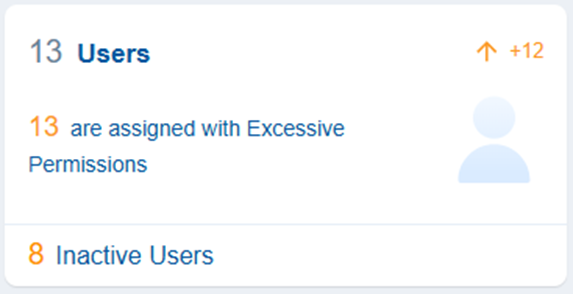
With Saner CIEM, you can identify users in cloud IAM that have access to cloud resources but have not been active, which means the users have not logged in, used, or performed any actions for a considerably long period. Additionally, the dashboard also presents users with excessive permissions that could result in privilege escalation and does not fit well with Principle of Least Privilege (PoLP) of Cloud Service Providers.
You can also see if there has been an increase or decrease in Excessive Users as part of resource Trend.
Clicking the numbers, text or icon on the block, navigates to the detailed contextual view providing a breakdown on the Users and their associated permissions.
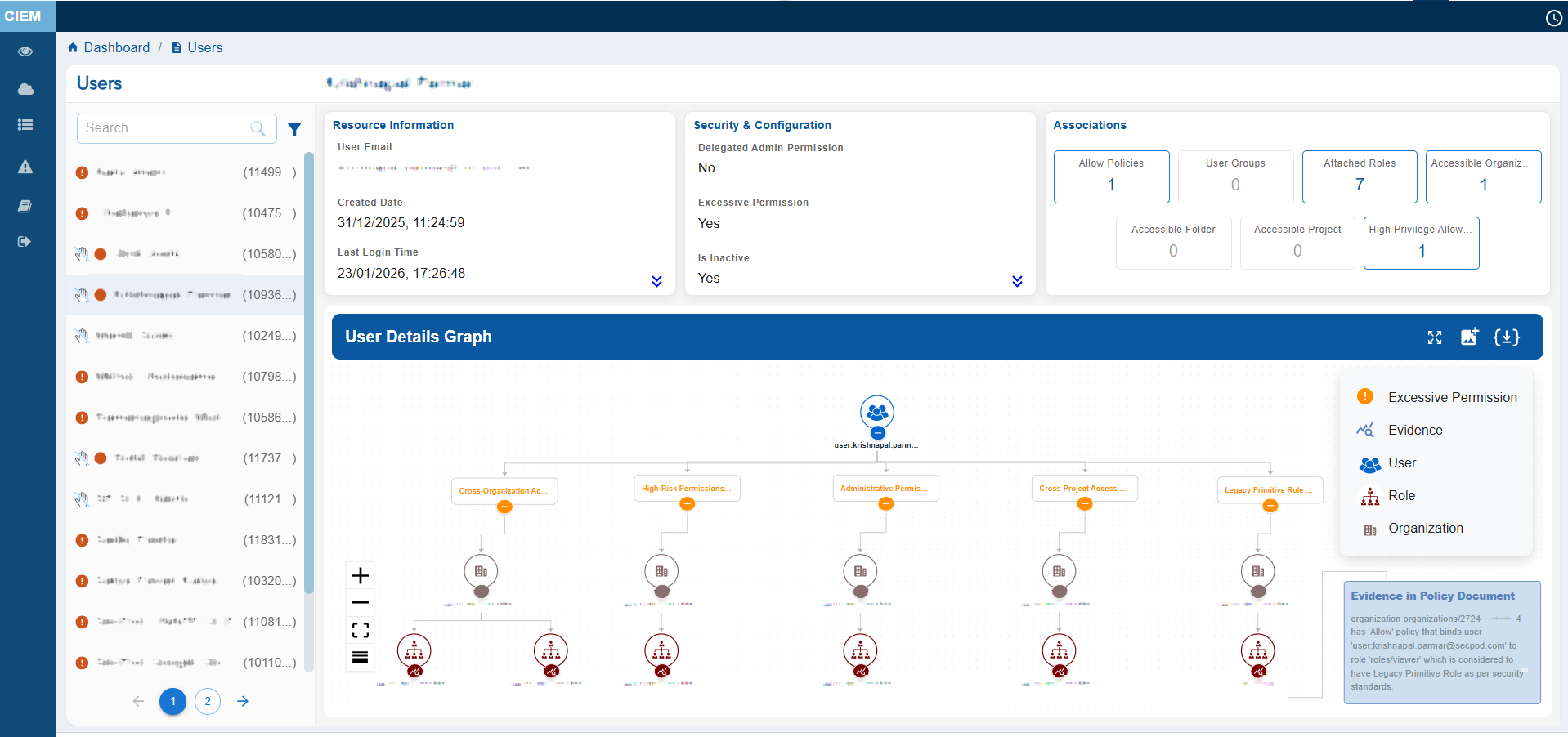
The User Details view provides a consolidated snapshot of GCP User’s identity attributes and access relationships. It displays key metadata such as the User ID, Display Name, Created Date, Last Accessed Date, associated Policies, Permissions, and User Groups.
The main feature of the page is the User Details Graph, which visually maps the user’s linked Organizations, Projects, Permissions, Groups, Roles, and Actions. This helps administrators easily understand hierarchical access paths and inherited permissions at a glance.
The left panel lists all users and includes status icons that indicate their security state: the Hand icon represents Inactive users, the Red colored icon highlights users with Excessive permissions, and the Green colored icon identifies Active users.
Click the filter button next to the Search box to display the related Unused and Excessive users.
Clicking on the names of Entra of RBAC roles nodes assigned to the user, redirects to the detail page of the clicked Role node.
User can either choose to expand or collapse the full graph with “Expand All button”, or they can also choose to expand each node separately. The graph can also be viewed in Vertical as well as Horizontal view, just with a click of a button. Clicking any metadata item that contains a link (for example, Entra ID or User Groups) drills down further into another contextual view showing associated metadata such as user assignments, group details, or linked resources.
Groups
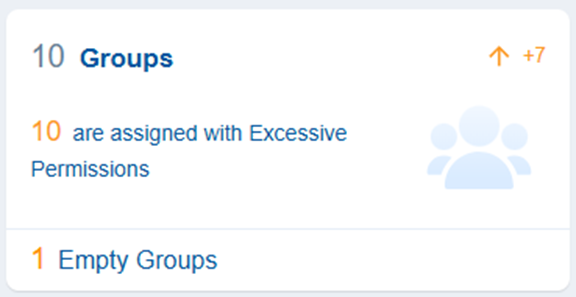
Groups in cloud entitlements refer to collections of user accounts that facilitate management of access rights and permissions in cloud environments.
With Saner CIEM, users can identify Groups which are empty because empty groups with excessive permissions become easy target for the attackers.
The dashboard view also presents the count of groups having excessive permissions in the associated cloud service.
Clicking the numbers, text, or icon on the block, navigates to the detailed contextual view providing a breakdown on the group and their associated permissions.
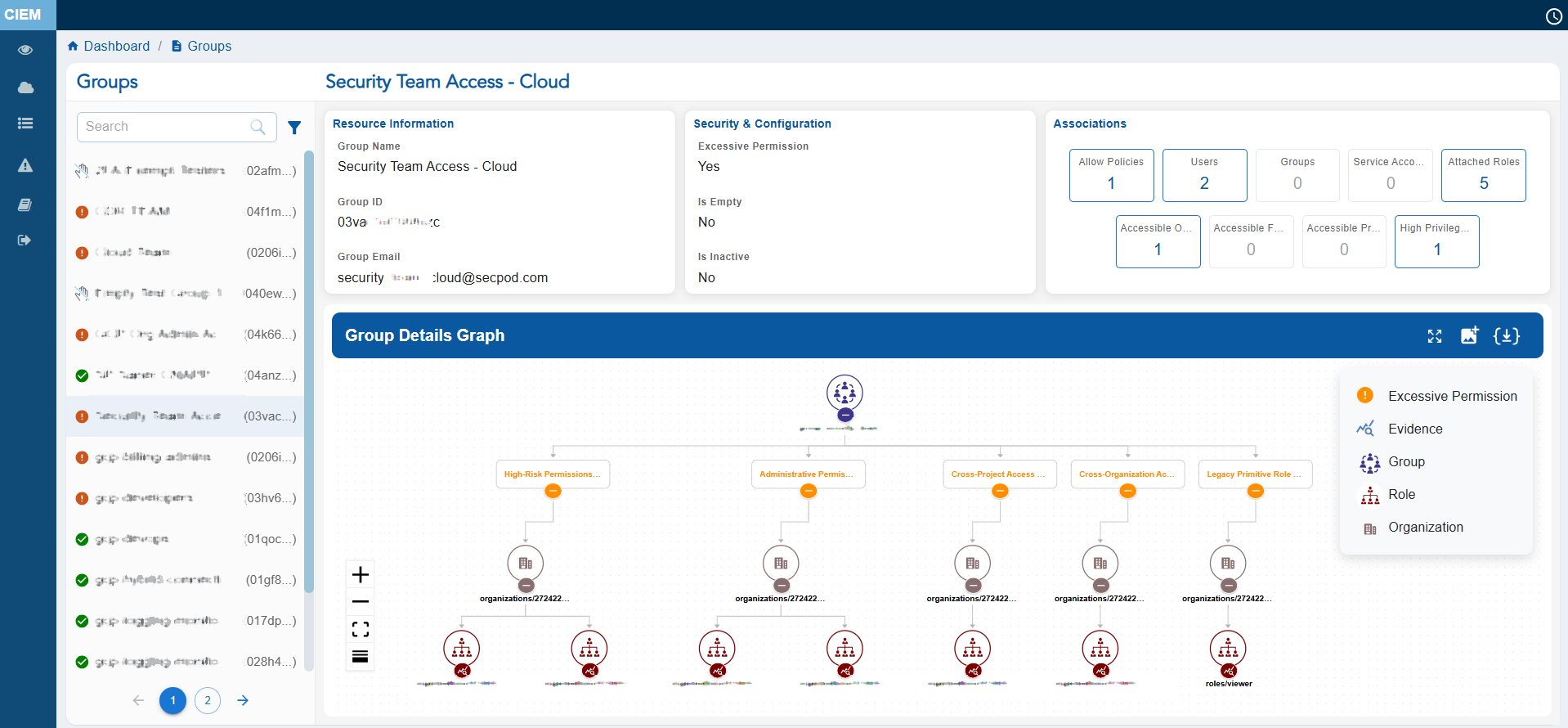
The Group Details view provides a consolidated snapshot of Group’s attributes and access relationships. It displays key metadata such as the Group ID, Display Name, Group Email, Users present in the Group, associated Service Accounts, Allowed as well as High Privilege Allow Policies attached to the Group.
Additionally, the Group Details Graph also provides a visual representation of the group’s associated roles, projects, and users, enabling administrators to quickly understand hierarchical access relationships and inherited permissions at a glance. It also highlights the policy document evidence that explains why the group is identified as having excessive permissions, helping administrators investigate and remediate access risks efficiently.
The left panel lists all groups and includes status icons that indicate their security state: the Red colored icon highlights groups with Excessive permissions, and the Green colored icon identifies Active groups. Click the filter button next to the Search box to display the related Empty, Excessive groups.
Clicking on the names of Policy or Roles nodes assigned to the Group, redirects to the detail page of clicked Policy or Role node.
User can either choose to expand or collapse the full graph with “Expand All button”, or expand each node separately. The graph can also be viewed in Vertical as well as Horizontal view, just with a click of a button.
Clicking any metadata item that contains a link drills down further into another contextual view showing associated metadata such as user “High Privilege Allow Policies” or “Allow Policies”.
Service Accounts
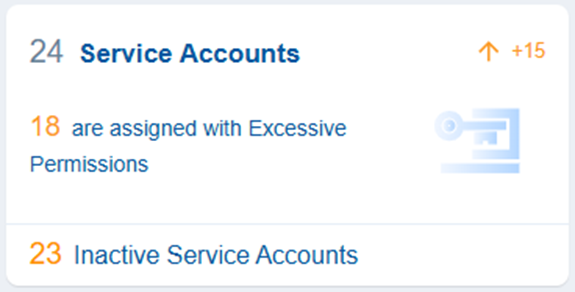
Service account in GCP is a non-human identity used by applications, workloads, or services to authenticate and access Google Cloud resources. Service accounts can be granted permissions using GCP Roles.
Clicking the numbers, text or icon on the block, navigates to the detailed contextual view providing a breakdown on the Service Accounts and their associated permissions.
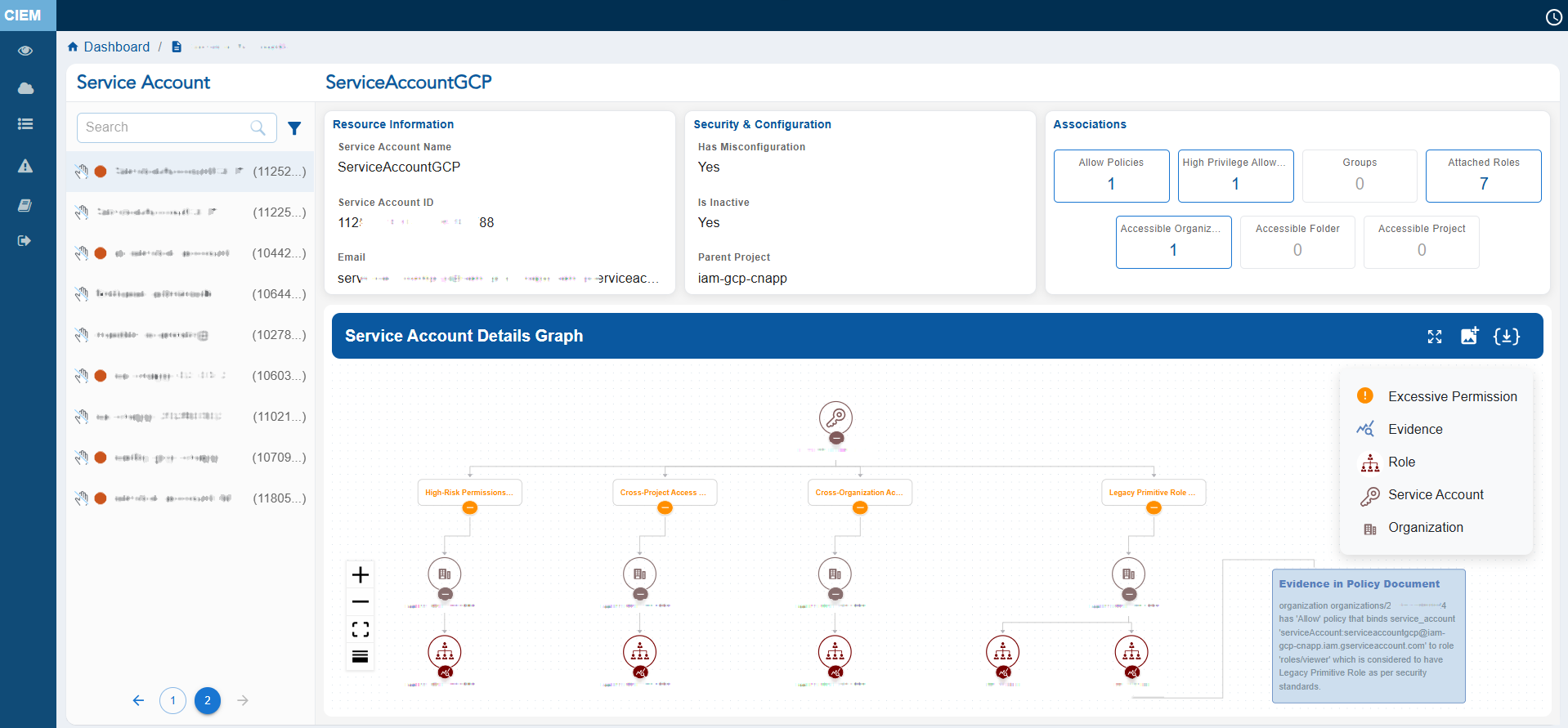
The Service Account details view provides a comprehensive snapshot of a GCP Service Account’s identity and permission footprint.
It displays key metadata such as the Service Account’s ID, Display Name, Email, Allowed and High Privileged allowed Policies. Clicking any metadata item that contains a link drills down further into another contextual view showing associated metadata mentioned above.
The left panel lists all Service Accounts with associated IDs in brackets and includes status icons that indicate their security state: the Red colored icon highlights Service Account with Excessive permissions, and the Green icon identifies Service Account with no Excessive permission.
At the centre, the Service Account Details Graph visually maps the Service Account’s elevated actions. This helps administrators easily understand hierarchical access paths and inherited permissions at a glance. Administrators can also see what is the “Evidence in Policy Document” that makes this Service Account excessive.
You can either choose to expand or collapse the full graph with “Expand All button”, or expand each node separately. The graph can also be viewed in Vertical as well as Horizontal view, just with a click of a button.
Policies
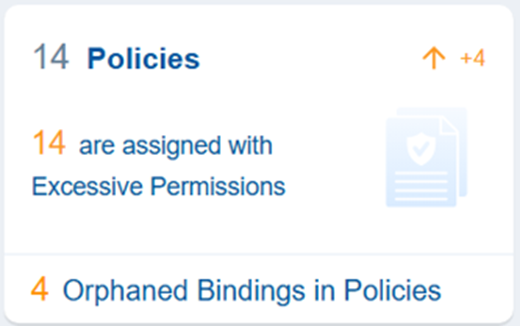
In GCP, an IAM policy is basically a set of rules that decides who can do what on which resources. Policies are generally attached to resources. Once attached, they control access to everything under that resource.
Saner Cloud CIEM shows the Policies that carry Excessive Permissions and also Orphaned Bindings in Policies which means the IAM role binding that references a principal (user, group, or service account) that no longer exists.
Clicking the numbers, text or icon on the block, navigates to the detailed contextual view providing a breakdown on the Service Accounts and their associated permissions.
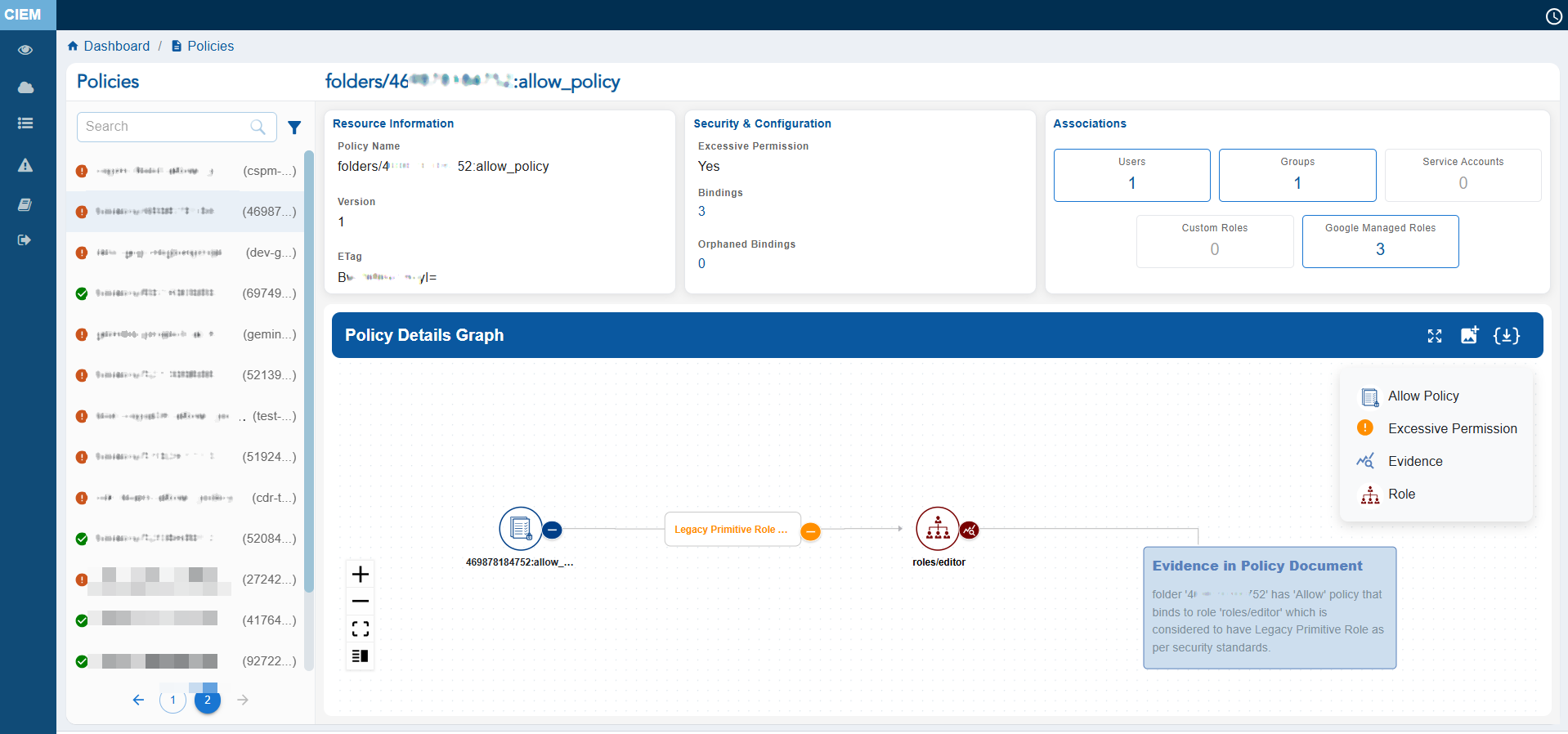
It displays key metadata such as the Service Policy’s Name, Entities like Users, Groups and Service Accounts, Custom and Google Managed Roles, Policy Bindings and more. Clicking any metadata item that contains a link, drills down further into another contextual view showing associated metadata mentioned above.
The left panel lists all Policies with associated IDs in brackets and includes status icons that indicate their security state: the Red icon highlights the Policy with Excessive permissions, and the Green colored icon identifies Policy with no Excessive permission.
The Policy Details Graph visually maps the excessive roles that are bound to the Principals and helps administrators easily understand hierarchical access paths and inherited permissions at a glance. Administrators can also see what is the “Evidence in Policy Document” that makes this Policy excessive.
User can either choose to expand or collapse the full graph with “Expand All button”, or expand each node separately. The graph can also be viewed in Vertical as well as Horizontal view, just with a click of a button.
Roles
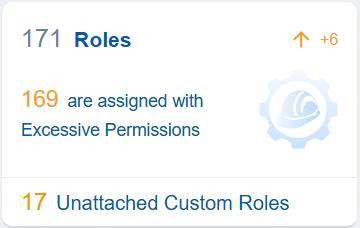
In Google Cloud Platform (GCP) Roles are collections of permissions that define what actions a principal can perform on GCP resources. Roles can be assigned to principals (users, groups, service accounts) through IAM policies.
The total roles are collection of google roles which are attached to a principal and custom created role. CIEM also shows how many of these total roles have Excessive Permissions. Lastly, it displays Custom Created roles which are not attached to any IAM Entity.
In the context of Saner CIEM dashboard, the Roles block provides a quick assessment of identity-level privilege risks. It highlights roles with excessive permissions, identifies unused or redundant roles, and supports the enforcement of least privilege principles.
Clicking the numbers, text or icon on the block, navigates to the detailed contextual view providing a breakdown on the Entra Roles and their associated permissions.
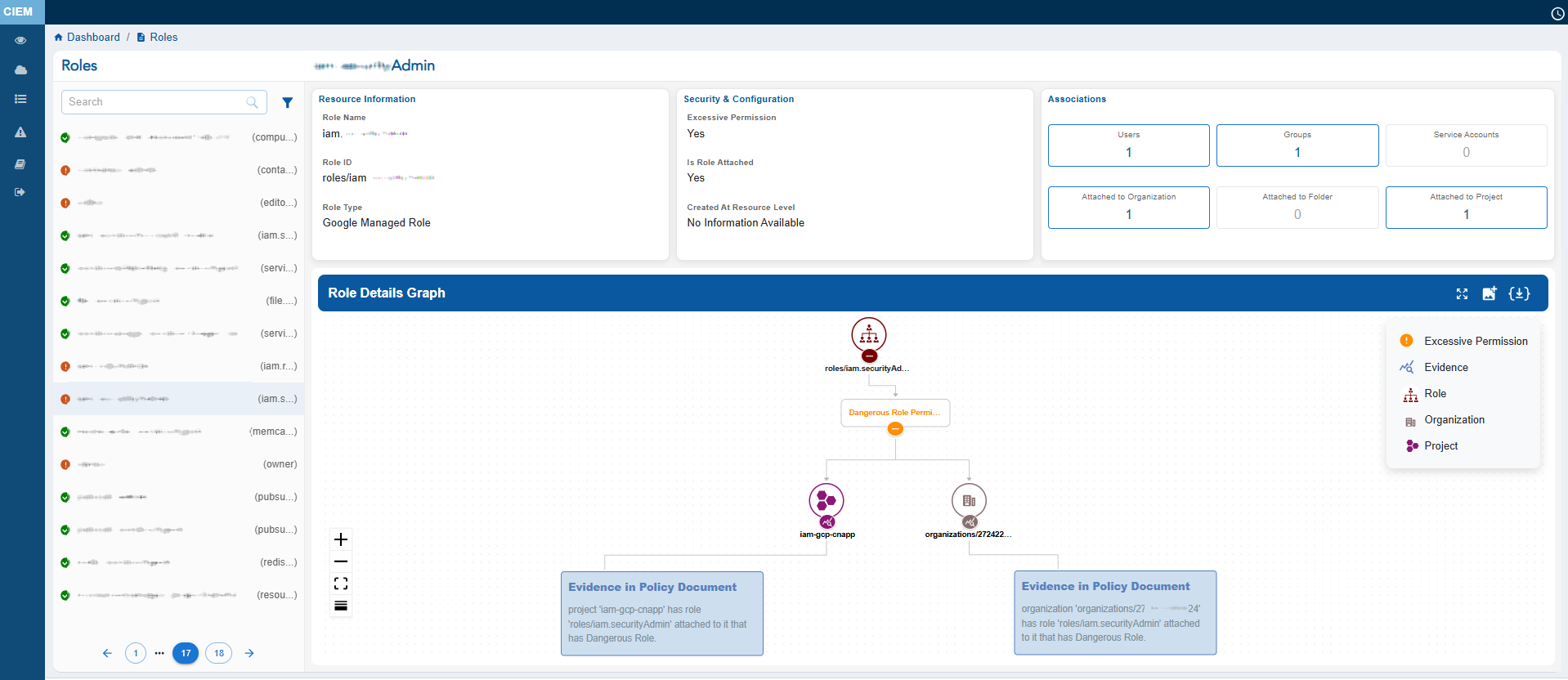
It displays key metadata such as the Custom and Google Managed Roles, Permissions that are allowed and denied, which Project it is associated with and Evidence in Policy Document.
The left panel lists all Roles with associated IDs in brackets and includes status icons that indicate their security state: the Red colored icon highlights the Policy with Excessive permissions, and the Green colored icon identifies Policy with no Excessive permission.
The Roles Details Graph visually maps the excessive roles that are bound to the Principals and helps administrators easily understand hierarchical access paths and inherited permissions at a glance. Administrators can also see what is the “Evidence in Policy Document” that makes this Role excessive.
User can either choose to expand or collapse the full graph with “Expand All button”, or expand each node separately. The graph can also be viewed in Vertical as well as Horizontal view, just with a click of a button.
Identify the Most Privileged Users for Optimization
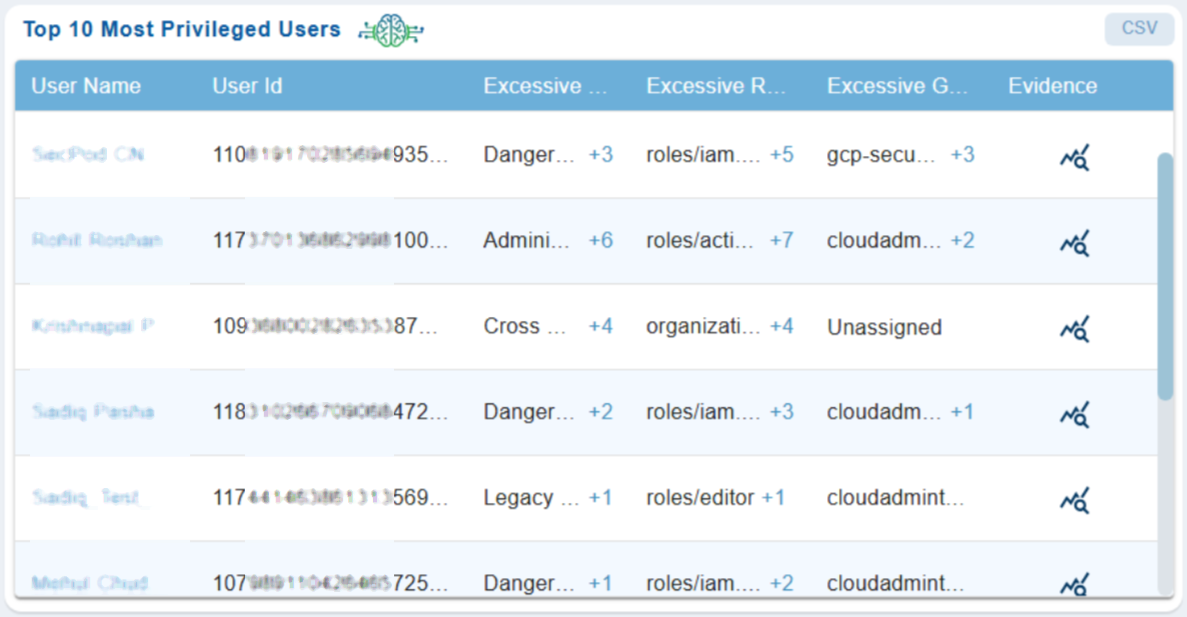
Privileged users are prime targets for attackers and hence its critical to gain visibility into these accounts. This helps security teams to instantly spot high-risk accounts, IT admins to prioritize remediation(remove unused roles/groups), auditors to get clear evidence of who has elevated roles and why, incident response teams to quickly identify risky accounts, and more.
The Top 10 Most Privileged Users dashboard block in CIEM highlights users with elevated permissions that can be optimized for security and compliance reasons.
Here’s a closer look at what each column means:
Username
Display name associated to the User.
User ID
Unique identifier of the User.
Excessive Permissions
Provides the count of permissions beyond normal baseline (for example, Legacy Primitive Role, Cross Organization Access Permissions). Clicking on the count(link) displays the list of elevated permissions assigned to the user.
Excessive Roles
Provides the count of GCP roles that exceed job function (for example, organizationRoleAdmin, actions.Admin, editor etc). Clicking on the count(link) displays the list of elevated permissions assigned to the role.
Excessive Groups
Provides the groups that have exceeding permissions. Clicking on the count(link) displays the list of elevated permissions assigned to the Groups.
Evidence
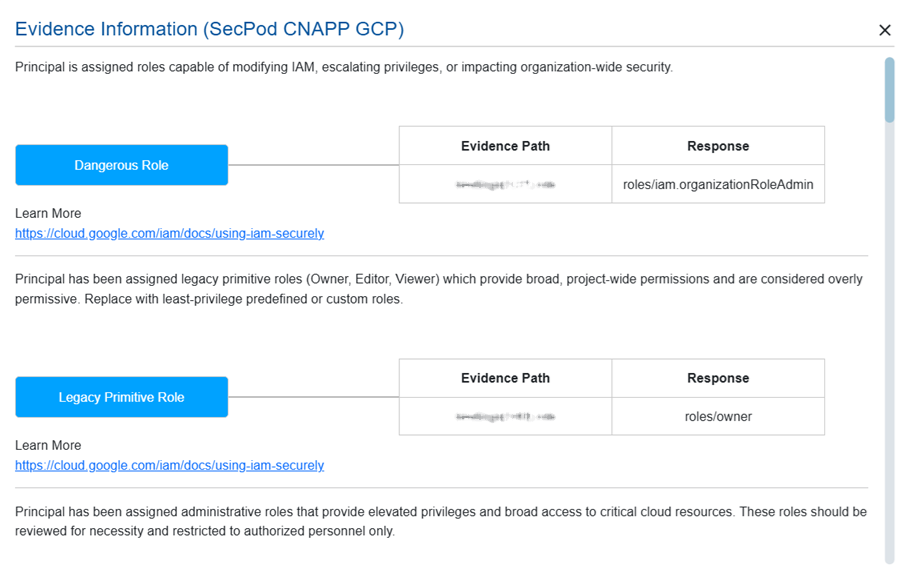
Provides supporting data such as role assignment, evidence path, response, related references(links) to learn more details. Clicking the Evidence icon opens a pop-up from which you can analyze these excessive permission details.
View Excessive Permissions and Explore Contextual Details
Google Managed Roles
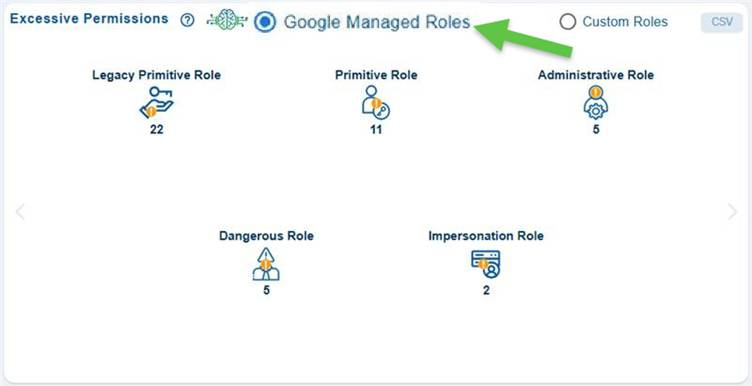
The Google Managed Roles with Excessive Permissions view provides a concise overview of GCP Managed Roles that assigns permissions and helps security administrators to quickly identify potential areas of risk that need deeper investigation.
Instead of just showing “who has what role”, this view shows how risky those roles are, so that one can prioritize which issues to fix first. For example, in this case, you must fix impersonation roles first, because they enable privilege escalation.
Legacy Primitive Role
These are old, broad roles that were used before more granular IAM roles became standard. They are risky as they assign wide permissions, not aligned with least privilege and applies across many services.
Primitive Role
This category shows basic predefined roles that grant access across almost all services in a project. They are risky as they are not service-specific, may include hundreds or thousands of permissions and are common source of excessive access
Administrative Role
Roles in this category are designed to manage specific services or infrastructure. These are flagged because they allow creation/modification/deletion of resources, may allow IAM policy changes and could enable infrastructure takeover.
Dangerous Role
These are the roles that include permissions commonly used in Privilege escalation, Policy modification, and Security control bypass.
Impersonation Role
These roles allow a user or service account to act as another service account and can also lead to Privilege escalation and Lateral movement.
Clicking on any count in the block opens a detailed Information page for the selected role category. This page allows for further exploration through metadata links, allowing you to access deeper layers of related role and permission data. This helps administrators quickly identify Google Managed Roles assignments that may pose security risks due to elevated, privileged, or overly broad access.
Custom Roles
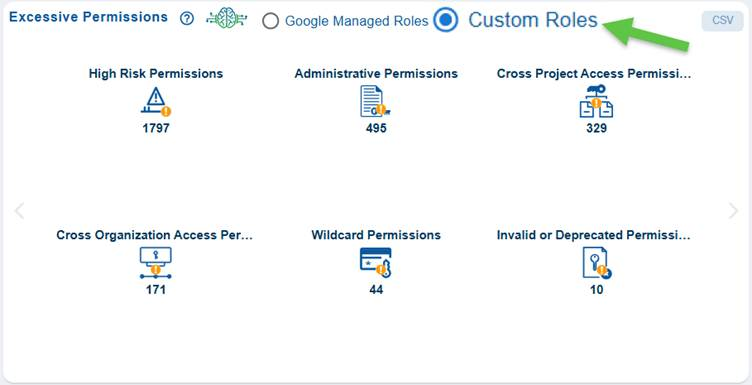
The Custom Roles in GCP are user-defined IAM roles that contain a custom set of permissions selected by your organization. They help you create your own role with only the exact permissions required. Saner Cloud CIEM categorises these custom roles so that you can prioritize which issues to fix first.
High Risk Permissions
Roles under this category can directly lead to Privilege escalation, can modify IAM policy, can bypass Security control and lead to full project takeover.
Administrative Permissions
Permissions that allow managing, modifying, or deleting resources within a service. These permissions don’t necessarily escalate privileges, but they allow full control of services.
Cross Project Access Permissions
These are the permissions that allow a principal to access or modify resources across multiple projects. They are risky because they increase the blast radius in case of an attack and are harder to contain during incident response.
Cross Organization Access Permissions
These permissions allow access beyond your GCP organization boundary. It is hard to monitor external misuse, and they can increase supply-chain attack surface.
Wildcard Permissions
These are the permissions granted using wildcards (*) that allow broad actions. They are risky as they grant future permissions automatically, making it hard to audit exact scope and are often unintentionally over-privileged.
Invalid or Deprecated Permissions
Permission that either no longer exist, deprecated by Google, not valid in custom roles or tied to retired services that fall under this category.
Clicking on any count in the block opens a detailed Information page for the selected role category. This page allows for further exploration through metadata links, allowing you to access deeper layers of related role and permission data. This helps administrators quickly identify Google Managed Roles assignments that may pose security risks due to elevated, privileged, or overly broad access.
Remediate Identity and Resource Related Risks Through Recommended Remediation
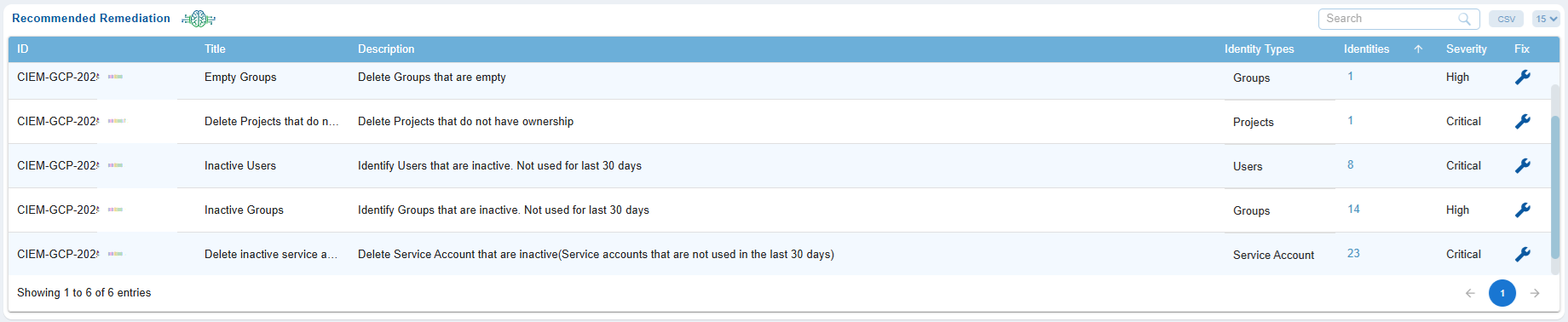
The Recommended Remediation view in the GCP Cloud CIEM(Cloud Infrastructure Entitlement Management) dashboard provides security teams with a centralized way to identify and address identity and resource risks. It highlights issues such as inactive Users, Service Accounts and Groups, Empty groups, Projects that do not have any owners, misconfigured and excessive roles, offering a prioritized list of remediation actions.
From this view, administrators can directly initiate remediation steps, which automatically redirect to CSRM (Cloud Security Resource Management) for tasks such as patching, privilege correction, or role modification workflows. This streamlines identity governance and enforces secure access across GCP environments.
Open the Saner Cloud CIEM dashboard and go straight down to the “Recommended Remediation” view. Your page displays entries such as inactive Users, Service Accounts and Groups, Empty groups and misconfigured and Excessive roles etc, similar to the items shown in the screenshot.
Every finding includes the following details for which you understand the impact and priority.
- ID: Unique Identifier for the finding
- Title: Descriptive heading for the finding
- Description: Explains why this identity is a risk
- Identity Type: Indicates if the identity belongs to Users, Groups, Projects, Service Account etc.
- Identities: Indicates the count of associated identities
- Severity: Indicates the criticality of the Risk
- Fix: Clickable button to proceed with remediation
Here are some examples of remediations that the system allows:
Empty Groups: Remove group or reduce its assigned roles
Inactive User: Disable or delete account
Overly permissive Identity: Reduce permissions or remove Identity
Click the Fix icon (wrench symbol). The panel opens allowing you to:
- View the affected GCP identities
- Validate impact before remediation
- Select identities for bulk removal or modification
Once you have selected the identities, click Proceed. The system automatically redirects you to CSRM, where:
- A remediation task is created
- Permissions/roles/groups are modified
- Inactive identities are deactivated or removed
Finalize the remediation by confirming the changes. The update is then reflected back in the CSRM dashboard.
Prioritize Remediation with Severity

Any misconfigurations identified, are flagged and assigned severity status to help Administrator prioritize them.
View Identity Lists and Explore Contextual Information
The Recommended Remediation view allows you to explore the identities or resources linked to each finding. This feature allows you to quickly identify the users, groups, service accounts, or roles that are affected. You can also review their detailed metadata, permissions, and the relationship graph. This information helps security teams to validate risks, understand access paths, and make informed decisions about remediation.
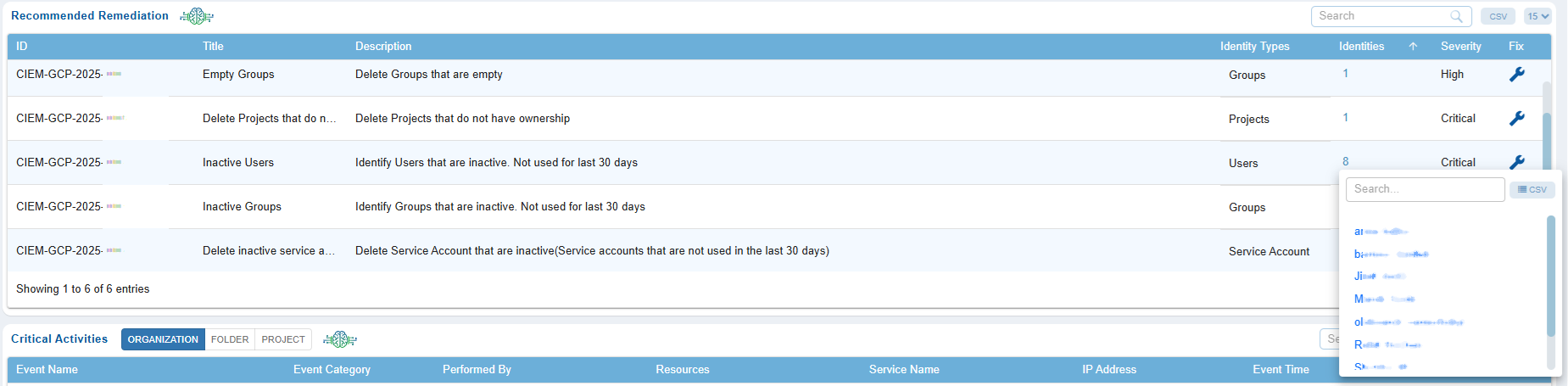
In the pop-up window, browse the list of identities and click on any identity name to open its Additional Details page.

At the top of this page, review the metadata header that helps you understand the identity’s details, creation history, assigned Permissions and Policies, relationship with other identities and so on. Note that the metadata header varies per the identity selected.

From the left-hand-side pane, click the filter button next to the Search box to display the related Inactive, Excessive resources.
Monitor High Risk Events Through Critical Activity Alerts
Critical Activities refer to high-impact and high-risk actions performed by users, service Accounts, or automated processes. Examples of critical activities include abnormal or risky sign-ins, failed authentication attempts, role assignments, privilege escalations, deletion or modification of sensitive resources, identity configuration changes, and access policy updates.
Saner CIEM(Cloud Infrastructure Entitlement Management) helps monitor High-Risk Events through Scope Specific Critical Activity Alerts dashboard views. These views provide continuous visibility into sensitive authentication attempts and high-impact operational actions across the cloud environment. The detailed evidence views present initiator information, location data, impacted resources, and event outcomes, that help analysts efficiently investigate alerts, validate legitimacy, and take corrective actions.
Saner Cloud uses the GCP API to retrieve sign-in events and audit logs from the cloud service provider, displaying them on the CIEM Dashboard separated by Scope based tabs such as Organization, Folder and Project.
| Risk Detection Type | Description |
| Anonymous IP address | Detects login attempts originating from known anonymizing proxy IP addresses, such as Tor exit nodes. Reference: Event Threat Detection overview |
| Unfamiliar sign-in properties | Flags login activity that deviates from a user’s learned baseline, such as new devices or locations. Reference: Cloud Audit Logs – Log types |
| Sensitive Service Enablement | Detects the activation of high-risk APIs (e.g., Compute, BigQuery) that increase the project’s attack surface and billing exposure. Reference: Enabled services – Calling the API |
| Service Account Key Creation | Tracks the generation of new service account keys, a common technique used by attackers to maintain persistent access outside the console. Reference: Create and delete service account keys |
| Resource Path Mapping | Shows the exact project and resource being modified (for example: projects/dev-gcp/…), providing clear “Where” context for the activity. Reference: Cloud resource hierarchy |
| Administrative Identity Tracking | Identifies the specific actor (for example: [email protected]) responsible for the change, establishing “Who” made the modification. Reference: IAM access overview |
| Service-Specific Risk | Monitors changes to serviceusage.googleapis.com, the gateway service for enabling other Google Cloud features. Changes here represent a structural shift in project capabilities. Reference: Enable or disable services |
Audit Actions Regularly
Ensure the following actions are logged and reviewed periodically:
Restrict Permissions
Use the principle of least privilege, granting access to these actions only to trusted, high-level users or service roles.
Enable Multi-Factor Authentication (MFA)
Require MFA for users with permissions to perform these actions.
Use Resource Policies
Set resource-based policies to add an extra layer of control.
Tag Governance
Maintain a tagging strategy and monitor un-tagging actions.
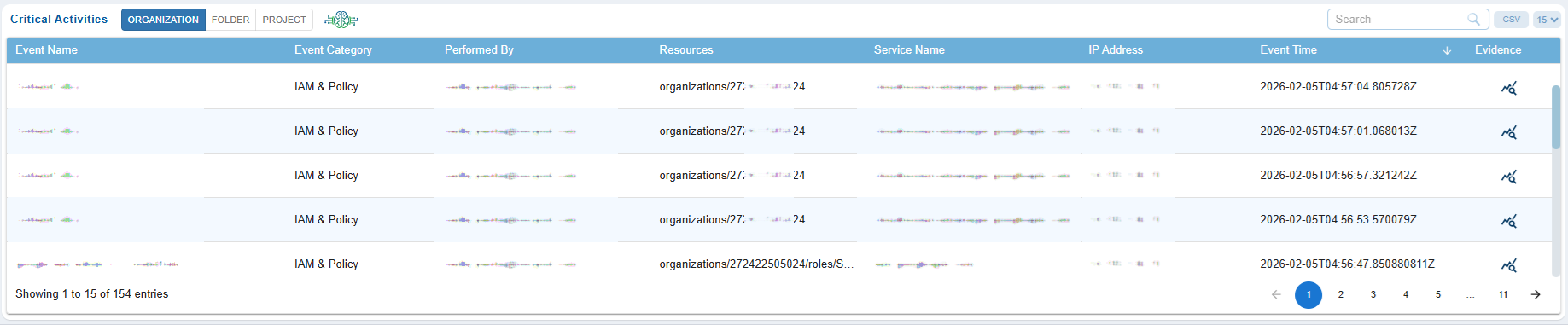
Note that Saner Cloud only displays Activities that are flagged as “Risky” by GCP to keep you focused on the important events.
Saner Cloud uses GCP API to fetch the events and display them in Critical Activities section on CIEM Dashboard categorised into scope-based sections.
Each column provides specific insight, from identifying the event through its unique Event Name, Event Category, Who performed this activity, Resource ID, Service name, IP, timestamps, and the supporting evidence behind each alert, allowing effective monitoring, investigation, and response to potential identity-based threats.
| Column | Description |
|---|---|
| Event Name | Shows the name of the user account involved in the activity. |
| Event Category | Category under which the Service that performed the Activity falls. |
| Performed By | Entity who performed the activity. |
| Resources | Indicates the resource which was affected by this activity. |
| Service Name | Service which was used by the entity to perform the activity. |
| IP Address | Displays the public IP address from which the event originated, allowing for geolocation checks, suspicious network detection, and anomaly investigation. |
| Event Time | Shows the exact timestamp of when the event occurred, helping in timeline reconstruction and forensic analysis. |
| Evidence | The Evidence panel for Critical Activity Alerts provides a snapshot of all the details related to the event. This includes the event’s timestamp, unique IDs, and alert type. Key request information is highlighted, such as the client application used, the user’s IP address, and event characteristics like Operation and user agent. |
Review Evidence Details for Critical Activity
Evidence in the Critical Activity view provides comprehensive details about any important events at different scopes/levels like Organization, Folder and Project. It consolidates essential information, including Event Name, Event Category, Performed By, Resources, Service Name, IP Address, Event Time, Evidence.
Follow the steps below to review evidence details for a GCP Critical Activity alert:

From the Critical Activity “Sign-In Alert” tab, click the Evidence icon specific to an Event Name.
Below is an example of an event caused by IAM service falling under the IAM & Policy category at the Scope Organization.

Review the timestamp, unique event Name, Event Method and which resource was affected by this event.

Get to know the entity which has performed the activity.

Look at the Action Performed which could be granting permission to a resource or modification of resource properties.

Assess the geographic details derived from the IP address, how the operation was authorized and if the authorization was valid or not.
Here is one more example of an event caused by bigquery.googleapis.com falling under the Data Management category at the Scope Project.

Review the timestamp, unique event Name, Event Method and the resource affected by this event.

Get to know the entity that has performed the activity and the method used to perform it.

Look at the Action Performed which could be permission to an operation and if it was granted or denied.

Assess the geographic details derived from the IP address, how the operation was authorized and if the authorization was valid or not.

