Pre-requisites
Make sure to log into the GCP Console as an Organization Administrator, Organization Role Administrator, or Editor for the Project (where the service account is created) and have Super Admin access to the Google Workspace Admin Console.
Notes
- Keep the target project ID and organization ID handy, as those are needed for the onboarding process.
- In the top navigation bar, click on organization or project name
- Select “All Resources” to view Organization ID and Project IDs required for onboarding
- It’s mandatory that the target project is linked to an active billing account for successful onboarding.
- Make sure the project where the service account gets created has fewer than 100 existing service accounts. GCP limits each project to a maximum of 100 service accounts, so onboarding fails on exceeding the limit.
Create a New Account in Saner Cloud
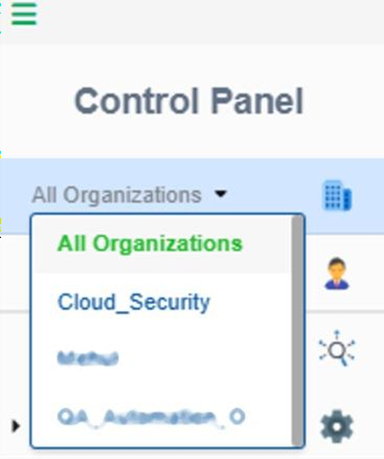
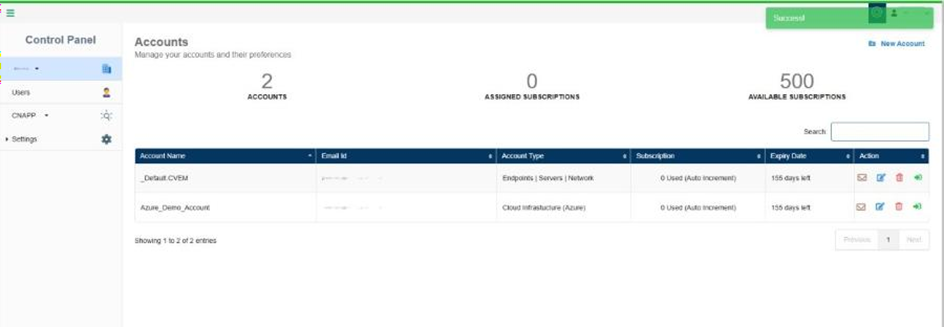
Step 1: In the Control Panel, open the All Organizations drop-down menu and select the organization for which you want to create the new account.
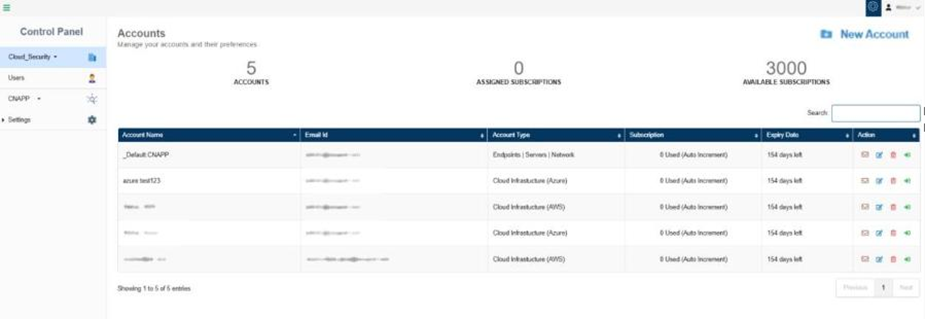
Step 2: To create a new account, click the New Account button on the top-right of the page.
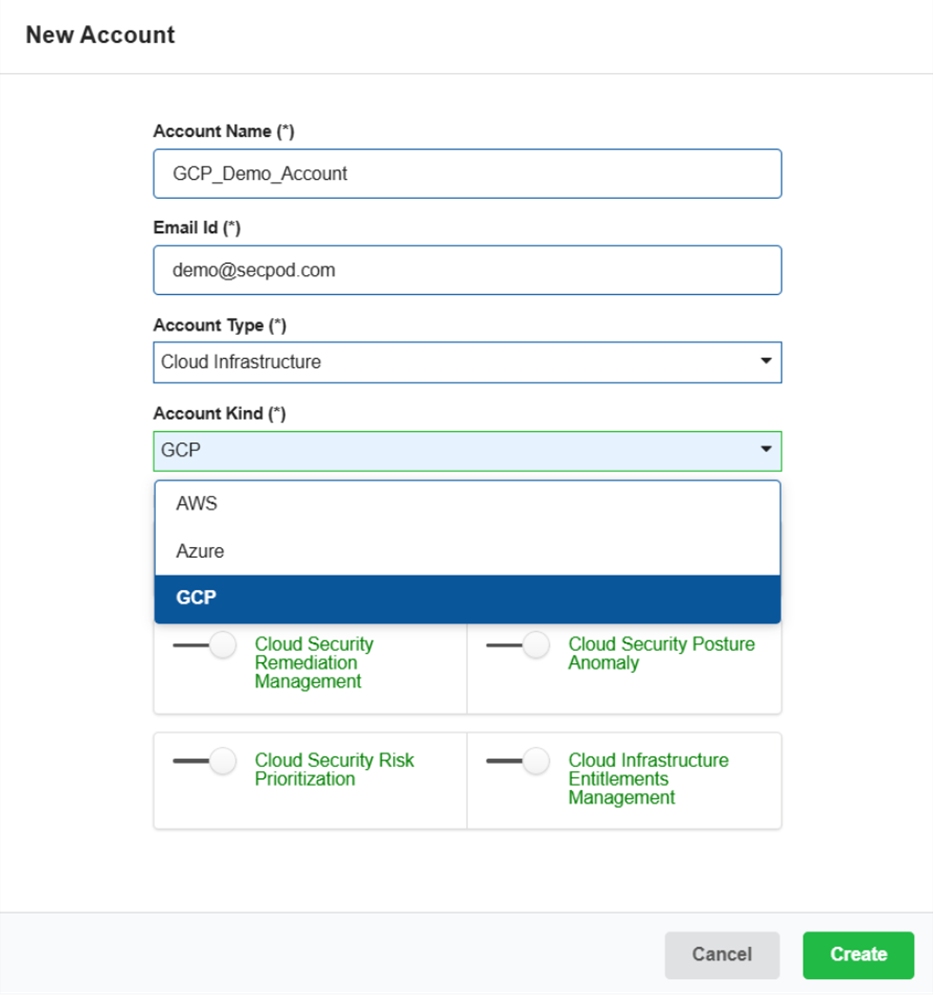
Step 3: Complete all the details required to create the new account.
- Provide the name of the cloud account
- Key in a valid email address
- Choose the account type “Cloud infrastructure” from the drop-down list and choose the cloud provider as “GCP” from the drop-down list
- Turn on the slider to provision the relevant tool for the account
Step 4: Click the Create button.
The newly created account displays in the Accounts page within a tabular format with the following details:
- Account Name
- Email ID
- Account Type
- Subscription
- Expiry Date
- Action
Note: In the Action column, you have the facility to set up the mail settings for the corresponding account, edit the current account details, delete the account, and redirect to the dashboard view of this account.
Download the Organization Onboarding Script “.py” OR “.sh”
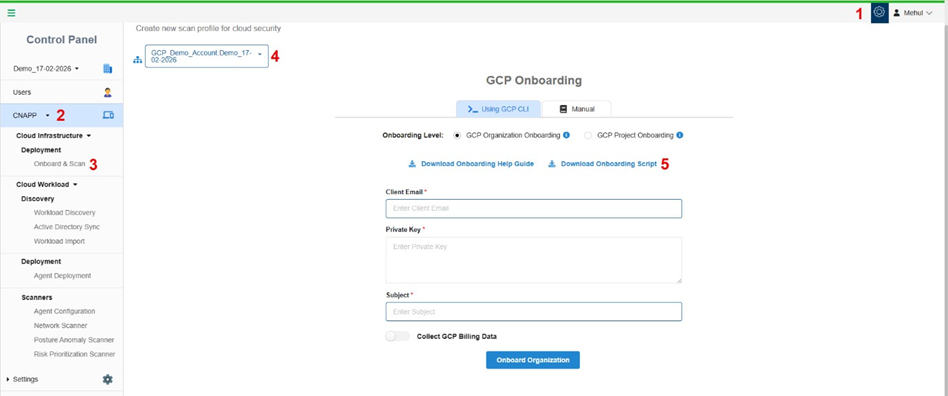
Just make sure to have logged into the application with administrator privileges. You can download the .py or .sh files from the GCP Onboarding page in Saner Cloud Security Deployment.
- Access the Control Panel and choose the relevant organization.
- Click on the CNAPP menu from the sidebar.
- Choose Onboard and Scan under Cloud Infrastructure Deployment.
- Choose the Account Name that you want to onboard. The GCP Onboarding page opens.
- Click the link “Download Onboarding Script” and select the script you choose to download.
Note : Make sure you extract the script files from the compressed (.zip) folder.
Onboard GCP Organization to Saner Cloud
Step 1: Generate Onboarding Credentials using GCP Cloud Shell
In the GCP Console
- Log in to the GCP portal in the top bar and click Activate Cloud Shell.
Note: If this is your first time using the Cloud Shell, you’ll be prompted to learn more about the shell. Click Continue to proceed. Review the GCP Documentation.

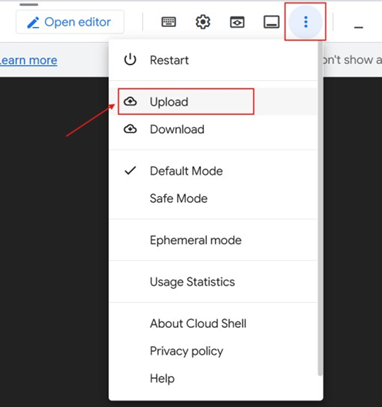
2. Upload the onboarding script (“.py” OR “.sh”) to GCP CLI. To upload, click More (vertical ellipsis) on the CLI, then select Upload and choose the onboarding script (either “.py” OR “.sh”) from its downloaded location, and then click Upload.
3. Look for the message on the terminal for successful uploading of the script.
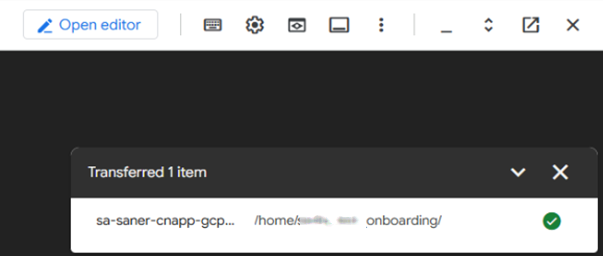
4. Verify with the ls command that the script has been successfully uploaded on the terminal.

5. Run the command below to switch to the project under which you want to create a service account.
gcloud config set project <project-id>

6. Onboard GCP Organization to Saner Cloud by executing the below command with the uploaded “.sh” OR “.py” Scripts.
Execute “.sh” Script
NOTES
- In order to run the “.sh” script, it’s mandatory that you provide the execute permission using the following command:
chmod +x sa-saner-cnapp-gcp-enable-onboarding-permissions-org-level.sh- For usage instructions, run the script with –help for .sh file
./sa-saner-cnapp-gcp-enable-onboarding-permissions-org-level.sh –help
- Replace the <project_id> and <org_id> with actual IDs from your organization in the below command and execute.
- On completing the execution, continue from Point #7.
./sa-saner-cnapp-gcp-enable-onboarding-permissions-org-level.sh –project-id <project_id> –org-id <org_id>

Execute “.py” Script
Replace the <project_id> and <org_id> with actual IDs from your organization in the below command and execute.
Note: For usage instructions, run the script with –help for .py file
python3 sa-saner-cnapp-gcp-enable-onboarding-permissions-org-level.py –help
On completing the execution, continue from Point #7.
python3 sa-saner-cnapp-gcp-enable-onboarding-permissions-org-level.py –project-id <project_id> –org-id <org_id>

7. Saner Cloud provides Billing information as part of Cloud Security Asset Exposure (CSAE).
In order to view the Billing information on the CSAE dashboard, BigQuery dataset needs to be configured for billing exports.
The script helps you create Dataset at a desired Location/Region and generate credentials that’s needed during onboarding.
a. If you choose to enable this feature, Type – “yes”, when prompted by the script and follow the on-screen instructions.
i. When input type is “yes”, script gets initialized with the necessary Billing Configurations.
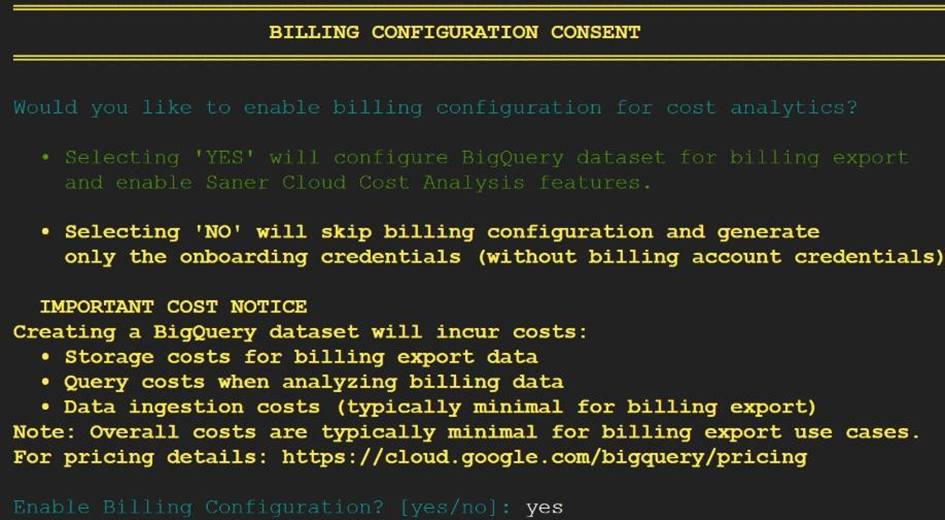
ii. Choose a location where you want to create the Dataset for billing from the location options listed on CLI:
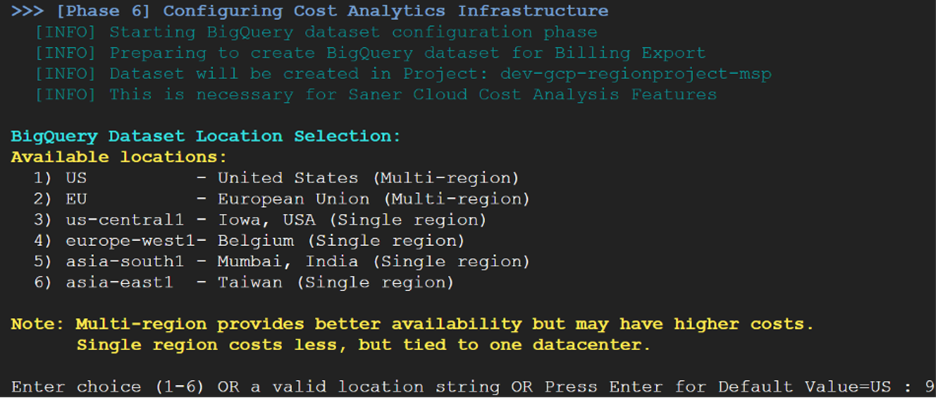
The output saves the service account credentials with billing configuration to a secure JSON File in this format sa-saner-cnapp- onboarding-credentials-<time_ystamp>.json
b. If you do not wish to see the Billing information on CSAE Dashboard, type – no, when prompted by the script and follow the on-screen instructions.
i. Script gets Initialized without the necessary Billing Configurations.
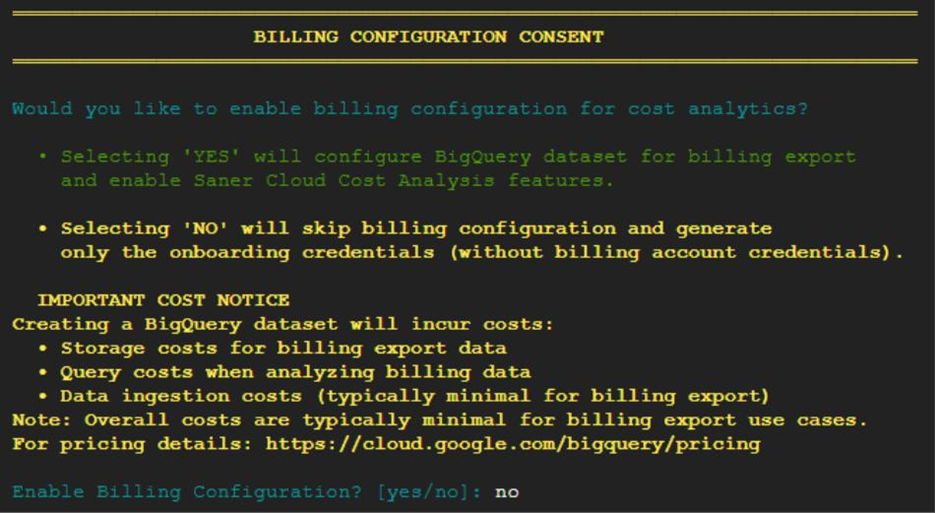
ii. The output saves the service account credentials without billing configuration to a secure JSON File in this format:
sa-saner-cnapp-onboarding-credentials-<time_stamp>.json
Recommendations
- Copy the credentials from the JSON file to your Secure Vault.
- DELETE the credentials file after copying
- DELETE the service account key file
Note: To delete the files run rm <file_name>.
Step 2: Enable Domain-Wide Delegation (DWD)
Carry out the next few required steps to add scopes to the service account that just got created.
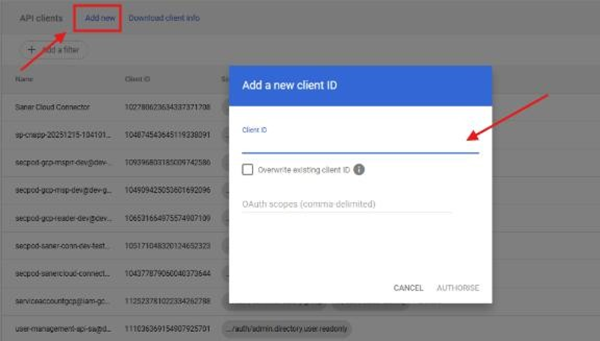
- Log in to admin.google.com and go to Security > Access and data control > API controls and click on Manage Domain Wide Delegation.
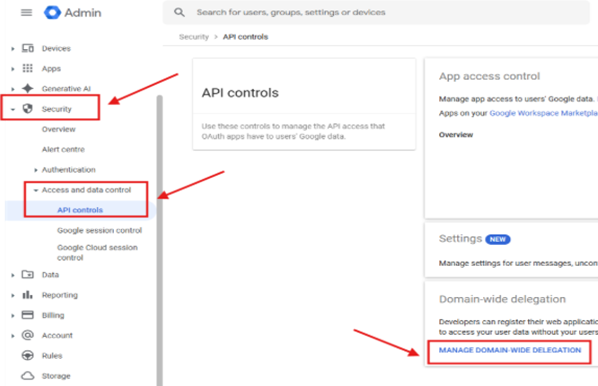
- Add Scopes in Admin Console (Manual Steps):
- Click “Add New”
- Client ID: Copy the Client ID from the credentials in Step 1
- OAuth Scopes: Add scopes mentioned below to the client ID
Note: The Scopes could be added one by one to separate fields or they could also be added in a single field with comma separated values.
https://www.googleapis.com/auth/admin.directory.user
https://www.googleapis.com/auth/admin.directory.group
https://www.googleapis.com/auth/cloud-identity
https://www.googleapis.com/auth/cloud-platform
https://www.googleapis.com/auth/admin.reports.audit.readonly
https://www.googleapis.com/auth/cloudplatformprojects
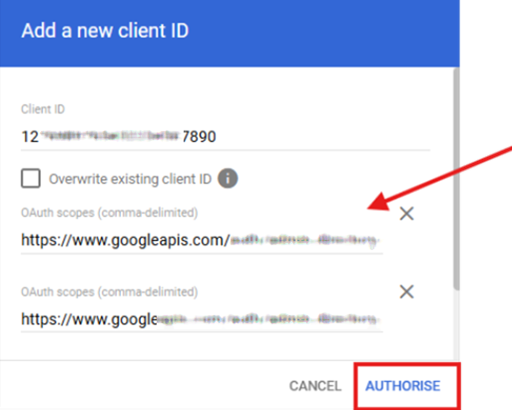
- Once all the Scopes are Added, click on AUTHORISE to update the scopes.
Step 3: Manual Step Required for Cost Tracking
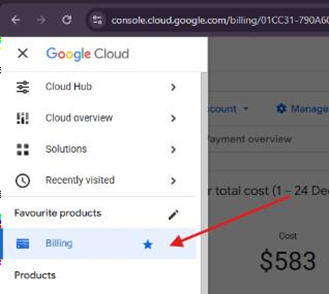
- Navigate to your Cloud Console and choose “Billing” from the menu on the top left corner.
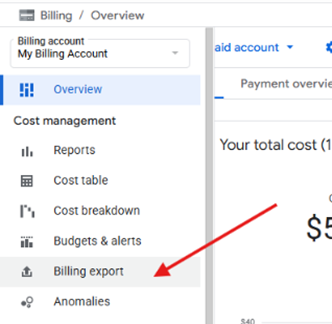
2. Click on “Billing export” from the left panel under Billing Overview.
3. Click “Edit Settings” under “Detailed usage cost” data.
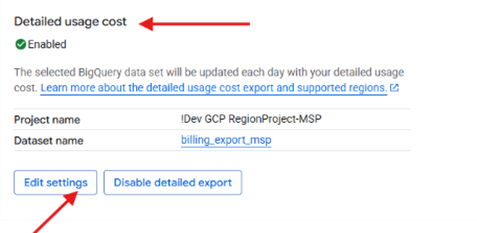
4. Select Project and Dataset from the Project Drop down menu and click on Save.
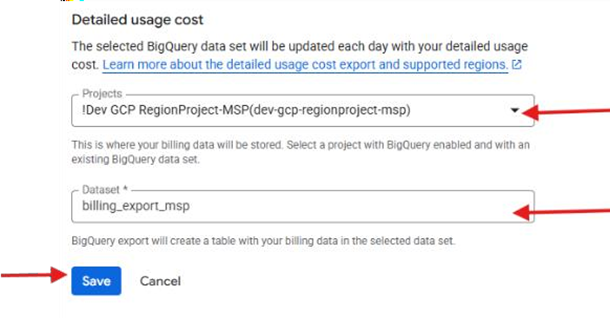
Google Cloud billing data is added, covering the current and previous month from the time the data is populated in the dataset. During the first data backfill, it can take up to five days for your Cloud Billing data to begin with exporting. You will start seeing your usage data only after this process is complete.
Wait for 5 days for the first billing data to appear on your SanerCloud dashboard. Note that this is a one-time setup. After the data linking activity completes, new data gets exported automatically.
Go through the GCP Guide for more details.
Step 4: Complete the Onboarding on Your Saner Cloud Account
- Return to the Saner Cloud Onboarding Portal.
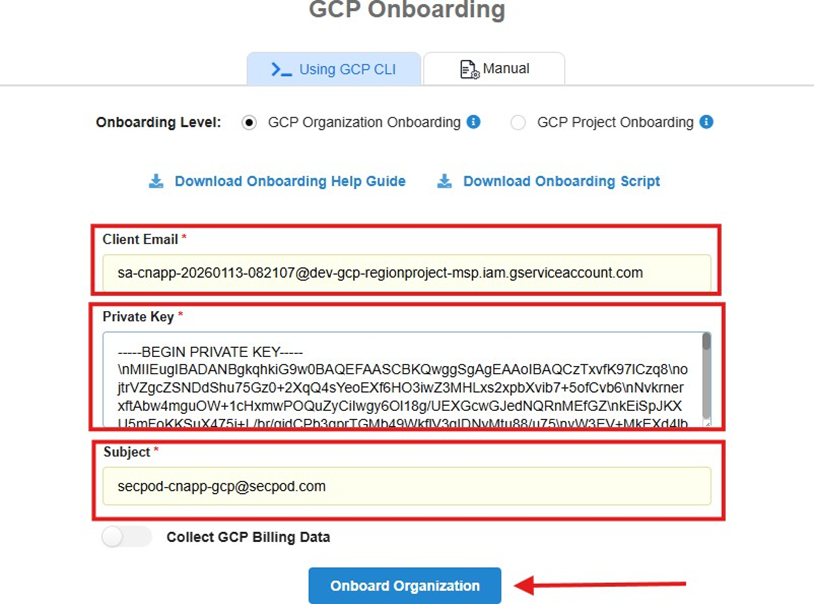
- Enter the Service Account JSON (Client Email, Private Key) generated in Step 1.
- Subject: Enter the email address of a Super Admin user in your Google Workspace.
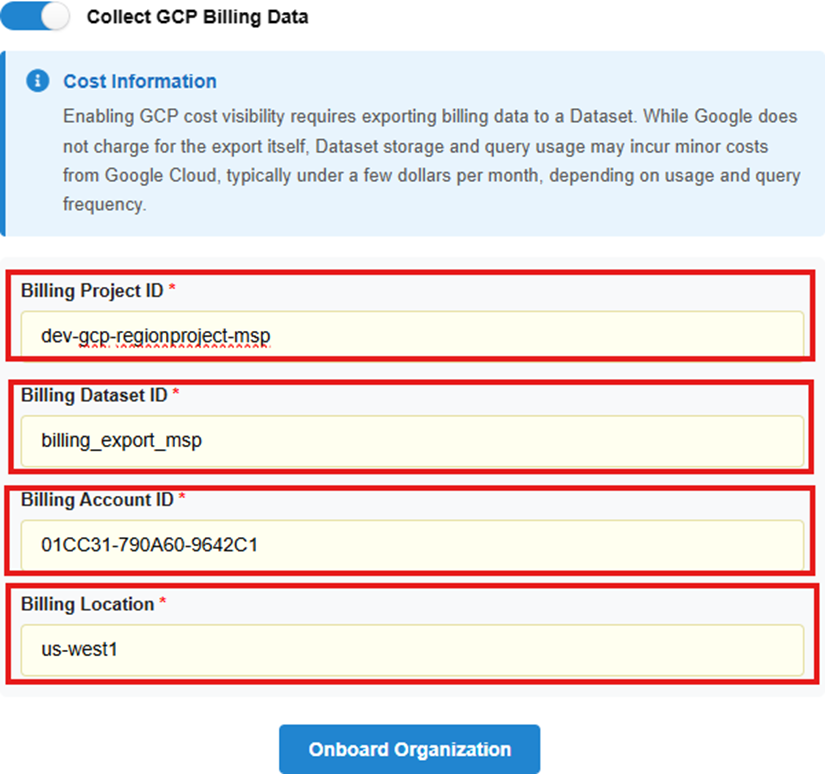
- Click on “Enable Billing” If the Billing Credentials are generated while executing the script and copy paste the billing credentials
- Click Connect / Finish Onboarding.
[Optional] Enable Billing