Users can onboard one or multiple projects from Google Cloud Platform to a single Saner Cloud GCP account, provided all projects are linked to an active billing account. The onboarding process creates a GCP Service Account in one primary project, where the user must have Editor, Project IAM Admin, and Role Administrator privileges. For additional projects, Project IAM Admin and Role Administrator privileges are required. The user must also have Super Admin access to the Google Workspace Admin Console.
Note: Make sure that the project where the Service Account gets created has lesser than 100 existing Service Accounts. Google Cloud Platform enforces a maximum limit of 100 Service Accounts per project, and the onboarding process will fail if this limit is exceeded.
Create a New Account in Saner Cloud
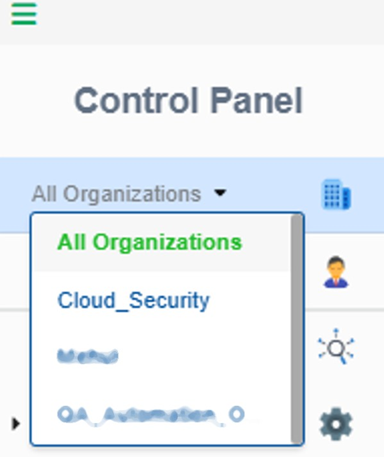
Step1: In the Control Panel, open the All Organizations drop-down menu and select the organization for which you want to create the new account.
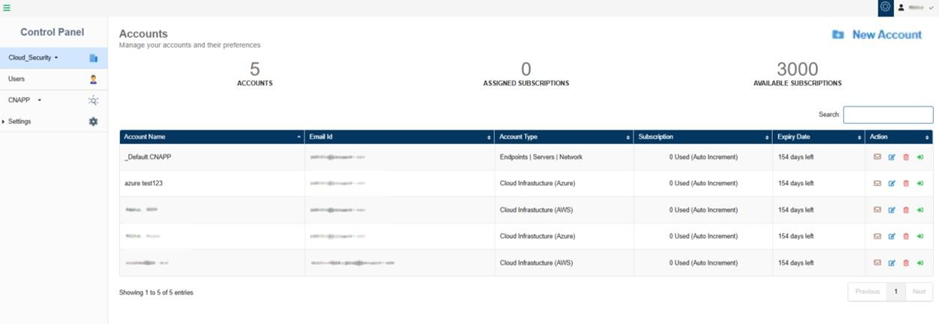
Step2: To create a new account, click the New Account button on the top-right of the page.
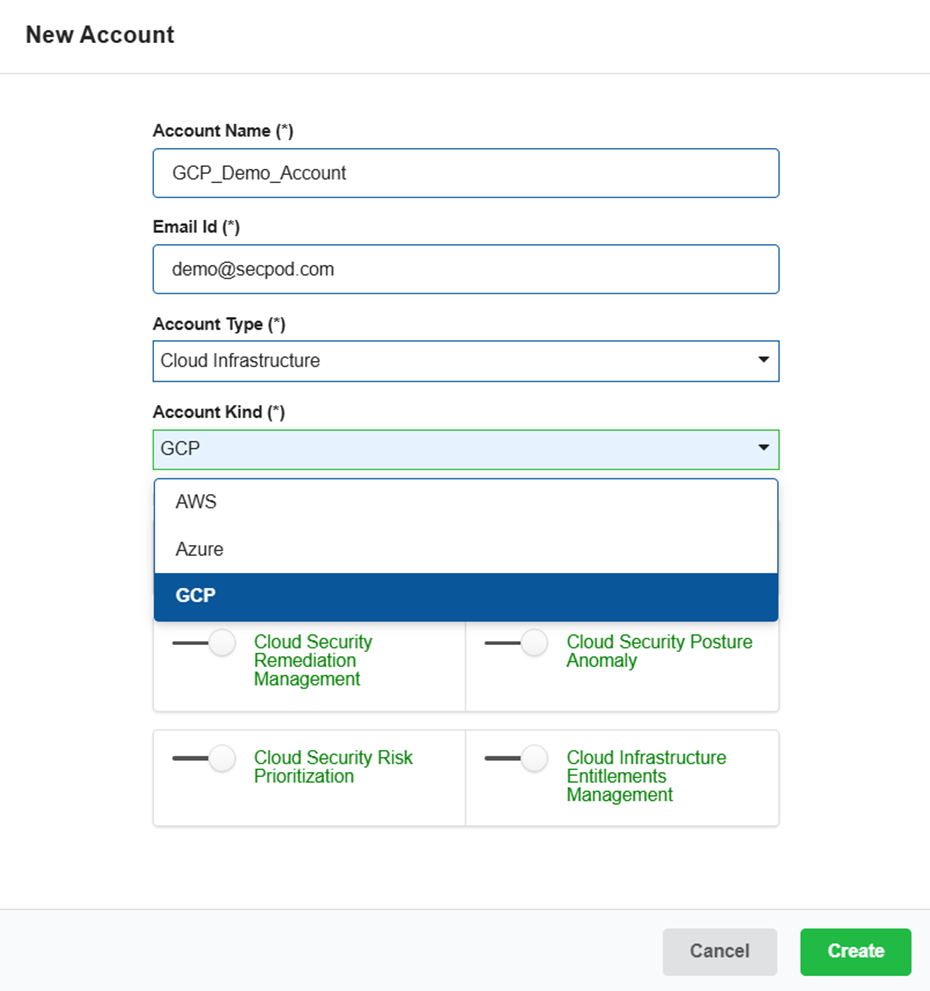
Step3: Complete all the details required to create the New Account.
Provide the name of the cloud account
Key in a valid email address
Choose the account type “Cloud infrastructure” from the drop-down list
Choose the cloud provider as “GCP” from the drop-down list
Turn on the slider to provision the relevant tool for the account
Step4: Click the Create button.
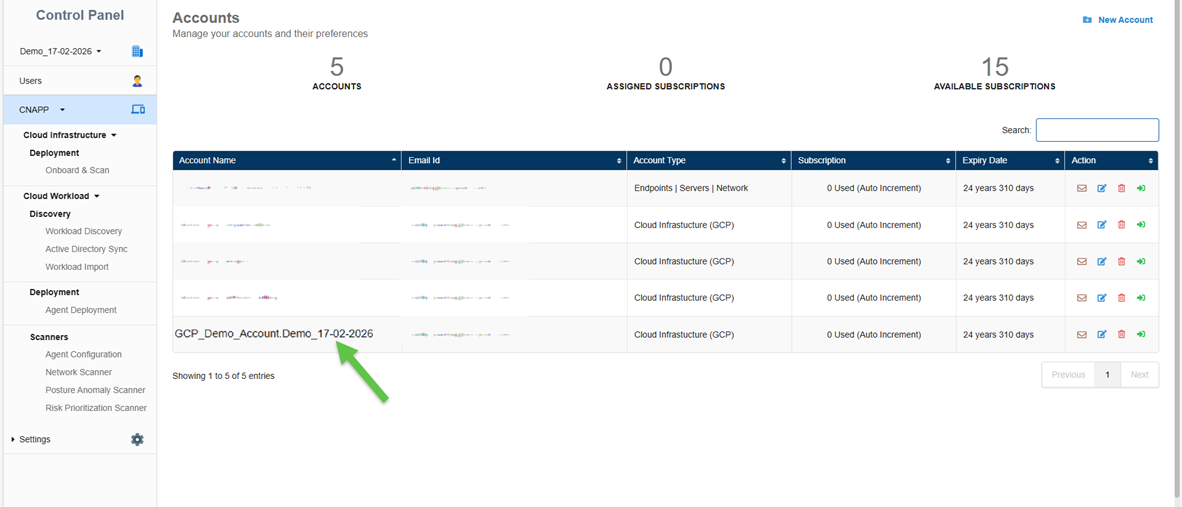
The newly created account displays in the Accounts page within a tabular format with the following details:
Account Name
Email ID
Account Type
Subscription
Expiry Date
Action
Note: In the Action column, you have the facility to set up the mail settings for the corresponding account, edit the current account details, delete the account, and redirect to the dashboard view of this account.
Integrate Your GCP Account with Saner Cloud Security
Saner Cloud Security (CNAPP) provides a streamlined process to integrate your Google Cloud Platform account for continuous visibility, monitoring, and security posture assessment. You can connect your GCP account using either an automated or manual approach, depending on your organization’s security and operational requirements.
The following section outlines the platform setup steps and the available integration methods.
Setup
Step1: Login to Saner Cloud Security platform.
Step2: Click on “Control Panel” and select the account that you have created following the steps in prerequisites.
Available Integration Methods
There are two ways to connect your GCP account with Saner Cloud Security listed in order of recommendation.
Method 1: GCP CLI – Recommended
Fastest and most secure method
Automatically sets up all required permissions
Minimal manual configuration needed
Method 2: Manual
Requires manual setup of permissions
Good for organizations requiring in-depth visibility of the onboarding process
Steps to Use the Manual Method
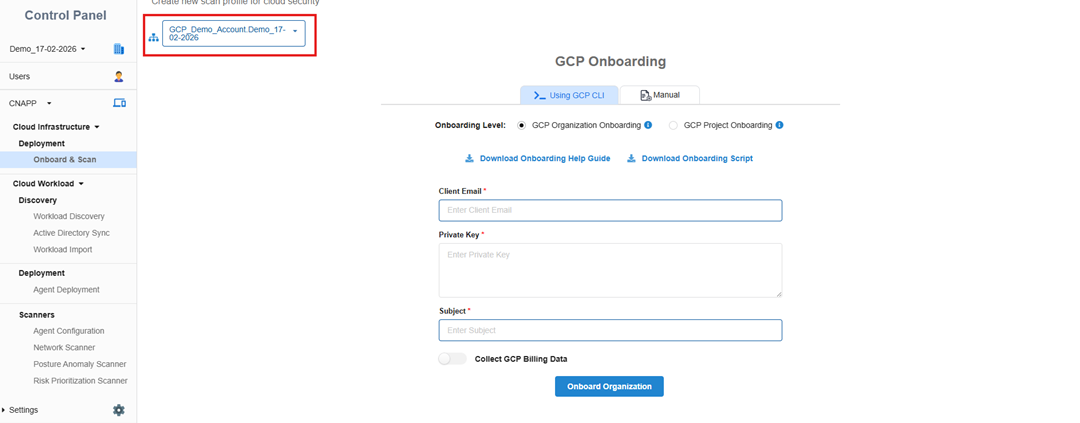
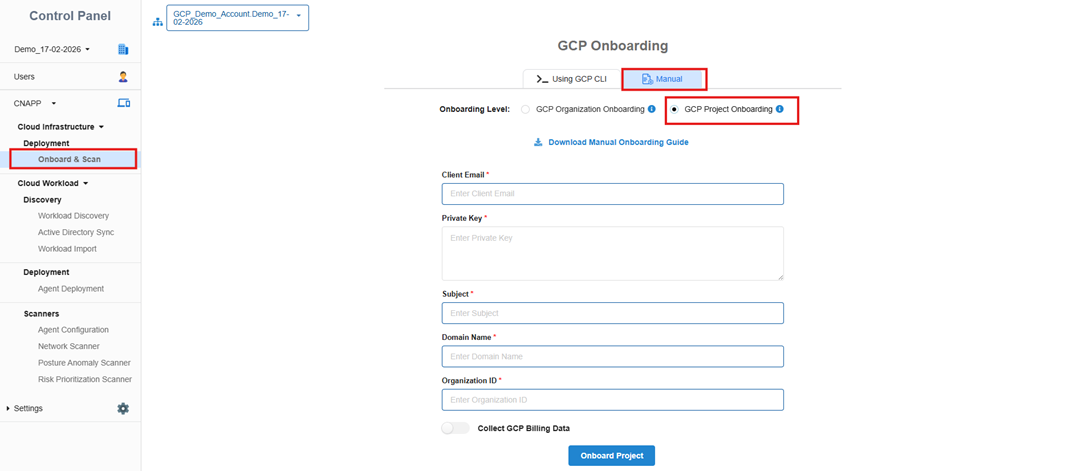
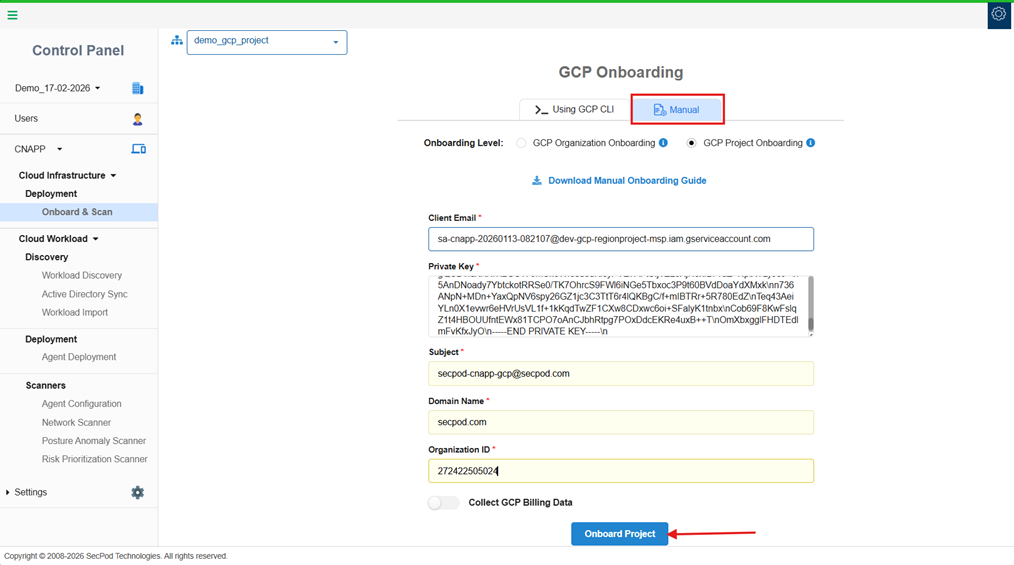
Step1: Under Saner Cloud Security, click on “Onboard & Scan”.
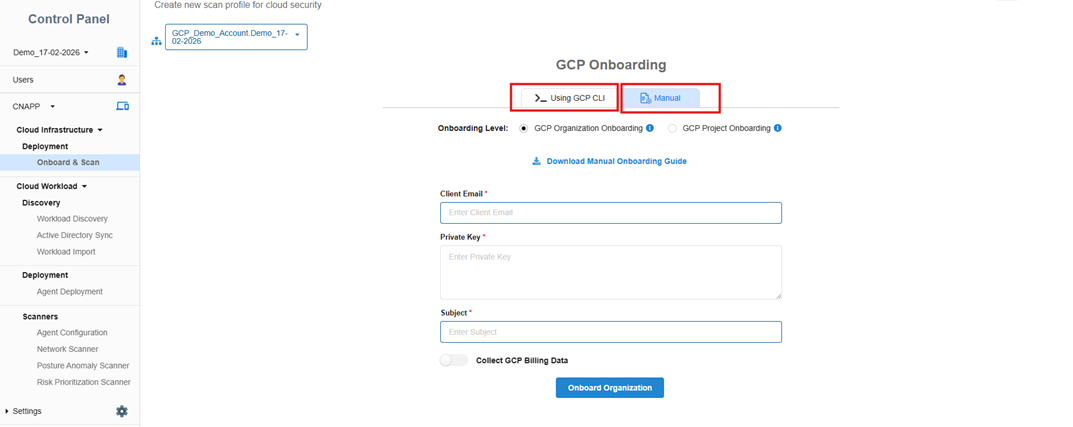
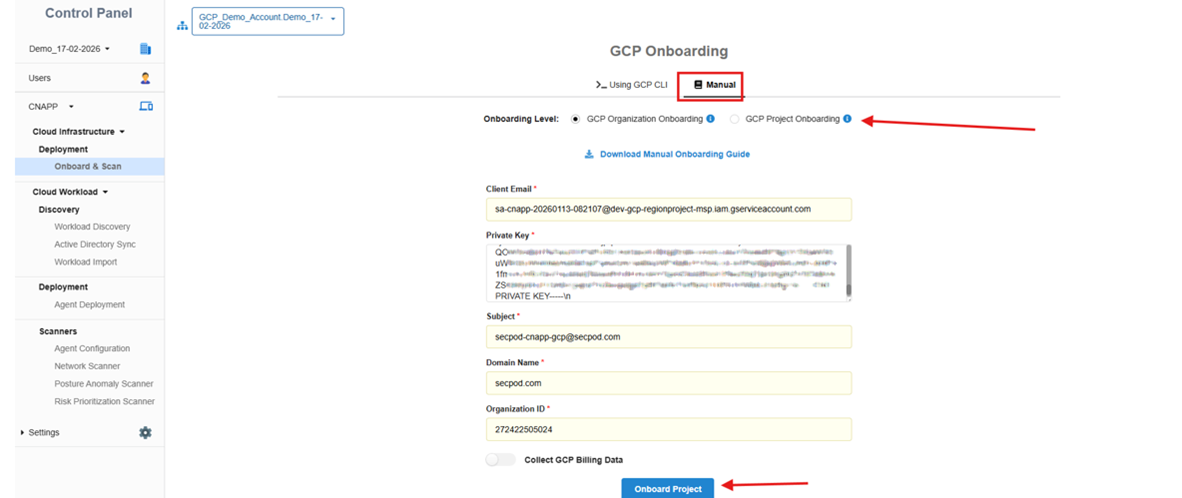
Step2: Select “Manual” as shown in the following image and select “GCP Project Onboarding”.
Enable Required GCP APIs for Project Integration
To ensure all required GCP Cloud APIs are enabled for your project, you can enable APIs as described in the following steps:
Step3: Log into your GCP account.
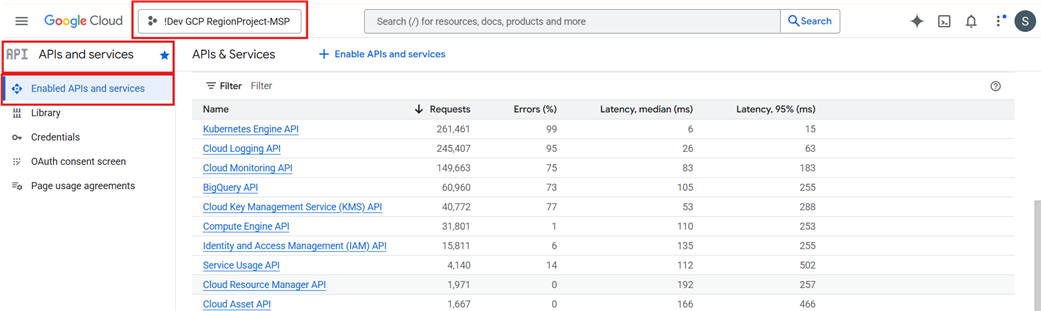
Step4: Login to Google Cloud Console, select the project that you want to use for creation of Service Account and onboarding.
Click here to view which APIs are required to be enabled for onboarding.
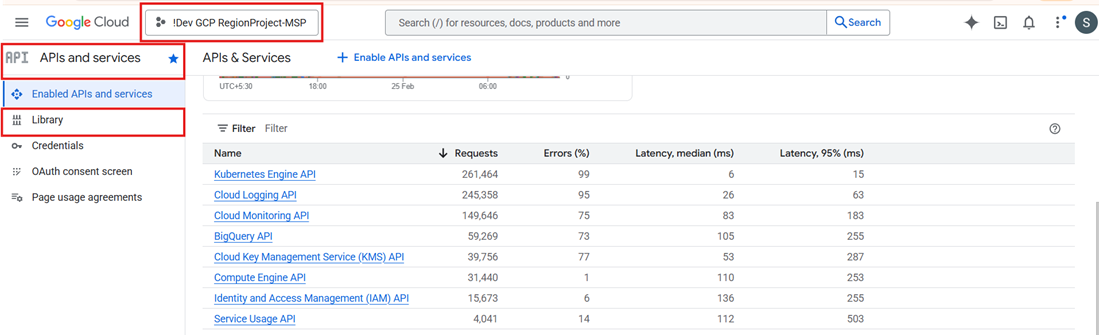
Navigate to “Enabled APIs and services” under “APIs and Services” to cross check.
Step5: To enable an API, go to “Library” under “APIs and Services,” search for the API, and click “Enable”.
Create and Configure a Custom IAM Role for Saner Cloud Security
Follow the steps below to create the required custom IAM role in your Google Cloud Platform project.
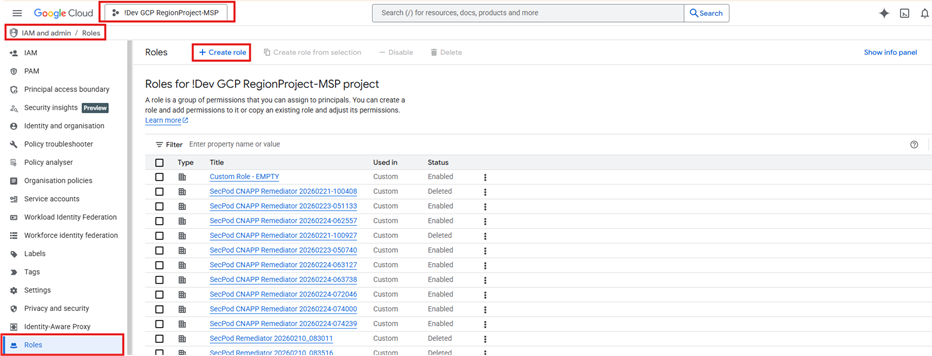
Step6: Click here to view the list of permissions that must be added to the custom role. Switch to the Project View (to the project under which you want to create the Service Account), navigate to “Roles” under “IAM and Admin” and click on “Create role”.
Step7:
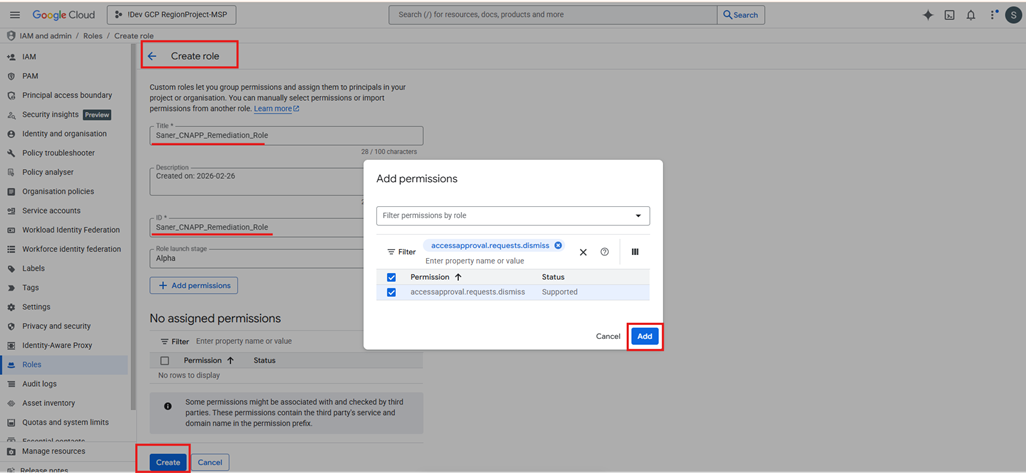
1. Enter the “Title” with “Saner_CNAPP_Remediation_Role” as Prefix (e.g. Saner_CNAPP_Remediation_Role_xxxx_xxxx)
2. Enter the “ID” with “Saner_CNAPP_Remediation_Role” as prefix (e.g. Saner_CNAPP_Remediation_Role_xxxx_xxxx)
3. Click on “Add permissions”, and in the Filter Section, copy and paste each of the permission and click on “Add”.
4. After adding all permissions, click “Create” to complete the custom role creation.
IMPORTANT:
For onboarding multiple projects, create identical custom role in all other projects that you wish to onboard to Saner Cloud Security:
For example:
Project 1 (main Project): You just created the custom role by following the Steps 6 and 7.
Project 2: Create the identical role by switching to Project 2 and repeating Steps 6 and 7.
Project 3: Create the identical role by switching to Project 3 and repeating Steps 6 and 7.
Continue this process for all other additional projects that you wish to onboard to Saner Cloud Security.
The role name and permissions must remain consistent across every project being onboarded.
Create Service Account (on Main Project only)
NOTE: Create the Service Account only in the Main Project and not in any additional projects.
Step8: Follow these steps:
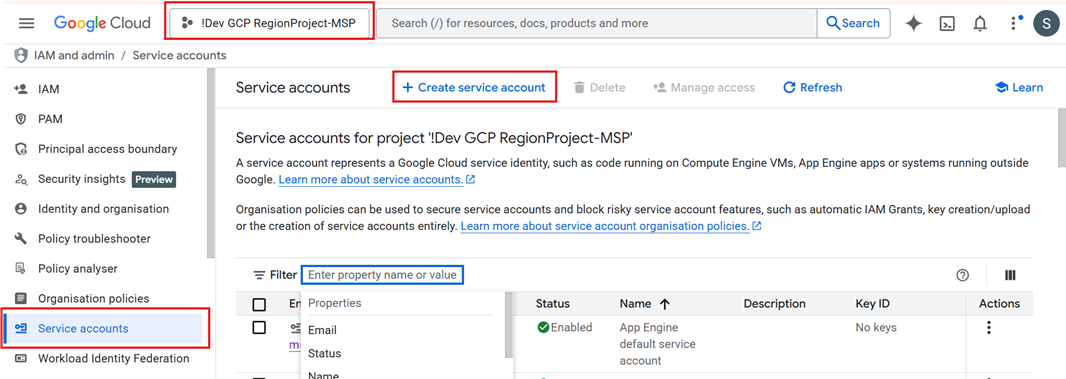
Switch to the project that you want to use for creation of Service Account.
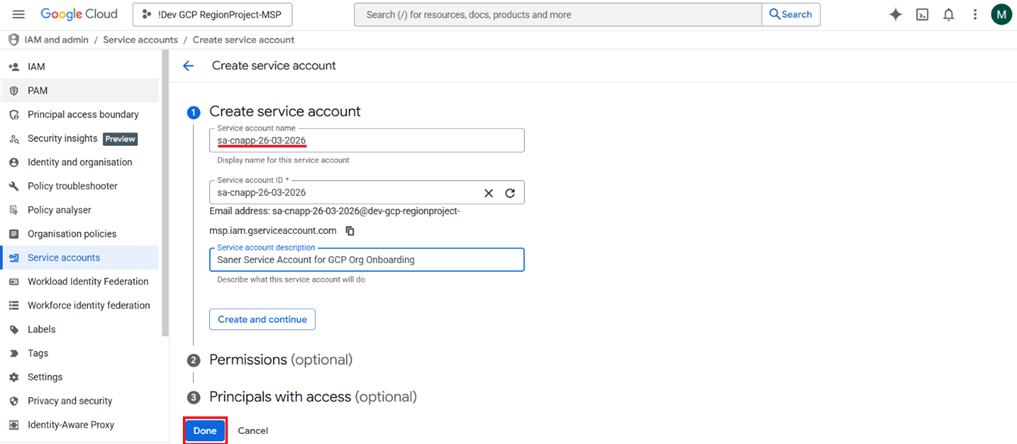
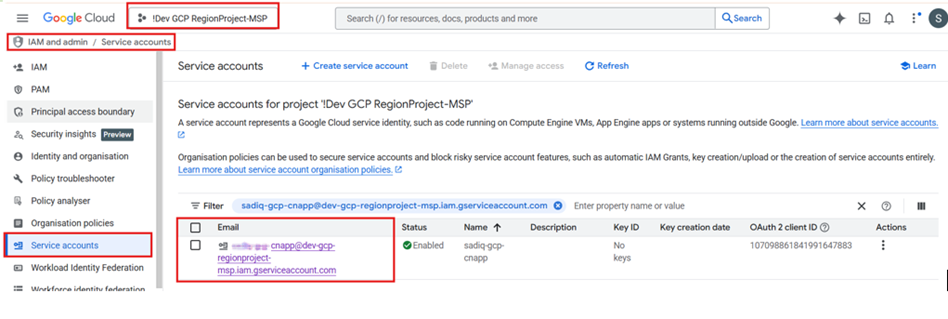
Go to “IAM and Admin” and click on “Service Accounts”, then click on a “Create service account”.
Step9: Enter the “Service Account” Name as “sa-cnapp-<date>” (e.g. sa-cnapp-16-03-2026) and a relevant description. Click on Done, to create the Service Account.
Step10: Verify the service account creation by searching the name of the service account in search bar. Make sure to copy the Service Account Name and keep it handy.
Perform the Roles Binding to the GCP Service Account (on All Projects)
Step11: Ensure you have Editor, Project IAM Admin, and Role Administrator Permissions for Project-Level bindings.
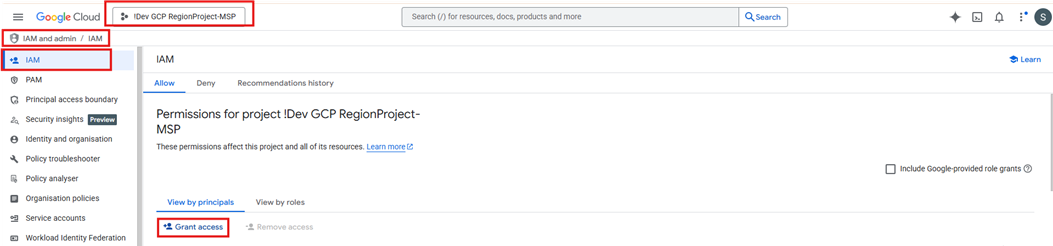
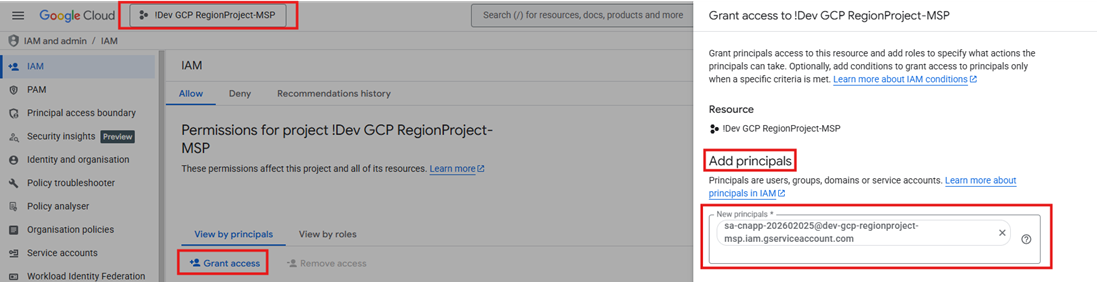
Step12: Using the Service Account created in Step 9, navigate to the Main Project page in the Google Cloud Console. Go to “IAM & Admin” → “IAM,” and click “Grant Access.”
Step13: Add the Name of the Service Account created manually or paste the Name of the Service Account copied in Step 10 in the “New Principals” section.
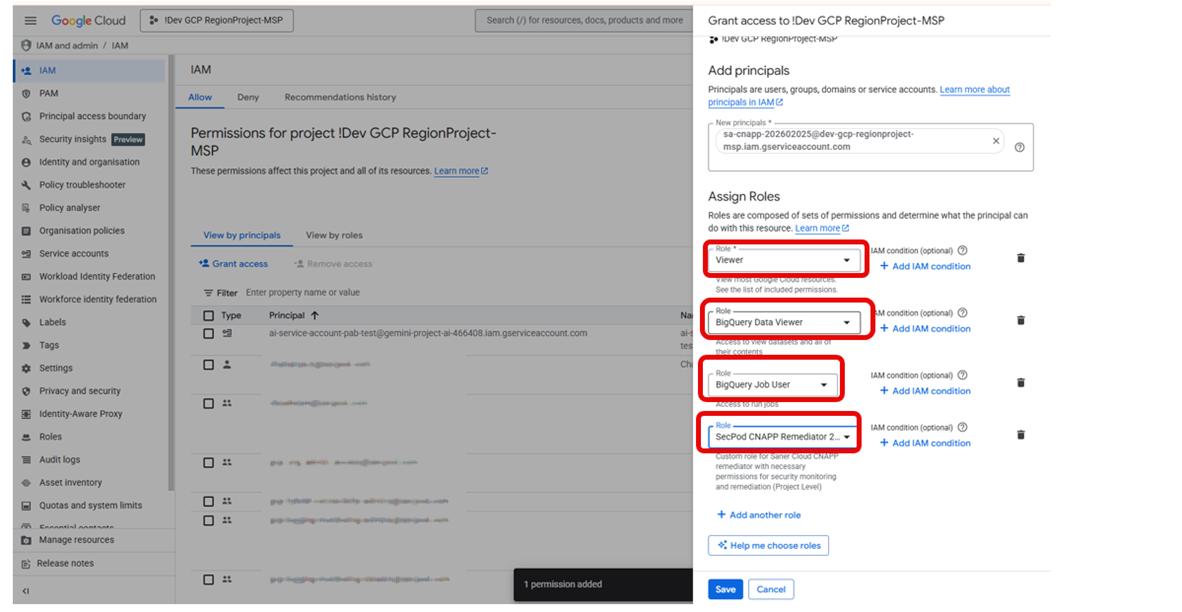
Step14: Follow these steps:
Assign the roles such as Viewer, BigQuery Data Viewer, BigQuery Job User
Also, assign the Custom Remediator Role Saner_CNAPP_Remediation_Role_xxxx_xxxx created in Step 7.
Once all the roles are assigned, click “Save”.
Step15: If you are onboarding multiple Projects to Saner Cloud Security, repeat Step13 and Step14 for all the additional projects that you are onboarding.
NOTE To verify if above steps were done successfully, Switch to the Project where the Service Account was created. Navigate to “IAM” under “IAM and admin” and check that the Service Account has Inherited Viewer and Custom Role which were assigned to the Service Account (e.g. “Saner_CNAPP_Remediation_Role_xxxx_xxxx”) at the Org Level.
Service Account Key Generation
Step16: Follow these steps:
Navigate to “IAM & Admin” in the project where the Service Account was created.
Click “Service Accounts”, and search for the Service Account created in Step 9
Select the service account from the list by clicking on it.
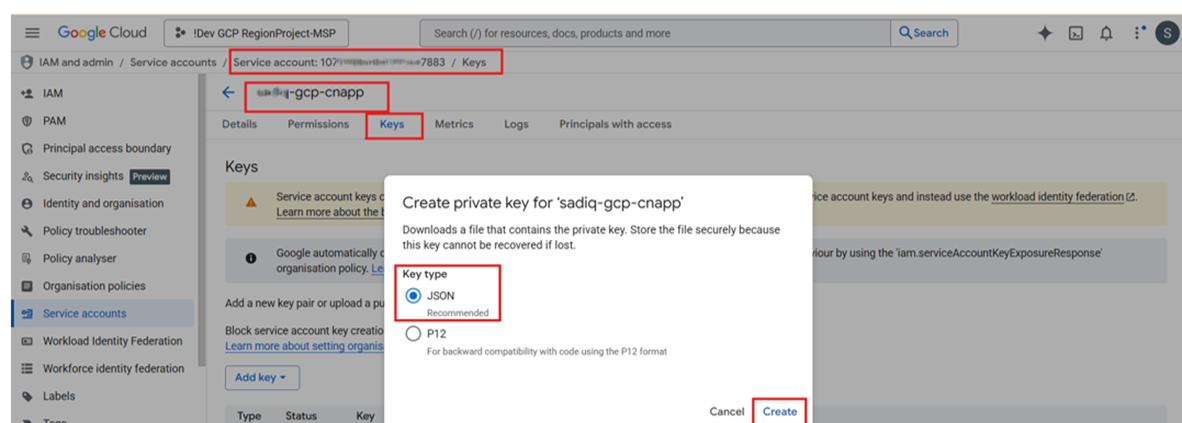
Step17: In order to acquire the Private key required for onboarding, Go to Service account Page and navigate to the “Keys” tab. Click on “Add Key” and select “Create new key”, choose the “Key type” as JSON and click on Create.
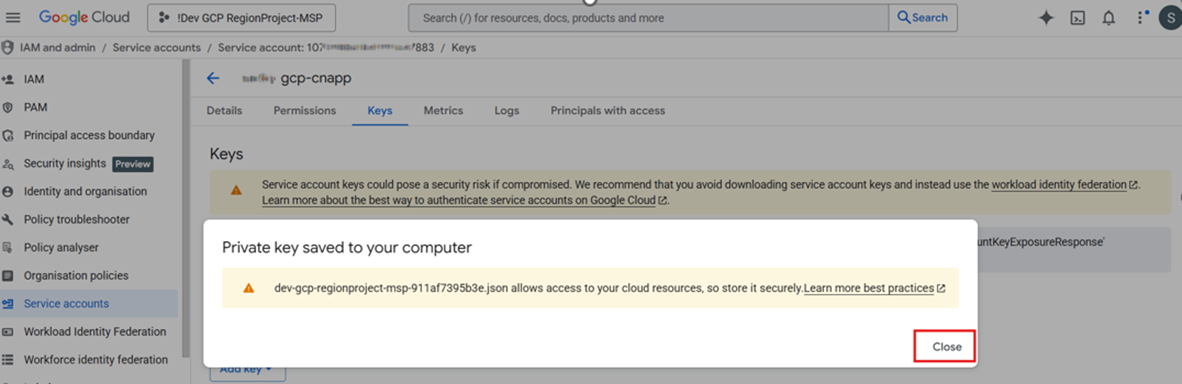
Step18: Once the key is generated, a popup message appears and the key is downloaded to the user’s local system. Click “Close” on the confirmation popup window. Store the JSON file to a secure location for future reference.
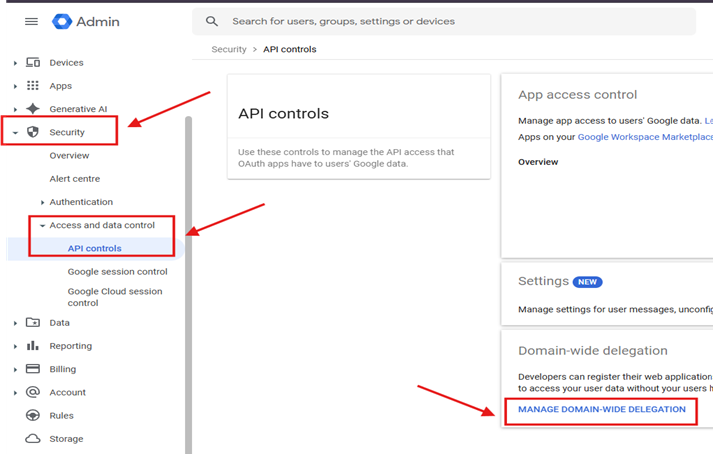
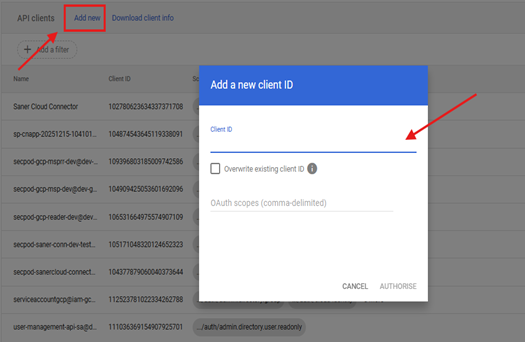
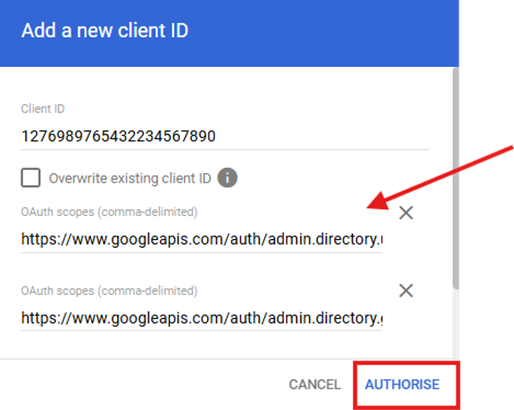
Step22: Once all the Scopes are added, click on AUTHORISE to update the scopes.
IMPORTANT: If you wish to see the GCP Billing data in Saner Cloud CSAE dashboard, and necessary roles [BigQuery Related] were added to the Service Account to support it as part of Step 16, you can continue from Step 23 onwards. Else jump to Step 30 to complete the Onboarding Process.
[Optional] Steps to Enable Billing Export to BigQuery
NOTE: Please keep a note of Project ID, Dataset ID, Dataset Location and Billing Account ID which you will use in below steps for future onboarding steps.
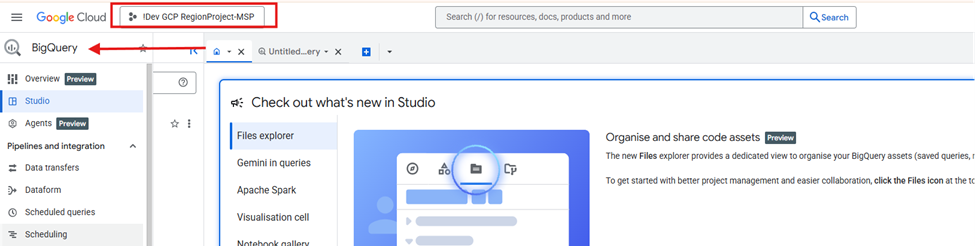
Step23: Select the Project where the Service Account was created and navigate to the BigQuery Console.
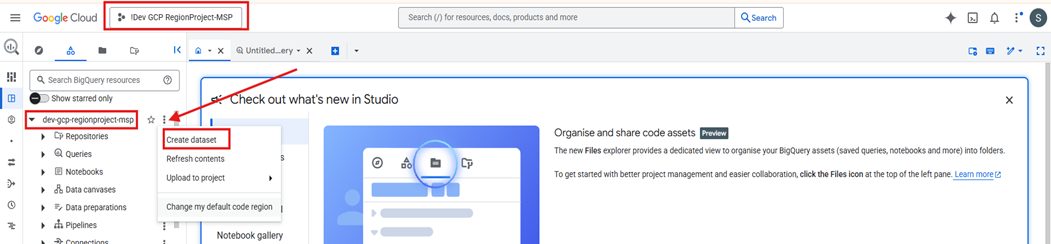
Step24: In the left panel, click on the arrow to expand options under the Project ID and click on the “Create dataset” as shown in following image.
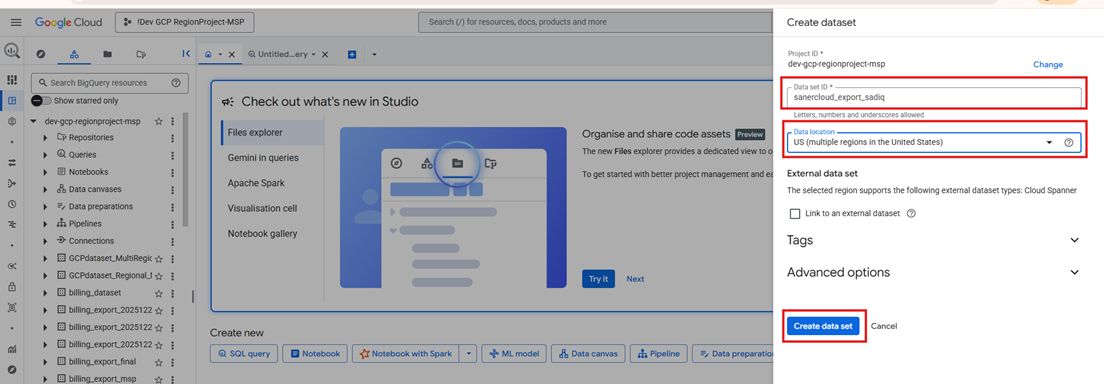
Step25: Follow these steps:
1. Enter a Dataset name in format such as, “sanercloud_export_YYYYMMDD”.
2. Choose a location where you want the Dataset to be created (example: US , EU, us-central1, etc)
3. Click on “Create data set”
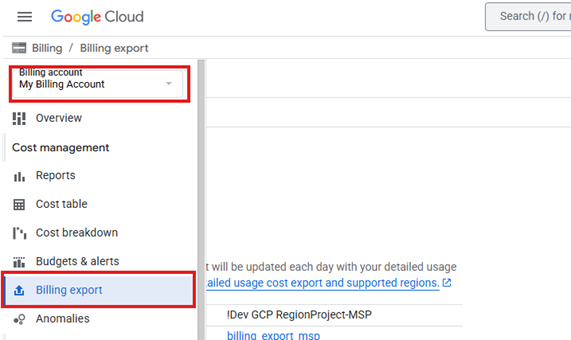
Step26: Navigate to the Billing Console and select the Billing Account which needs to be linked with the Dataset created in Step 25.
Step27: From the left-hand-side Menu, click “Billing Export”.
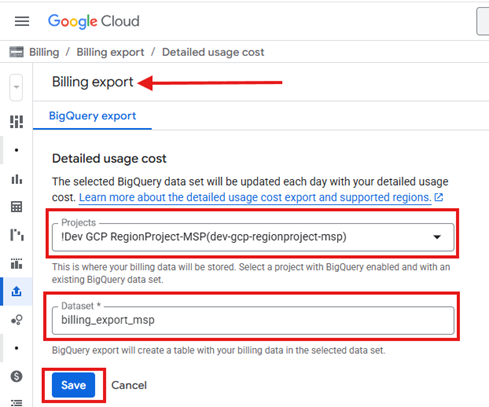
Step28: Under “Detailed usage cost”, select the project where the Dataset was created, and select the Dataset that was just created and click on “Save”.
Note:
Cloud Billing data is populated for both the current and previous month starting from the time the dataset begins receiving data. During the initial backfill process, it may take up to five days for the billing data to start exporting. You will begin seeing your usage data only after the backfill process is completed.
Allow up to five days for the initial billing data to appear on your Saner Cloud Dashboard. This is a one-time setup process. Once the data linking is completed, new billing data will be exported automatically on an ongoing basis. For more information, refer to the GCP Guide.
[Required] Make a note of the Project ID, Dataset ID, and Location of the dataset that was created, as well as the Billing Account ID where the billing_export is linked to the dataset.
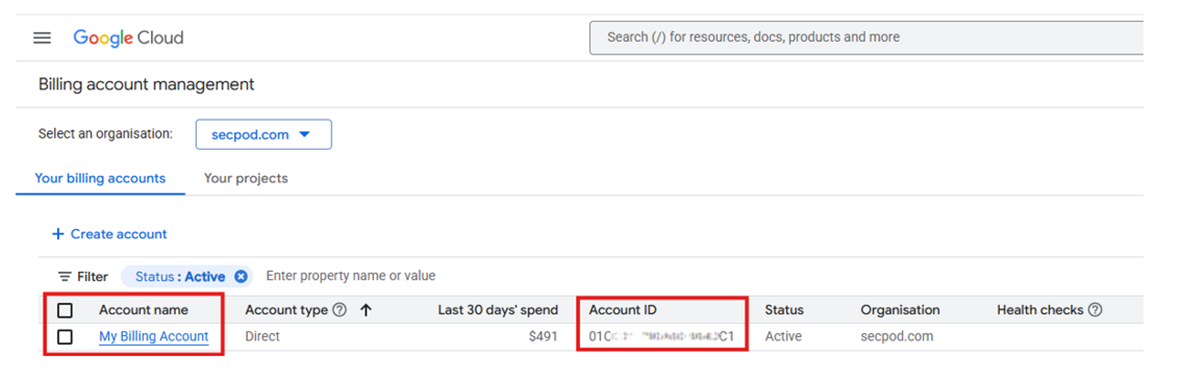
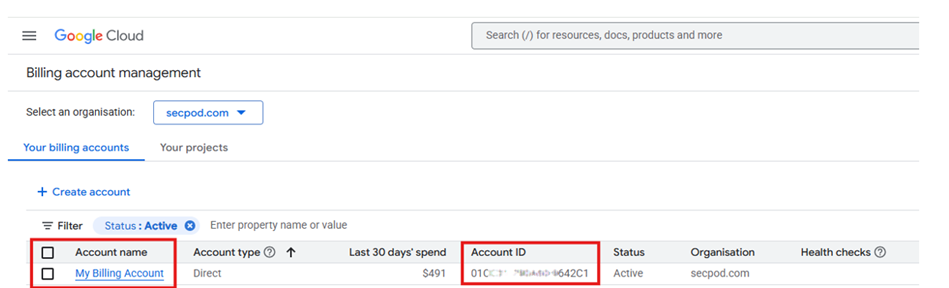
Note: “Billing Account ID” can be found by navigating to “Billing account management” section.
Step29: Follow these steps:
Onboarding without Billing Information: a. Copy the details from the key file which was downloaded as part of Step 18 b. Go to Saner Onboard & Scan page c. Paste the “Client Email” and “Private Key” in the respective fields and provide the email Id of Workspace Super Admin User in the field “Subject”, followed by “Domain Name” and “Organization ID” d. Click on “Onboard Project” to complete the Onboarding Process
2. Onboarding with GCP Billing Information
Notes:
Google Cloud billing data is added covering the current and previous month from the time the data is being populated in the dataset. During the first data backfill, it can take up to five days for your Cloud Billing data to begin with exporting. You will start seeing your usage data only after this process is complete.
Wait for 5 days for first billing data to appear on your Saner Cloud Dashboard. Please note that this is a one-time setup. After data linking activity is done, new data will be exported automatically. Go through the GCP Guide for more details.
“Billing Account ID” Can be found by navigating to “Billing account management” section.
Copy the details such as “Client Email” and “Private Key” from the key file which was downloaded as part of Step 17
Get the email Id of Workspace Super Admin User for the “Subject” field followed by “Organization ID” and “Domain Name”
Collect the Project ID, Dataset ID, Dataset Location and Billing Account ID which were used for Step23 to Step28
Go to Saner Onboard & Scan page
Paste the “Client Email” and “Private Key” in the respective fields and provide the email Id of Work Space Super Admin User in the field “Subject”. Followed by providing respective “Organization ID” and “Domain Name”
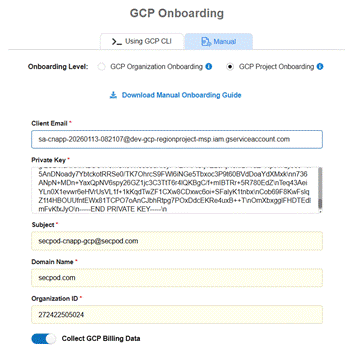
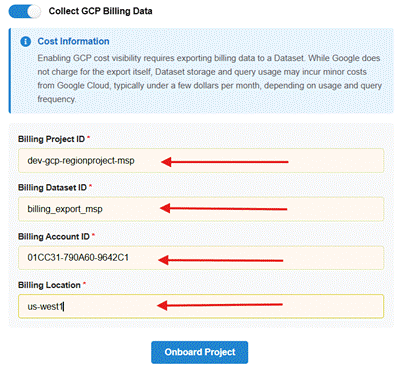
Enable “Collect GCP Billing Data” and Fill the Respective “BillingProject ID”, “BillingDataset ID”, “Billing Account Id” and “Billing Location”
Click on “Onboard Project” to complete the Onboarding Process
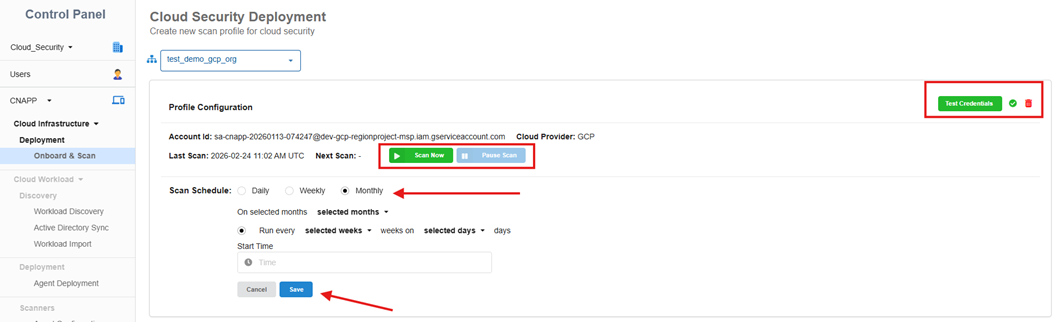
Step30: You have now completed the GCP Manual Onboarding. The Scan Configuration page opens automatically for you to make the necessary settings to initiate the scan. You have an option to:
Validate credentials (Test Credentials button) to prevent scan failures due to authentication issues
Setup the Scan Schedule run as needed
Start the scan or Pause the scan and then resume it from the point where it was paused
Best Practices
Regularly review and audit access permissions
Keep private keys secure and rotate them regularly
Document any custom configurations
Regularly verify integration status
Troubleshooting Guide
If you encounter any issues during the onboarding or deployment process, follow these steps to diagnose and resolve them efficiently.
Step1: Verify All Permissions Are Correctly Set
Ensure that the necessary IAM permissions are granted for the user or role performing the deployment. Missing or insufficient permissions may cause failures during onboarding.
Check IAM role assignments
Ensure the user has administrative privileges or the required set of permissions
Confirm that the APIs of the GCP services involved in the deployment have been enabled
Step2: Clean Up Previous Failed Onboarding Attempts
If you are retrying the onboarding process due to a previous failure, make sure all remnants of the prior attempt are removed before trying again.
Delete any incomplete Service Accounts created without any keys
Remove any IAM roles or permissions that may have been created in the failed attempt
Ensure there are no residual configurations that could cause conflicts in a new attempt
Step4: Confirm Required Roles Are Attached to the User
The onboarding process requires the user executing the deployment to have the correct IAM policies assigned. The required privileges include:
Project IAM Admin – Ability to bind the Service Account at the Project Level
Role Administrator – Permissions to create Custom Roles at the Project Level
Editor – Sufficient Permission to create a Service Account at the Project Level
Workspace Super Admin – Permission to add the necessary scopes for the client id generated
Step5: Contact Support if Issues Persist
If you have verified the above steps and are still facing issues, reach out to the support team for assistance.
Provide detailed logs and error messages
Mention the GCP services you are working with
Describe the steps already taken for troubleshooting