Skip to content
SecPod  – Documentation
  • Docs Home
  • Categories
    • Saner Platform
    • Saner Cloud
    • Saner CVEM
    • Security Intelligence
  • More
    • About SecPod
    • Blog
    • Security & Privacy
    • Support Center
    • Resources
  • SCHEDULE A DEMO
  • Toggle website search
Search this website
Menu Close
  • Docs Home
  • Categories
    • Saner Platform
    • Saner Cloud
    • Saner CVEM
    • Security Intelligence
  • More
    • About SecPod
    • Blog
    • Security & Privacy
    • Support Center
    • Resources
  • SCHEDULE A DEMO
  • Toggle website search
  • Docs Home
  • Categories
    • Saner Platform
    • Saner Cloud
    • Saner CVEM
    • Security Intelligence
  • More
    • About SecPod
    • Blog
    • Security & Privacy
    • Support Center
    • Resources
  • SCHEDULE A DEMO

Saner Platform

  • Saner Platform Release Notes
    • Saner Platform Integration Release: ServiceNow Integration Introduced, Freshservice Enhanced
    • Release Notes Saner 6.4.1
    • Release Notes SanerNow 6.4
    • Release Notes SanerNow 6.3.1
    • Release Notes SanerNow 6.3
    • Release Notes SanerNow 6.2.1
    • Release Notes SanerNow 6.2.0.3
    • Release Notes SanerNow 6.2.0.1
    • Release Notes SanerNow 6.2
    • Release Notes SanerNow 6.1.1
    • Release Notes SanerNow 6.1
    • Release Notes SanerNow 6.0
    • Release Notes SanerNow 5.3.1
    • Release Notes SanerNow 5.3
    • Release Notes SanerNow 5.2
    • Release Notes SanerNow 5.1
    • Release Notes SanerNow 5.0
    • Release Notes SanerNow 4.8.0.0
    • Release Notes SanerNow 4.7.0.0
    • Release Notes SanerNow 4.6.0.0
    • Release Notes SanerNow 4.5.0.0
    • Release Notes SanerNow 4.4.0.0
    • Release Notes SanerNow 4.3.0.0
    • Release Notes SanerNow 4.2.2.1
    • Release Notes SanerNow 4.2.2.0
    • Release Notes SanerNow 4.2.1.0
    • Release Notes SanerNow 4.2.0.0
    • Release Notes SanerNow 4.1.1.0
    • Release Notes SanerNow 4.0.0.5
  • Saner Platform Guide
    • Saner Administration Guide
    • Saner Device Management User Guide
    • Saner Platform and ServiceNow Integration Guide
    • Saner Platform and Freshservice Integration Guide
    • Saner Platform Function Guides
  • FAQs
    • Saner CVEM Technical FAQs
  • How Tos
    • General
      • How to increase the subscription count for an Account in Saner CVEM
      • How to increment license count for an Organization in Saner CVEM
      • How to provision Saner tools for an Organization
      • How to change subscription type in Saner CVEM
      • How to sign-up with Saner CVEM?
      • How to create a new account in Saner CVEM?
      • How to enable SSO authentication policy in Saner CVEM?
      • How to set alerts in Saner?
      • How to view, download and filter the audit logs?
      • How to designate Saner Agent to perform network scan?
      • How to Co-Brand with your logo?
      • How to fetch the details of the mandatory fields from the Okta account?
      • How to create MFA policy for Okta?
      • How to fetch the details of the mandatory fields from the PingID account?
      • How to create MFA policy for PingID?
      • How to fetch the details of the mandatory fields from the PingOne account?
      • How to create MFA policy for PingOne?
      • How to download and install Saner Agent in Mac?
      • How to download and install Saner agent in Linux?
      • How to download and install the Saner agent in Windows?
      • How to update the expiry date of an existing subscription?
      • How to manage users and their preferences using role-based access?
      • How to uninstall Saner Agent using Saner Offline deployer tool.
      • How to onboard a new organization?
      • How to deploy Saner Agent using Saner Offline deployer tool.
      • How to install a Saner agent through the command line?
      • How to uninstall the Saner agent through command line?
    • Saner Reports
      • How to configure mail settings to email Report PDF?
      • How to create a custom report in Saner?
      • How to schedule for the report back up?
    • Saner Device Management
      • How to create custom groups in Saner CVEM
    • Saner Mail Settings
      • How to create new mail settings in Saner?
      • How to use OAuth-enabled authentication in Saner mail settings
      • How to create OAuth Client ID and Client Secret for Gmail
      • How to create OAuth Client ID and Client Secret for Microsoft 365.
  • Supported OSs and Platforms
    • Operating Systems and Platforms Supported
    • Supported Third-party Applications for Patching

Saner Cloud

  • Before You Begin
    • Glossary of Terms
    • Read me First
  • Get Started
    • Prerequisites For Saner SaaS Platform Deployment
    • Saner Cloud Deployment Guides
      • GCP OAuth Scopes for Saner CNAPP
      • Onboarding a GCP Organization to Saner Cloud(CLI)
      • Onboarding a GCP Project to Saner Cloud (CLI)
      • Onboarding a GCP Organization to Saner Cloud(Manual)
      • Onboarding a GCP Project to Saner Cloud(Manual)
      • Azure Onboarding
      • Troubleshooting
      • Get Started with Saner CNAPP AWS Cloud Deployment V1.0
      • Onboarding with AWS Credentials(Least Recommended Method)
      • Onboarding with AWS Role(Manual)
      • Onboarding with AWS Role CloudFormation (Automatic): Recommended
    • Roles and Permissions
      • Roles and Permissions for AWS Remediation Access
      • Roles and Permissions for Azure Onboarding, Detection, and Remediation
  • Learn About
    • Saner CNAPP Best Practices
    • Secure Your IAM entities with Cloud Infrastructure Entitlement Management (CIEM)
    • Critical Events to Monitor in GCP
    • Saner CSRP Classification Based on Scoring Decision
    • Cloud Cyber Hygiene Scoring(CCHS) Approach
    • Remediation Rollback
    • Automation and Job-driven Remediation
    • Cost and Usage
    • Excessive Permission Categories Evaluated Across Different Cloud Services
    • Publicly Accessible Resources
    • Patch Aging and Patch Impact
    • SecPod Default Benchmarks
    • Watchlists
    • Cloud Workload Protection Platform(CWPP)
    • Overview of Report Views in Saner Cloud
    • Whitelisting Resources
    • Saner Plasma AI Assistant for Seamless User Interaction
    • Critical Events to Monitor in AWS
    • High-Privilege Actions in Critical Activity Logs for AWS
    • Audit Logs in Saner Cloud
    • Excessive Permissions
    • Alerts in SanerCloud
  • User Guides
    • Container Orchestration Security Platform (COSP) User Guide
    • Container Orchestration Posture Anomaly(COPA) Userguide
    • Container Orchestration Entitlement Management(COEM) Userguide
    • Container Orchestration Remediation Management(CORM) User Guide
    • Container Orchestration Posture Management(COPM) User Guide
    • Container Orchestration Asset Exposure(COAE) User Guide
    • GCP Cloud Infrastructure Entitlement Management (CIEM) User Guide
    • Azure Cloud Infrastructure Entitlement Management(CIEM) User Guide
    • Cloud Security Risk Prioritization(CSRP) User guide
    • Cloud Cyber Hygiene Score(CCHS) User Guide
    • Cloud Security Remediation Management(CSRM) User Guide
    • AWS Cloud Infrastructure Entitlement Management(CIEM) User Guide
    • Cloud Security Posture Anomaly(CSPA) User Guide
    • Cloud Security Asset Exposure(CSAE) User Guide
    • Cloud Security Posture Management(CSPM) User Guide
  • Tell Me How
    • How to Remediate in Saner Cloud?
    • How to Configure Automation Rule to Remediate Misconfigurations?
    • How to Manage Report Views at Organization-level in Saner Cloud?
    • How to Get a Cohesive View from Saner Cloud Unified Dashboard?
    • How to Use Tags to Quickly Filter Resources?
    • How to Troubleshoot Issues with Audit Logs?
    • How to Manage Groups and Tags in Saner Cloud?
    • How to Manage Report Views for a User Account in Saner Cloud?
    • How to Troubleshoot or Analyze with Critical Activity Logs?
    • How to Setup Alerts Across SanerCloud Tools?
    • How to Take Action on Alert Notifications from SanerCloud?
    • CCHS
      • How to Monitor Resource Risk Trends for CHS?
      • How to Assess Resource Health through Severity Distribution?
      • How to Evaluate Service-Level Risks Using CHS Scores?
      • How to Analyze Cyber Hygiene Scores through Trend Chart?
      • How to Identify High-Risk Resources by Geo Location?
      • How to Get an Overview of Cyber Hygiene for Cloud Resources?
      • How to Review Organization-Level Cyber Hygiene Across Accounts?
      • How to Assess Risk Distribution for Different Cloud Providers?
      • How to Review Major Issues Contributing to the Drop of Cyber Hygiene Score at Account-Level?
      • How to Analyze Module-wise Risk through CHS Distribution?
      • How to View the Cyber Hygiene Score Distributed Across Cloud Environments?
      • How to Track Security Posture with Cyber Hygiene Score?
      • How to Configure Account Weightage?
    • CSRP
      • How to Monitor and Analyze Audit Logs for Risk Prioritization?
      • How to Configure Risk Based Cloud Security Alerts?
      • How to Generate Reports and Visualizations?
      • How to Filter Risks by Tags for Targeted Analysis?
      • How to Manage Prioritized Risks at Account-level?
      • How to View the Detailed Breakdown of a Specific Cloud Cyber Security Standard (CCSS) Risk Finding?
      • How to Review and Prioritize Resources Based on Associated Risks?
      • How to Assess Risk Distribution on Essential Resources?
      • How to Assess and Prioritize Risks Across Resource Categories?
      • How to Identify the Risks Affecting Essential Resources?
      • How to Assess Full Versus Limited Technical Impact of Exploiting an Anomaly?
      • How to Review the Risk Factor Distribution Based on Automatable Reliability?
      • How to Get an Overview of Exploitable Risks?
      • How to Map Risks to MITRE ATT&CK for Threat-Informed Defense?
      • How to Configure Questionnaire and Assess Security Practices Across Core Domains for an Account?
    • CSAE
      • How to Setup Watchlist Configuration for a Resource?
      • How to Identify Outdated Resources for Cleanup?
      • How does Resource Categorization Work in Saner CSAE?
      • How to Identify Resources Exposed to External Network?
      • How to Understand the Resource Footprint Globally Across Various Regions?
      • How to Make Informed Decisions on Your Expenditure based on Resource Usage Graph?
    • CSPM
      • How to Setup Benchmarks in Saner CSPM?
      • How to Use Quick Evaluation Benchmarks?
      • How to Detect Patterns over a Period with Resource Trends?
      • How to Assess System Compliance and Security Posture?
    • CSPA
      • How to Initiate Patch Remediation from CSPA Dashboard?
      • How to Quickly Identify the Detected and Remediated Anomalies for an Account?
      • How to Prioritize Remediation or Fixes based on Confidence Levels?
      • How to Examine the Overall Anomaly Information for Specific Rules or Checks?
      • How to Search and Retrieve Anomaly Data?
      • How to Whitelist Rules or Resources in Cloud Security Scans?
    • CIEM
      • How to See the Active Version for an IAM Policy?
      • How to Address Critical Activities Using Evidence?
      • How to View by Type and Usage for any Identity in CIEM?
      • How to Get Visibility into Cloud Entitlements?
      • How to Use Evidence to Address Policies with Excessive Permission?
      • How to Know the Excessive Permissions on a Specific Service?
      • How to Visually See the Relationship between Identity, Entitlement, Policy, or Permission?
      • How to Determine if a Policy has Excessive Permission?
      • How to Initiate Remediation for Different Identities from CIEM?
    • CSRM
      • Rollback an Applied Remediation
      • How to Configure Automation Rule to Remediate Misconfigurations?
      • How to Create a Patching Task for Items Currently in “Approval Pending” State?
      • How to Evaluate Remediation Effort with Patching Impact Chart?
      • How to Prioritize and Address Older or High-Risk Anomalies with Patch Aging?
      • How to Monitor the Overall Status of the Remediation Job?
      • How do I Get to Know the Regions Impacted by a Specific Rule?
      • How to View the Severity of a Missing Patch Affected by a Rule?
      • How to Address Missing Patches Via Remediation Tasks?
      • How to Quickly Access the Necessary Tool for Remediation and Begin Patching Tasks?
  • Frequently Asked Questions
    • Saner Cloud Technical FAQs
  • Saner Cloud Release Notes
    • Saner Cloud – V.3.0.1.0 Release Notes
    • Saner Cloud – V.3.0.0.0 Release Notes
    • Saner Cloud – V.2.0.0.2 Release Notes
    • Saner Cloud – V.2.0.0.1 Release Notes
    • Saner Cloud – V.2.0.0.0 Release Notes
    • Saner Cloud – V.1.2.0.1 Release Notes
    • Saner Cloud – V.1.2.0.0 Release Notes
    • Saner Cloud – V.1.1.0.0 Release Notes
    • Saner Cloud – V.1.1 Release Notes
    • Saner Cloud – V.1.0 Release Notes
  • Saner COSP Release Notes
    • Saner COSP – V.1.0.0.0 Release Notes

Saner CVEM

  • Saner CVEM Release Notes
    • Release Notes Saner CVEM 6.6
    • Release Notes Saner 6.5
    • Saner Platform Integration Release: ServiceNow Integration Introduced, Freshservice Enhanced
    • Release Notes Saner 6.4.1
    • Release Notes SanerNow 6.4
    • Release Notes SanerNow 6.3.1
    • Release Notes SanerNow 6.3
    • Release Notes SanerNow 6.2.1
    • Release Notes SanerNow 6.2.0.3
    • Release Notes SanerNow 6.2.0.1
    • Release Notes SanerNow 6.2
    • Release Notes SanerNow 6.1.1
    • Release Notes SanerNow 6.1
    • SanerNow Risk Prioritization Launch
    • Release Notes SanerNow 6.0
    • Release Notes SanerNow 5.3.1
    • Release Notes SanerNow 5.3
    • Release Notes SanerNow 5.2
    • Release Notes SanerNow 5.1
    • Release Notes SanerNow 5.0
    • Release Notes SanerNow 4.8.0.0
    • Release Notes SanerNow 4.7.0.0
    • Release Notes SanerNow 4.6.0.0
    • Release Notes SanerNow 4.5.0.0
    • Release Notes SanerNow 4.4.0.0
    • Release Notes SanerNow 4.3.0.0
    • Release Notes SanerNow 4.2.2.1
    • Release Notes SanerNow 4.2.2.0
    • Release Notes SanerNow 4.2.1.0
    • Release Notes SanerNow 4.2.0.0
    • Release Notes SanerNow 4.1.1.0
    • Release Notes SanerNow 4.0.0.5
    • Saner CVEM
      • Release Notes Saner CVEM 6.6
  • Saner CVEM Guide
    • Prerequisites For Saner SaaS Platform Deployment
    • What’s New in Saner CVEM?
    • Getting Started with Saner CVEM
    • Pre-requisites for Saner CVEM Deployment
    • How does Saner CVEM’s deployment architecture work?
  • Saner CVEM Products
    • Overview of Saner Continuous Vulnerability and Exposure Management
    • Saner CVEM Unified Dashboard User Guide
    • Saner CVEM Asset Exposure User Guide
    • Saner CVEM Continuous Posture Anomaly Management User Guide
    • Data Points IT teams can Fetch from Saner CPAM
    • Posture Anomaly Computation Rules
    • Saner CVEM Vulnerability Management User Guide
    • Saner CVEM Compliance Management User Guide
    • Saner CVEM Risk Prioritization User Guide
    • Saner CVEM Patch Management User Guide
    • Saner CVEM Endpoint Management User Guide
    • Saner CVEM Remote Scripting User Guide
    • Saner CVEM Remote Access User Guide
    • Saner CVEM Network Scanner User Guide
    • Saner CVEM Cyber Hygiene Score User Guide
  • How Tos
    • Saner AE
      • How to blacklist and whitelist applications in Saner AE?
      • How to manage asset licenses using Saner AE?
      • How to run an asset scan using Saner AE?
    • Saner CPAM
      • How to create new response in PA tool?
      • How to build your own detection and response in PA tool?
      • How to whitelist an entire PA ID?
      • How to configure Posture Anomaly tool for custom detection?
      • How to fix Anomalies from PA dashboard?
      • How to fix anomalies detected in your account from All Anomalies Page?
      • How to fix anomalies from PA Summary page?
      • How to delete PA scan preferences?
      • How to schedule PA Scans on Daily, Weekly, and Monthly basis?
      • How to launch Posture Anomaly scans?
    • Saner VM
      • How to automate and schedule vulnerability scans?
      • How to exclude vulnerabilities in Saner VM tool
      • How to manage excluded vulnerabilities in Saner VM?
      • How to remediate vulnerabilities from vulnerability management dashboard?
    • Saner CM
      • How to run a compliance scan?
      • How to custom create a security policy?
      • How to align with PCI security compliance management?
      • How to align with NIST 800-171 security compliance management?
      • How to align with NIST 800-53 security compliance management?
      • How to align with HIPAA security compliance management using Saner CM?
    • Saner PM
      • How to fix firmware in Saner?
      • How to exclude patches in Saner PM?
      • How to manage excluded patches in Saner PM?
      • How to automate patch management in Saner PM?
      • How to roll back patches in Saner PM?
      • How to apply missing patches in Saner PM?
      • How to apply the most critical patches in Saner PM?
      • How to perform custom remediation for applications that require paid patches using Saner PM
      • How to check the status of patching activity?
    • Saner EM
      • How to collect all security events from Windows Events Log?
      • How to check password policy set in Windows systems?
      • How to check status of DEP in Windows systems?
      • How to check faulty Anti-Virus (AV) status in Windows systems?
      • How to check for Anti-Virus (AV) status in Windows systems?
      • How to check account lockout policy on Windows systems?
      • How to check if Bit-locker protection is OFF in Windows systems?
      • How to list all inactive users on Windows systems?
      • How to list all guest accounts in Windows systems?
      • How to list all Administrator accounts on Windows systems?
      • How to list last-logon details of users on Windows systems?
      • How to identify all users in Windows systems?
      • How to collect all services that are currently running in Windows systems?
      • How to list all Groups in Windows systems?
      • How to collect all keyboard and pointing devices connected to Windows systems?
      • How to collect all storage devices connected to Windows systems?
      • How to investigate total RAM or CPU threshold (greater than or equal to 80%) in Windows systems?
      • How to collect operating systems information in Windows?
      • How to investigate disks running out of space (<100 MB) in Windows systems?
      • How to collect and investigate disk information on Windows systems?
      • How to collect all installed patches in Windows systems?
      • How to collect all software patches that are hidden in the Windows Update server?
      • How to check the status of Windows Update Server (WSUS/SCCM)?
      • How to collect BIOS information such as serial number, version, manufacturer in Windows systems?
      • How to collect all the important missing patches in Windows systems?
      • How to check wireless security in Linux systems?
      • How to collect mounted disk information on Linux systems?
      • How to check wireless signal quality in Linux systems?
      • How to check all firewall policies on Linux systems?
      • How to collect all Dynamic Host Configuration Protocol (DHCP) information on Linux systems?
      • How to collect DNS information on Linux systems?
      • How to collect ARP entries that are created when a hostname is resolved to an IP address and then to a MAC addressing in Linux?
      • How to check wireless signal quality in Windows systems?
      • How to check wireless security in Windows systems?
      • How to collect all open ports in Windows systems?
      • How to collect all network interfaces in Windows systems?
      • How to investigate DNS cache on Windows systems?
      • How to check all firewall policies on Windows systems?
      • How to collect DNS information on Windows systems?
      • How to collect all the applications with an unknown publisher in Linux systems?
      • How to perform system tuning?
      • How to collect all software licenses in Windows systems?
      • How to identify potentially unwanted programs such as torrent downloaders or unnecessary toolbars running on Windows systems?
      • How to collect a list of applications that are started when you boot your computer?
      • How to collect all the applications with an unknown publisher in Windows systems?
      • How to collect all software licenses in Mac systems?
      • How to collect ARP entries that are created when a hostname is resolved to an IP address and then to a MAC addressing Windows?
      • How to collect all families of operating systems such as Windows, Unix, and macOS?
      • How to collect environment variables set in all operating systems?
      • How to collect all the applications with an unknown publisher in Mac systems?
      • How to delete and quarantine a file?
      • How to start and stop the processes in Saner?
      • How to block blacklisted applications in Saner?
      • How to enable/disable devices in Saner
      • How to manually import devices into Saner?
      • How to deploy software in Saner EM?
      • How to enable and disable firewall settings in Saner AE?
      • How to collect all shared resources on Windows systems?
      • How to collect all Dynamic Host Configuration Protocol (DHCP) information on Windows systems?
      • How to connect to a client machine graphically using Saner Remote Access
  • FAQs
    • Saner CVEM Technical FAQs

Security Intelligence for Saner CVEM

  • Overview of Security Content and Intelligence
  • Security Content Statistics
  • OVAL Definitions Platform Coverage
  • OVAL Definitions Class-wise Distribution
  • OVAL Definitions Family-wise Distribution
  • Application and OS Remediation Coverage
  • Compliance Benchmark Coverage
  • List of Vulnerability to Exploit/Malware Mapping covered in Saner
  • Network Scanner Product Support Matrix
  • Privilege levels for authenticated scans using Saner Network Scanner

Security Intelligence for Saner Cloud

  • Benchmark Compliance Rules in AWS, Azure, and GCP
    • GCP
      • SecPod Rules in GCP
        • SecPod Default Rules in GCP: An Overview
        • Understand SecPod Default Rules in GCP
        • Understand SecPod Global Rules in GCP
        • Understand SecPod Regional Rules in GCP
      • CIS Rules in GCP
        • CIS Benchmark Compliance Rules in GCP: An Overview
        • Understand CIS 4.0.0 Rules in GCP
        • Understand CIS 4.0.0 Global Rules in GCP
        • Understand CIS 4.0.0 Regional Rules in GCP
    • AWS
      • SecPod Rules in AWS
        • SecPod Default Rules in AWS: An Overview
        • Understand SecPod Default Rules in AWS
        • Understand SecPod Global Rules in AWS
        • Understand SecPod Regional Rules in AWS
      • PCI DSS 3.2.1 Rules in AWS
        • PCI DSS 3.2.1 Rules in AWS: An Overview
        • Understand PCI DSS 3.2.1 Rules in AWS
        • Understand PCI DSS 3.2.1 Global Rules in AWS
        • Understand PCI DSS 3.2. 1 Regional in AWS
      • CIS Rules in AWS
        • CIS Rules in AWS: An Overview
        • Understand CIS Rules in AWS
        • Understand CIS 3.0.0 Rules in AWS
        • Understand CIS 4.0.1 Rules in AWS
        • Understand CIS 4.0.0 Rules in AWS
        • Understand CIS 3.0.0 Global Rules in AWS
        • Understand CIS 4.0.0 Global Rules in AWS
        • Understand CIS 3.0.0 Regional Rules in AWS
        • Understand CIS 4.0.0 Regional Rules in AWS
      • SOC 2 Rules in AWS
        • SOC 2 Rules in AWS: An Overview
        • Understand SOC 2 Rules in AWS
        • Understand SOC 2 Global Rules in AWS
        • Understand SOC 2 Regional Rules in AWS
      • HIPAA HITRUST Rules in AWS
        • HIPAA HITRUST Rules in AWS: An Overview
        • Understand HIPAA HITRUST Rules in AWS
        • Understand HIPAA HITRUST Global Rules in AWS
        • Understand HIPAA HITRRUST Regional Rules in AWS
      • NIST 800-53 Revision 5 Rules in AWS
        • NIST 800-53 Revision 5 Rules in AWS: An Overview
        • Understand NIST 800-53 Revision 5 Rules in AWS
        • Understand NIST 800-53 Revision 5 Global Rules in AWS
        • Understand NIST 800-53 Revision 5 Regional Rules in AWS
    • Azure
      • CIS Rules in Azure
        • CIS Rules in Azure: An Overview
        • Understand CIS 1.2.0 Rules in Azure
        • Understand CIS 2.1.0 Rules in Azure
        • Understand CIS 1.1.0 Benchmark Compliance Rules in Azure
        • Understand CIS 3.0.0 Benchmark Compliance Rules in Azure
        • Understand CIS 1.2.0 Global Benchmark Compliance Rules in Azure
        • Understand CIS 2.1.0 Global Benchmark Compliance Rules in Azure
        • Understand CIS 3.0.0 Global Benchmark Compliance Rules in Azure
        • Understand CIS 2.1.0 Regional Benchmark Compliance Rules in Azure
        • Understand CIS 3.0.0 Regional Benchmark Compliance Rules in Azure
      • NIST 800-53 Revision Rules in Azure
        • NIST 800-53 Revision 5 Rules in Azure: An Overview
        • Understand NIST 800-53 Revision 5 Rules in Azure
        • Understand NIST 800-53 Revision 5 Global Rules in Azure
        • Understand NIST 800-53 Revision 5 Regional Rules in Azure
      • SecPod Rules in Azure
        • SecPod Default Rules in Azure: An Overview
        • Understand SecPod Global Rules in Azure
        • Understand SecPod Regional Rules in Azure
        • Understand SecPod Default Rules in Azure
      • HIPAA HITRUST Rules in Azure
        • HIPAA HITRUST Rules in Azure: An Overview
        • Understand HIPAA HITRUST 14.7.0 Rules in Azure
        • Understand HIPAA HITRUST 14.7.0 Global Rules in Azure
        • Understand HIPAA HITRUST 14.7.0 Regional Rules in Azure
      • PCI DSS Rules in Azure
        • PCI DSS 3.2.1 Rules in Azure: An Overview
        • Understand PCI DSS 4.0 Rules in Azure
        • Understand PCI DSS 4.0 Global Rules in Azure
        • Understand PCI DSS 4.0 Regional Rules in Azure
      • SOC 2 Rules in Azure
        • SOC 2 Rules in Azure: An Overview
        • Understand SOC2 Rules in Azure
        • Understand SOC2 Global Rules in Azure
        • Understand SOC2 Regional Rules in Azure
  • Posture Anomaly Checks in AWS and Azure
    • Implementing Posture Anomaly Checks in AWS
    • Implementing Posture Anomaly Checks in Azure
  • Infrastructure Entitlement Checks in AWS, Azure, and GCP
    • Implementing Infrastructure Entitlement Checks in AWS
    • Implementing Infrastructure Entitlement Checks in Azure
    • Implementing Infrastructure Entitlement Checks in GCP
View Categories
  • Home
  • Docs
  • Saner Cloud
  • User Guides
  • Container Orchestration Posture Anomaly(COPA) Userguide

Container Orchestration Posture Anomaly(COPA) Userguide

Print Friendly, PDF & Email

The Container Orchestration Posture Anomaly (COPA) tool offers a comprehensive framework to detect, analyze, and remediate configuration anomalies in Cloud and Kubernetes environments. It empowers security and operations teams to maintain a strong cloud posture by continuously monitoring both anomalous and non-anomalous behavior, identifying deviations, and facilitating swift corrective actions.

Users can analyze posture anomalies based on severity levels to understand the distribution of high, medium, and low-risk deviations. They can also assess resource impact through posture anomaly density, helping to identify areas with the highest concentration of issues. The module allows users to evaluate anomaly distribution across different categories and track trends over time, providing ongoing visibility into changes in posture.

For Kubernetes accounts, the module monitors both anomalous and non-anomalous behaviors to ensure effective management of detected deviations. Users can investigate anomalies at a granular level, exploring specific COPA IDs, completing remediation steps, and whitelisting COPA IDs when appropriate.

The Saner Cloud Orchestration Posture Anomaly(COPA) dashboard enables teams to analyze and investigate detected anomalies by tracking them by ID and title. Users can look at detailed insights, trace affected resource counts, and categorize issues. The system also allows users to prioritize remediation based on confidence levels, initiate patch remediation, and identify when each anomaly was detected.

Additionally, the module supports environment and cluster switching, providing a unified view across multiple contexts. With its combination of high-level visualization and in-depth analytical capabilities, the Cloud Orchestration Posture Anomaly module ensures that organizations can efficiently detect, understand, and resolve anomalies, ultimately strengthening their overall cloud security posture and operational resilience.

Get Started

In this chapter, you get started with understanding how to effectively use COPA to strengthen your container security posture and maintain compliance.

Begin by accessing the COPA tool from the platform, where you gain centralized visibility into all detected anomalies across your Kubernetes accounts. The dashboard enables you to analyze posture anomalies by severity level, allowing you to quickly prioritize critical risks that require immediate attention.

To better understand the impact of these anomalies, COPA provides insights into posture anomaly density, helping you assess how widely issues are distributed across your resources. You can further evaluate anomaly distribution across categories, giving clarity on the types of anomalies or risks affecting your environment.

COPA supports deep investigation by allowing you to analyze and investigate anomalies at a granular level. You can drill down into specific findings, review affected resources, and understand the root cause of each anomaly. For known or acceptable deviations, the platform enables you to whitelist COPA IDs, ensuring they are excluded from future alerts.

Once anomalies are identified, you can take action by initiating patch remediation directly from the platform. This helps in quickly resolving vulnerabilities and anomalies. Additionally, you can fix anomalies detected in your Kubernetes account through guided remediation workflows that streamline the resolution process.

To maintain continuous security improvement, COPA allows you to track anomaly trends over time, giving visibility into whether your remediation efforts are effective. By monitoring trends and patterns, you can proactively manage risks and prevent recurrence of issues.

Overall, COPA empowers organizations to detect, investigate, and remediate posture anomalies efficiently while maintaining strong governance and visibility across containerized environments.

Access the Cloud Orchestration Posture Anomaly (COPA) Tool

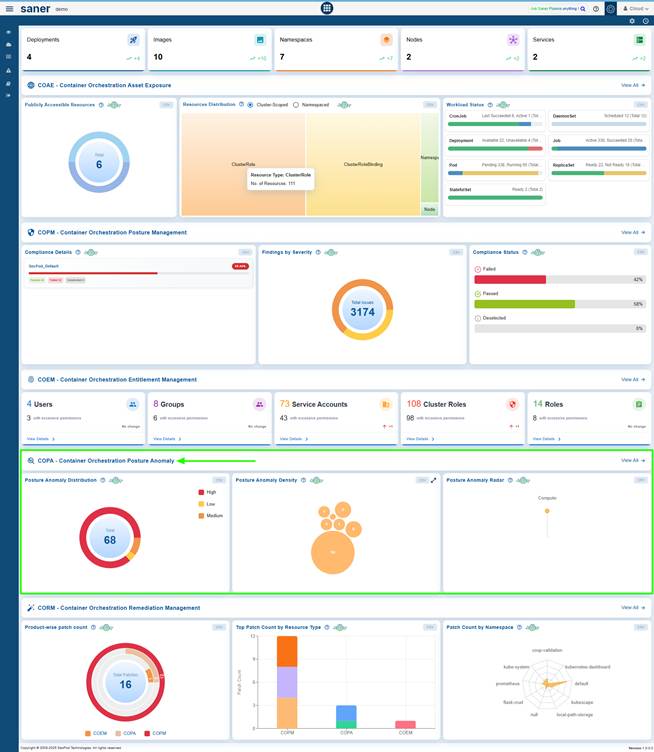
You can access the COPA Dashboard through 2 entry points: the overall COSP Dashboard or directly via the App Launcher.

EntryPoint 1: From the Overall COSP Dashboard
[MN1] 

EntryPoint 2: From the App Launcher

Analyze Posture Anomalies by Severity Level
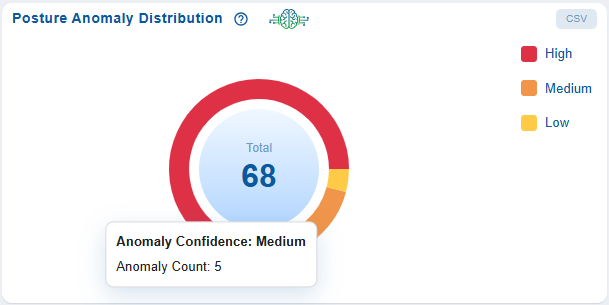
The pie chart represents the proportion of anomalies in each severity category. The severity levels of the detected anomalies are categorized into High (Red), Medium (Orange), and Low (Yellow). This helps you gain a quick understanding of the overall risk distribution within your cloud environment, assess the proportion of critical posture deviations, and focus attention on the ones that have the greatest impact.

Data Source and Scope

The data is derived from posture evaluation scans conducted across monitored assets and services, capturing anomalies identified through configured policies, benchmarks, and security rules. The scope of this data may vary depending on the selected cloud accounts or profiles, the services and resource types included, as well as the scan frequency and the most recent scan timestamp.

Analytical Insights

With the data-driven insights from the view, you can continuously improve and maintain your organization’s security posture

The analytical insights help evaluate the distribution of critical versus non-critical issues, identify the services or resources contributing to high-severity anomalies, monitor trends to assess if the overall risk posture is improving or deteriorating, and measure the effectiveness of remediation efforts over time.

As an example, the view can also prompt questions such as: Are most anomalies high, medium, or low in severity?, Which areas or systems are contributing the most to high-severity issues?, Is the overall risk level improving or worsening over time?, Should remediation efforts focus on reducing the number of high-impact anomalies first?.

Remediation Guidance

Remediation recommendation is to address anomalies based on severity: high-severity issues should be resolved first to mitigate immediate risks, medium-severity issues should be handled next to prevent escalation, and low-severity issues can be scheduled as part of routine maintenance.

Assess Resource Impact through Posture Anomaly Density
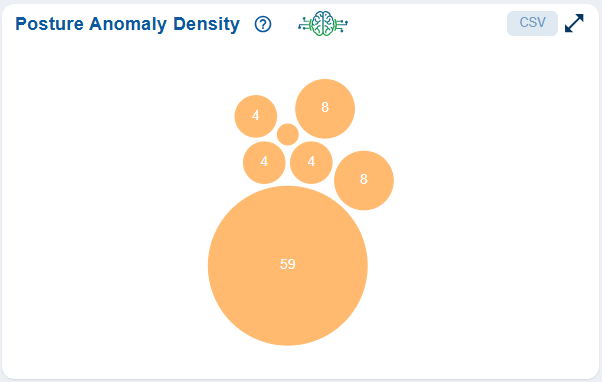
The Posture Anomaly Density view helps visualize the concentration of anomalies across various resources using a bubble chart. Each bubble corresponds to the number of affected resources, allowing you to quickly assess which areas are most impacted.  This supports faster decision-making through focused identification of critical issues. Additionally, when used alongside trend analysis views, it helps track improvements over time and measure the effectiveness of remediation efforts.

Data Context

The data context for the Posture Anomaly Density view is derived from posture evaluation scans across cloud resources and services, where anomalies typically represent misconfigurations, compliance violations, and security risks. The data can be aggregated across multiple dimensions such as resource type, service, region, and severity (when enabled), allowing for more granular analysis and targeted remediation.

Granular Analysis and Targeted Remediation

When you click on a bubble count, it opens the Posture Anomaly Parameters popup, which presents a detailed table listing the ID, Title, and associated Resources for each anomaly.
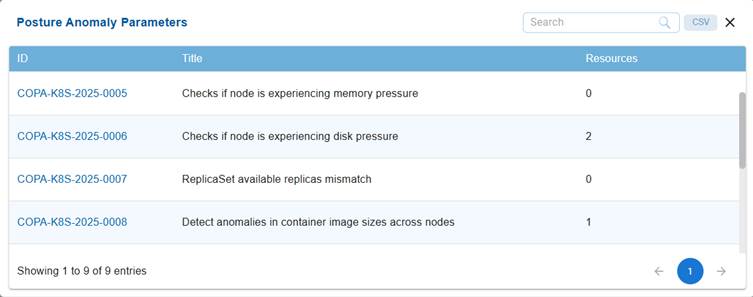
This facilitates targeted investigation and efficient prioritization of remediation planning.

Filtering and Segmentation from the Detailed Summary View

The filtering and segmentation capabilities allow you to refine analysis by applying filters based on severity levels (High, Medium, Low), resource categories or services, cloud providers or accounts, and time ranges derived from scan data.

This helps isolating specific anomaly clusters, facilitating more focused analysis and targeted remediation efforts.

Exploratory Analysis

You can also answer key operational questions by identifying the most impacted resources, detecting if anomalies are clustered within specific categories, assessing if larger concentrations point to systemic configuration or compliance gaps, and determining if remediation efforts should be prioritized for particular segments to effectively reduce overall risk.

As an example, the view supports answering key questions such as: Which resource types have the highest concentration of anomalies?, Are certain areas consistently more affected than others?, Do larger bubbles indicate deeper configuration or compliance issues?, and Should remediation efforts focus on a specific category to reduce overall risk?.

By exploring these questions, you can identify where anomalies are most dense and prioritize corrective actions more effectively.

Fix Anomalies Detected In Your Kubernetes Account

The Anomalous and Non-Anomalous sections in the Kubernetes account help you monitor the health and stability of your Kubernetes clusters by differentiating between irregular and normal behavior.

Anomalous section identifies unusual or abnormal activities within the cluster, such as frequent Pod restarts, node disk pressure, or discrepancies in container image sizes. The presence of entries in this section indicates potential performance issues, anomalies, or instability that require immediate attention or investigation.

Non-Anomalous section lists the checks that do not have any issues or irregularities detected. For example, it may show that there are no pending Pods, no node connectivity issues, or stable ReplicaSet configurations. Any metrics showing zero in this section indicate that the cluster is operating normally and that system components are healthy.

In Saner Cloud Orchestration Posture Anomaly(COPA), the Anomalous section (typically displayed in red) highlights areas that need review or remediation, while the Non-Anomalous section (shown in green) confirms that critical Kubernetes components function as expected. Together, both the visuals provide a quick summary of cluster health, helping you to prioritize troubleshooting and maintain optimal performance.

Access the Anomalous and Non-Anomalous Instances in Kubernetes Clusters

Just click the All Anomalies link from the top-right of the COPA dashboard.

Monitor Anomalous Behavior in Kubernetes

The Anomalous section helps you monitor irregular behavior across Kubernetes clusters.

Each red tile displays the total number of instances that were discovered under a particular anomaly. PA-ID details and a summary is shown on the tile. You can hover over the tile to get more information about the PA ID.

As an example, the red and green tile visualization supports answering key questions such as: What is causing the anomalies? Are they the result of resource constraints, anomalies, or unstable workloads?,  Are these anomalies isolated incidents, or do they reflect a recurring pattern? How critical are the identified issues, and which ones should be prioritized for resolution?, What is functioning well in the non-anomalous areas, and can those configurations serve as best practices for other areas?

By answering these questions, you can focus on addressing high-risk issues while also reinforcing the stable aspects of the cluster.

The illustration highlights 11 instances of Pod restart anomalies (COPA-K8S-2025-0002), 2 cases of nodes experiencing disk pressure (COPA-K8S-2025-0006), and 1 instance of abnormal container image sizes across nodes (COPA-K8S-2025-0008).

This view helps identify and address potential performance and stability issues proactively.

Monitor Non-Anomalous Behavior in Kubernetes

The Non-Anomalous section shows checks in the Kubernetes cluster where no irregularities have been detected.

As an example, the illustration highlights that All monitored parameters currently show a value of zero, indicating stable cluster performance. These checks include monitoring for deployed tillers (COPA-K8S-2025-0003), node connectivity or memory issues (COPA-K8S-2025-0004, 0005), ReplicaSet mismatches (0007), excessive pending pods (0009), CrashLoopBackOff spikes (0010), and sudden changes in control plane or worker nodes (0011, 0012).

This view confirms that the cluster is operating under normal conditions without performance or stability.

Investigate Anomalies at a Granular Level

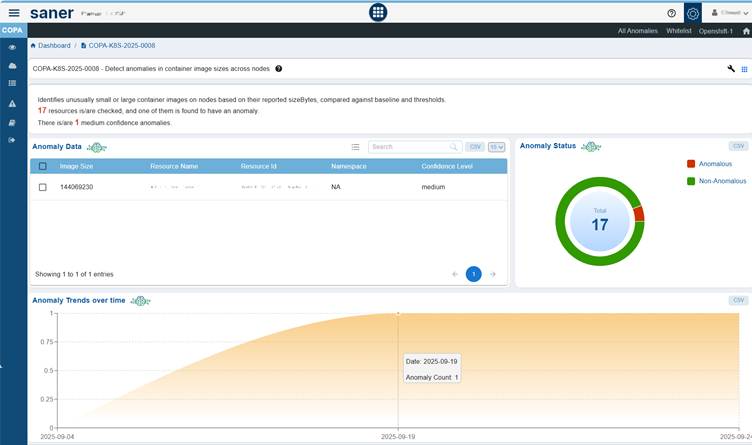
The detailed summary view page allows users to examine anomalies in depth, offering insight into individual COPA IDs and their related resource attributes. By integrating both tabular data and visual representations, such as anomaly distribution and trend analysis, it helps users to quickly spot unusual patterns, evaluate confidence levels, and make informed decisions for remediation and performance optimization.

Explore More Details for the Selected COPA ID

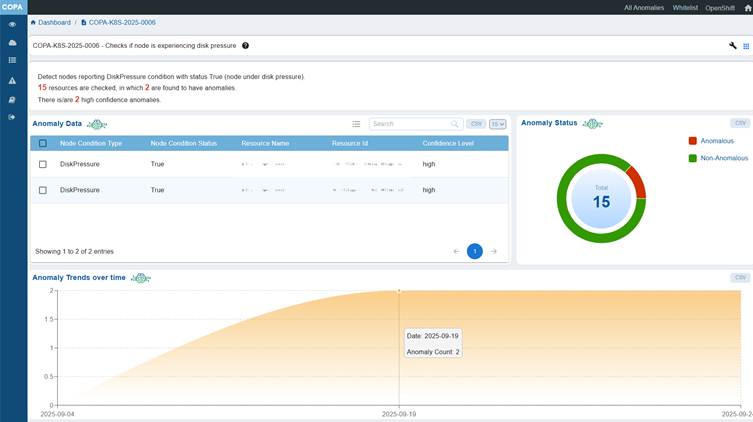
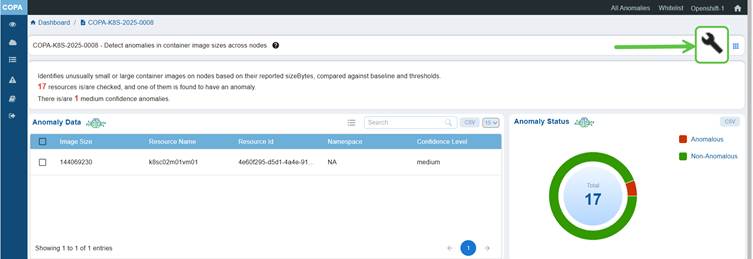
Clicking the ID(link) in the Posture Anomaly Details block initiates a drill-down action that opens a detailed summary of the selected COPA ID, including its title and description.

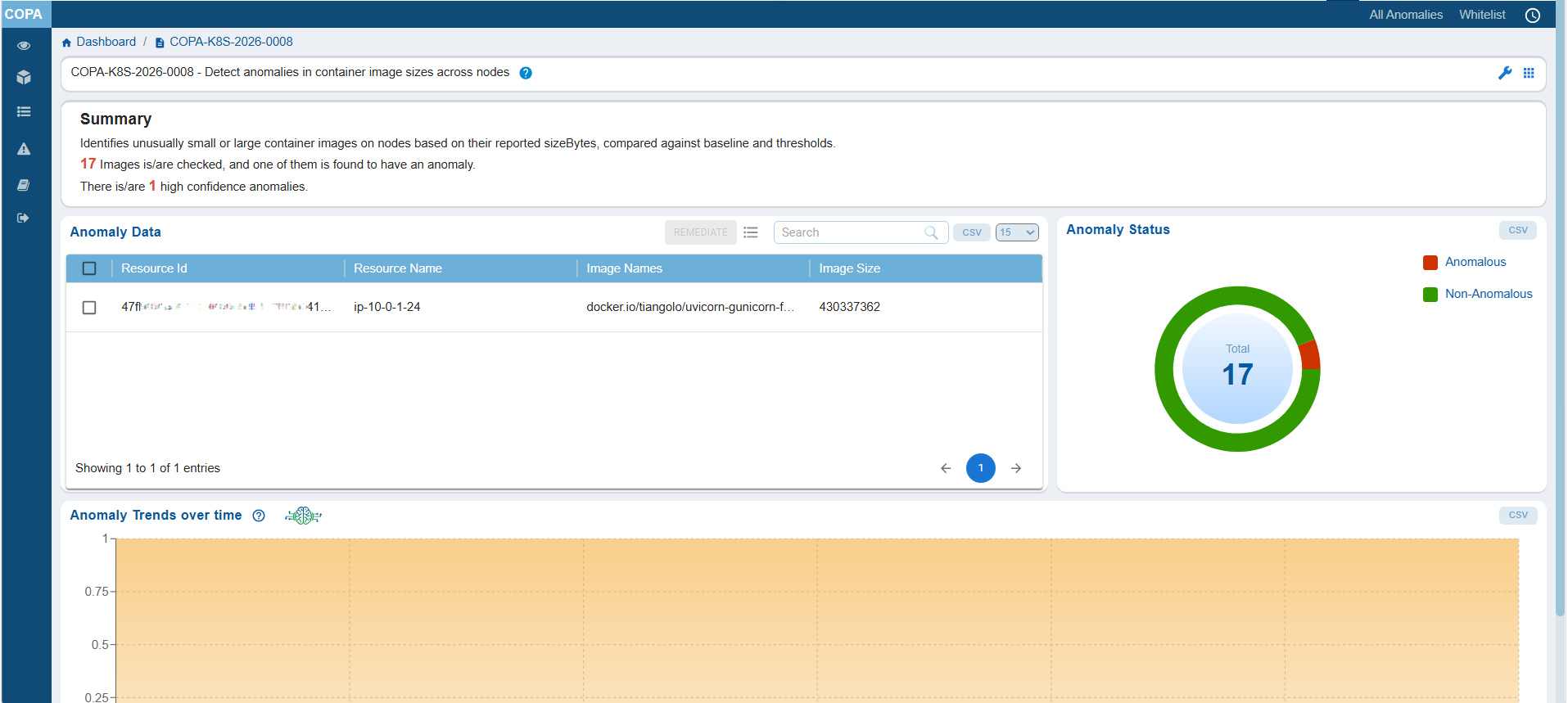
As an example, the Anomaly Data block provides a tabular representation with columns for Image Size, Resource Name, Resource ID, Namespace, and Confidence Level.
The Anomaly Status block displays a chart illustrating the distribution of anomalous and non-anomalous instances, along with their total count.
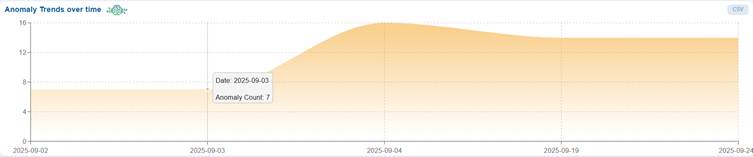
The Anomaly Trends Over Time block features an area chart where the x-axis represents the date (yyyy/mm/dd) and the y-axis indicates the anomaly count over the selected time period.

Complete the Remediation for the COPA ID

Click on the wrench button at the top right corner of the page to start the remediation for all the anomalies that fall under the COPA ID.

Whitelist COPA IDs

Whitelisting COPA IDs excludes known or validated anomalies from future detections and analysis. This helps reduce false positives, streamline anomaly monitoring, and ensure that only genuine deviations are flagged for investigation.

Saner Cloud COPA Whitelisting maintains dashboard accuracy and improves the efficiency of anomaly management by focusing attention on critical and unverified issues.

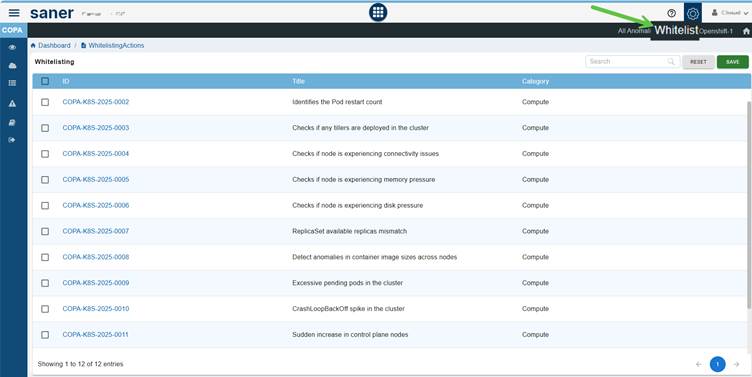
Step1: Click on the Whitelist option on the PA Dashboard. The Whitelisting page opens for you to proceed further.

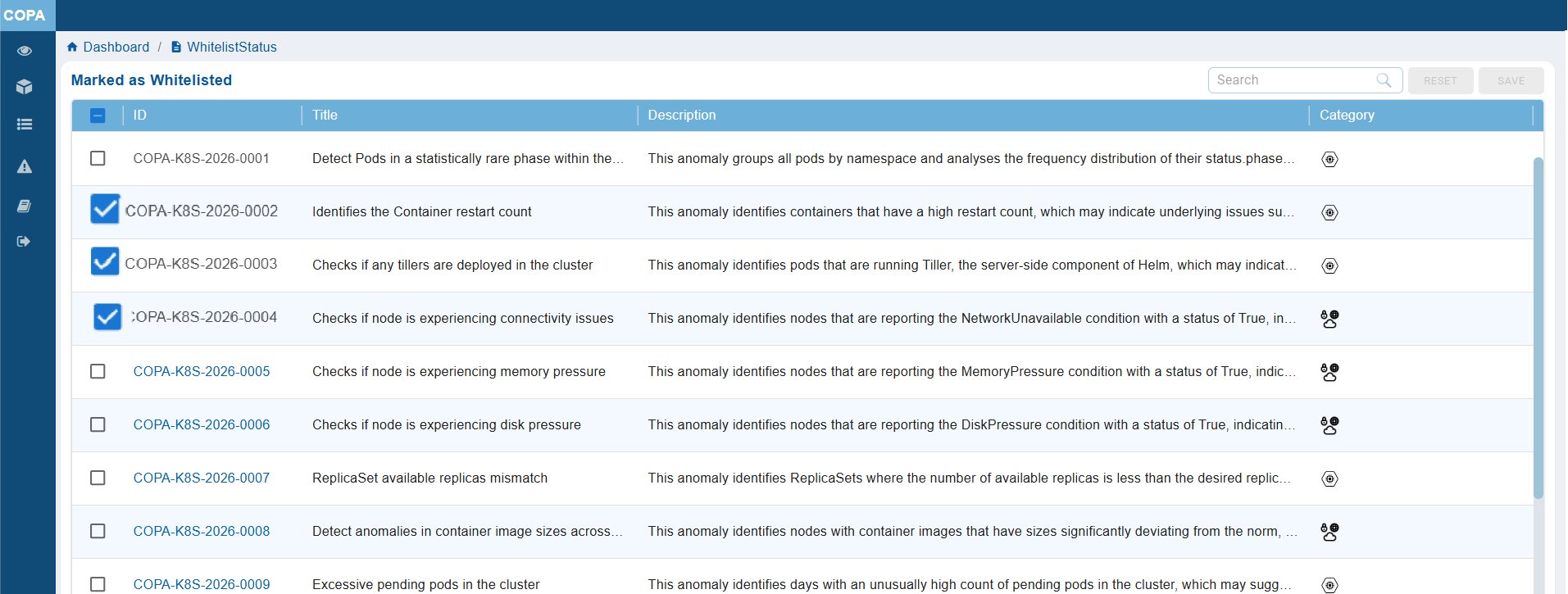
Step2: Select the PA ID’s that you want to whitelist within your Kubernetes account. You have an option to select one or more PA ID’s here by clicking on the checkbox located on the left side right next within the ID column.

Step3: Click on the Save button located at the top-right corner of the page next to Reset button.

The COPA tool whitelists the selected the COPA ID’s and then performs a Posture Anomaly Scan on the account to recalculate the Anomaly status.

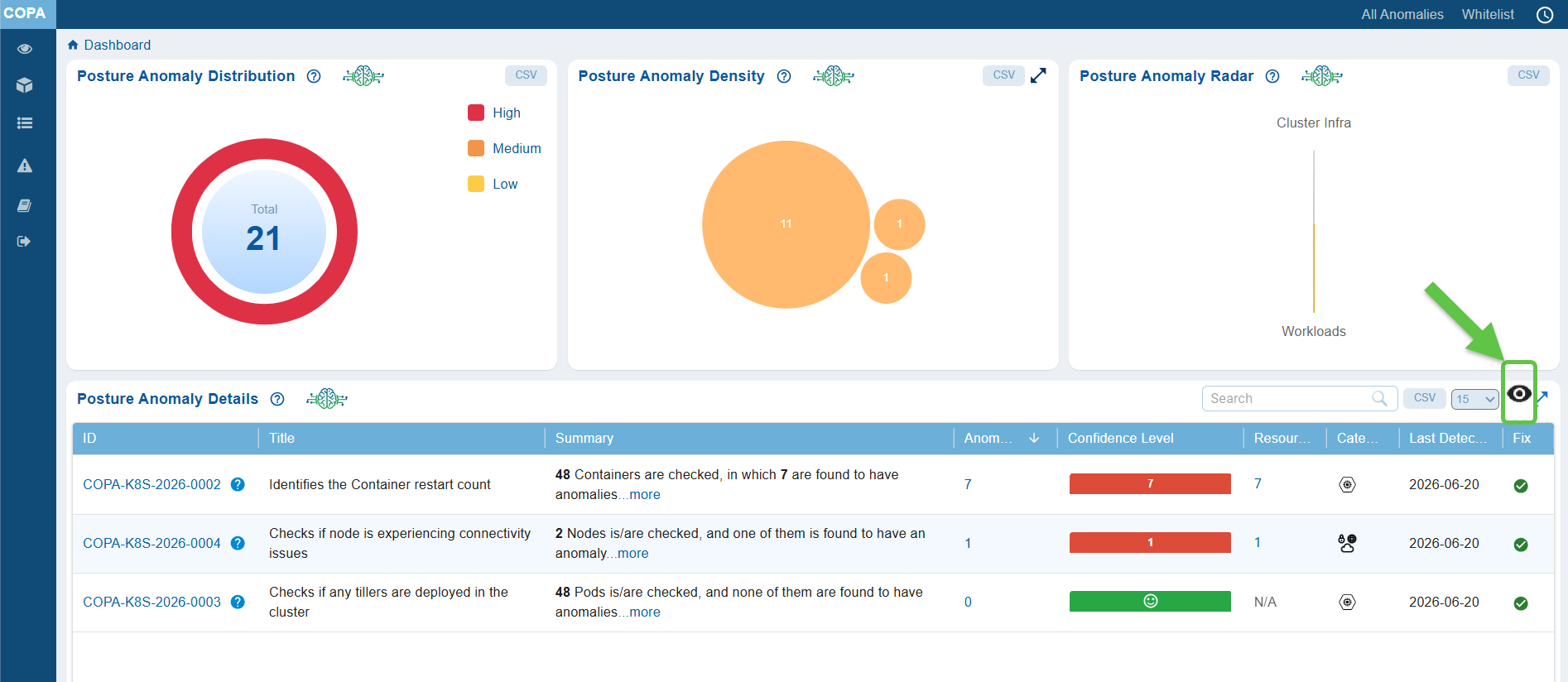
Step4: Now go to the COPA Dashboard to see all the non-whitelisted COPA IDs displayed under Posture Anomaly Details block.

You can see an “Eye” icon crossed in the Posture Anomaly Details dashboard block. This indicates that the whitelisted PA IDs exist and not displayed currently.

Step5: To see the whitelisted COPA ID’s in the dashboard block, click on the Eye icon.

Analyze and Investigate Detected Anomalies from COPA Dashboard

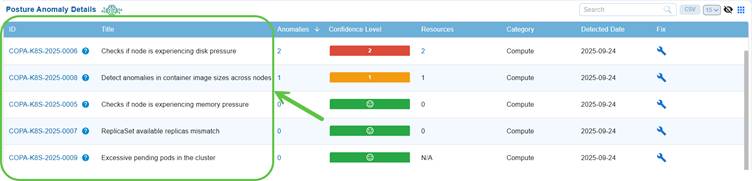
The Posture Anomaly Details blockprovides a comprehensive summary of anomalies detected across cloud or cluster environments. It allows users to quickly assess, prioritize, and investigate potential anomalies or security risks. Each column in the table provides specific details that help users drill down into the nature and impact of each anomaly, enabling faster remediation and informed decision-making.

Track Detected Anomaly with ID and Title

The unique identifier associated with each detected anomaly helps track the specific anomaly instances. With the descriptive title, understand the anomaly context that summarizes the nature of the anomaly or misconfiguration for quick recognition.

Drill-down into Detailed Insights

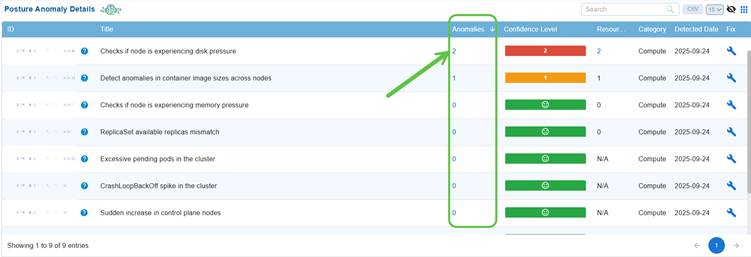
 The Anomalies column displays the total count of anomalies detected for each resource or COPA ID.

Each count value is presented as a clickable link. Clicking the count opens a detailed summary page, providing a deeper view of the selected anomalies, including their severity, confidence level, resource details, and associated risk insights.

This enables quick investigation and contextual analysis directly from the dashboard.

Trace Resources Count and Category

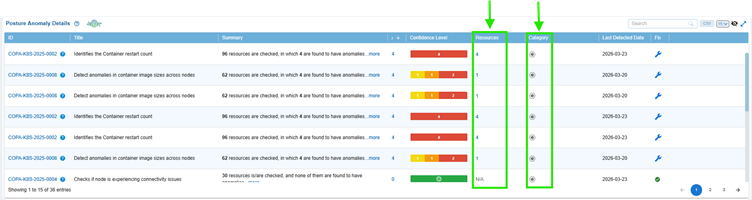
Get insight into the count of resources affected by the anomaly from the Resources column. Also, know the category to which the resource belongs to from the Category column.

Prioritize Remediation based on Confidence Level

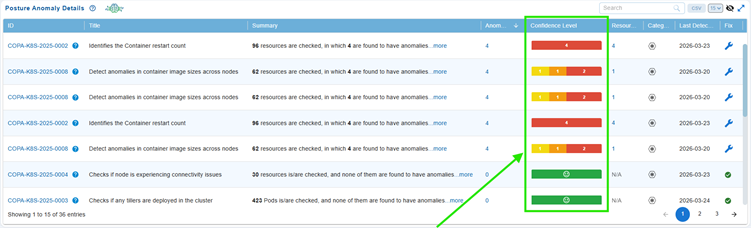
Confidence Level represents the degree of certainty with which the system assesses if a detected issue or misconfiguration poses a potential risk.

In Saner Cloud COPA, anomalies are categorized according to a machine learning-driven threshold or predefined severity levels. This classification reflects the system’s confidence that an anomaly indicates a genuine security or configuration risk:

  • Red (High Confidence): Indicates highly reliable anomalies that represent significant risks and require immediate attention.
  • Orange (Medium Confidence): Represents moderately reliable anomalies that may need further validation or investigation.
  • Yellow (Low Confidence): Denotes less critical or uncertain anomalies, which could include minor issues or potential false positives.

This categorization helps prioritize remediation efforts, making sure that you address the high-impact issues first while efficiently allocating resources for lower-priority findings.

You have an option to review the Confidence Level to make informed decisions by accessing one of the following:

  • The “Posture Anomaly Details” block within the COPA dashboard
  • The “Posture Anomaly Distribution” block on the COPA dashboard

Initiate Patch Remediation

Remediation of findings from Saner Cloud Orchestration Posture Anomaly(COPA) dashboard involves systematically addressing the anomalies by identifying and resolving risks within your AWS account directly from the interface with ease.

You have an option to initiate the patching task in one of the following ways:

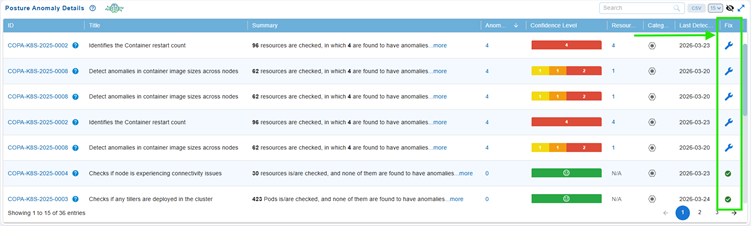
Option1: By Accessing the Fix (Wrench) Icon from the Posture Anomaly Details Block on the Dashboard

Step 1: Go straight to the Posture Anomaly Details block in the COPA dashboard and click on the Fix (wrench) icon corresponding to an anomaly.

Step 2: Automatic Redirection to CSRM

The application automatically redirects you to Cloud Security Resource Management(CORM) and opens the COPA Tabular Listing to begin the patching activity.

Step 3: Follow the Wizard

The wizard guides you through the process of selecting and applying the necessary patches.

Option2: From the COPA Detailed Summary Page

Click to read more on how to complete the remediation for the COPA ID.

Identify When the Anomaly was Found

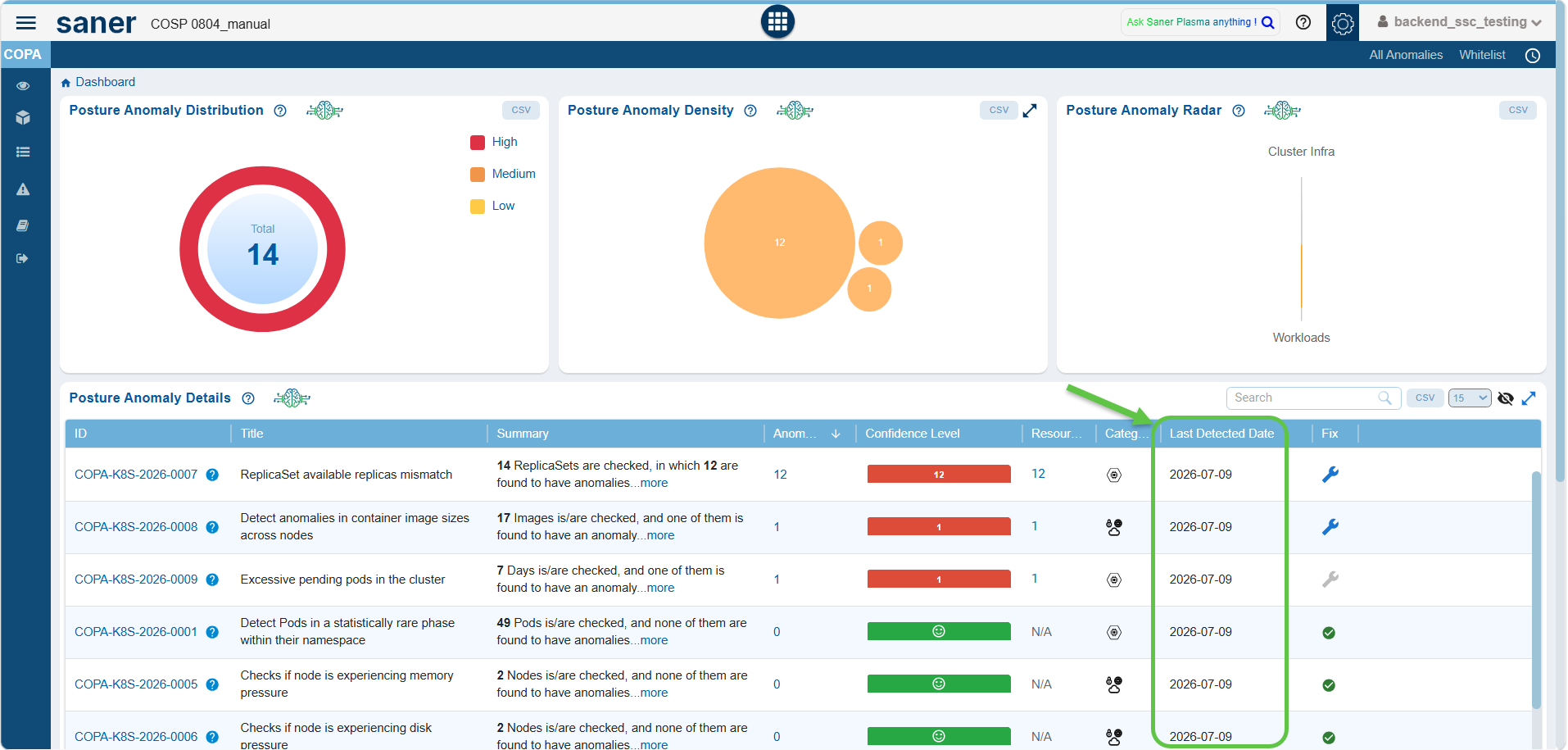
The Detected Date indicates the exact date when the anomaly was first identified by the Saner Cloud COPA system. This date helps you to track when an issue initially occurred. This information is crucial for trend analysis, incident investigation, and prioritizing remediation efforts based on how long an anomaly has been active.

Track Anomaly Trends Over Time

The Anomaly Trends Over Time chart provides a visual assessment of how well anomalies get managed over time, if issues get fixed, persists, or increases in number.

The Trend Chart offers a time-based visualization of anomaly counts, allowing you to monitor changes and identify unusual patterns or deviations.

Presented as an area chart, it displays dates (in the format yyyy/mm/dd) on the x-axis and anomaly counts on the y-axis over the selected period. This visualization facilitates a quick assessment of confidence levels and empowers users to make informed decisions for effective remediation planning and overall performance optimization.

For example, the “Anomaly Trends Over Time” chart allows you to observe how the number of anomalies changes over a selected period. It enables you to quickly identify any spikes or drops in the data and prompts questions such as: Are the number of anomalies increasing or decreasing lately?, Did any specific events occur on the days with sudden spikes?, Could recent changes or deployments be influencing these trends?, Do you see any recurring patterns over time?

These insights help you understand the connection between system activity and anomaly behavior, allowing you to take proactive measures before small issues escalate into larger problems.

The illustration also indicates that anomaly count has increased on 2025-09-04, levelled-down and evened out from then on. This helps teams monitor remediation effectiveness, detect persistent risks, and prioritize actions for high-severity issues.

Move your cursor over the chart to see the anomaly count on a specific date. Additionally, you also have an option to export the data into CSV(available on top-right of the block) for further analysis.

Evaluate Anomaly Distribution Across Categories
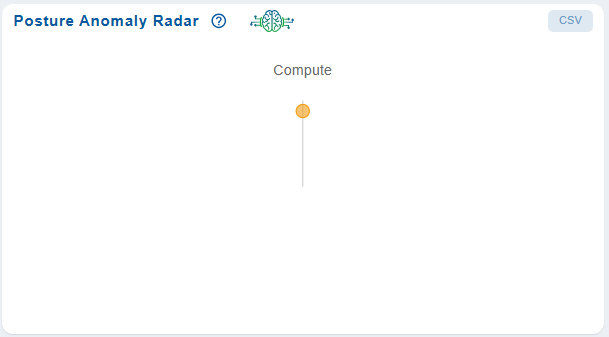
The Posture Anomaly Radar dashboard block helps visualize anomaly distribution based on predefined categories, helping you understand which areas contribute most to posture deviations.

Each plotted point represents a specific category, for example, Compute along with its associated weightage as shown in the illustration, indicates the relative impact or severity within the posture assessment.

Moving your cursor over a point reveals details like Category and Weightage, helping with quick insights into category-level anomaly concentration. The view also allows data export in CSV format for further analysis or reporting.

Share This Article :

  • X
  • LinkedIn
Still stuck? How can we help?

Saner Documentation Feedback

Container Orchestration Security Platform (COSP) User GuideContainer Orchestration Entitlement Management(COEM) Userguide
Table of Contents
  • Get Started
    • Access the Cloud Orchestration Posture Anomaly (COPA) Tool
      • EntryPoint 1: From the Overall COSP Dashboard
      • EntryPoint 2: From the App Launcher
  • Analyze Posture Anomalies by Severity Level
    • Data Source and Scope
    • Analytical Insights
    • Remediation Guidance
  • Assess Resource Impact through Posture Anomaly Density
    • Data Context
    • Granular Analysis and Targeted Remediation
    • Filtering and Segmentation from the Detailed Summary View
    • Exploratory Analysis
  • Fix Anomalies Detected In Your Kubernetes Account
    • Access the Anomalous and Non-Anomalous Instances in Kubernetes Clusters
    • Monitor Anomalous Behavior in Kubernetes

    • Monitor Non-Anomalous Behavior in Kubernetes

    • Investigate Anomalies at a Granular Level
      • Explore More Details for the Selected COPA ID
    • Complete the Remediation for the COPA ID
  • Whitelist COPA IDs
  • Analyze and Investigate Detected Anomalies from COPA Dashboard
    • Track Detected Anomaly with ID and Title
    • Drill-down into Detailed Insights
    • Trace Resources Count and Category
    • Prioritize Remediation based on Confidence Level
    • Initiate Patch Remediation
      • Option1: By Accessing the Fix (Wrench) Icon from the Posture Anomaly Details Block on the Dashboard
      • Option2: From the COPA Detailed Summary Page
    • Identify When the Anomaly was Found
  • Track Anomaly Trends Over Time
  • Evaluate Anomaly Distribution Across Categories
Copyright 2026 - SecPod. All Rights Reserved. Privacy Policy.
SanerNow Version 6.5.x