
The Container Orchestration Security Platform (COSP) provides a comprehensive framework to help organizations secure, monitor, and manage their containerized environments, particularly those powered by Kubernetes. As the adoption of containers increases, ensuring visibility, control, and security across clusters becomes vital. This guide explains how Saner COSP simplifies these responsibilities through an integrated, end-to-end approach.
At its core, the platform allows you to secure and manage Kubernetes clusters by offering deep insights into how clusters, nodes, and workloads operate. It begins by helping you understand the role of clusters in container orchestration, forming the foundation for efficiently and securely managing distributed applications.
The guide introduces Container Orchestration Asset Exposure (COAE) tool that helps you identify publicly exposed assets, misconfigured resources, and potential attack surfaces within your cluster environment. Building on this, Container Orchestration Posture Management (COPM) enables you to identify compliance gaps against security benchmarks and best practices, ensuring that your configurations align with both organizational and industry standards. To further enhance security, the Container Orchestration Entitlement Management (COEM) tool allows organizations to systematically identify excessive permissions across various identities, including Kubernetes users, groups, service accounts, roles, and cluster roles, making sure that access rights align with the Principle of Least Privilege. In addition, Container Orchestration Posture Anomaly (COPA) helps you detect unusual configurations and anomalies, enabling faster investigation and mitigation of potential risks. The guide also discusses Container Orchestration Remediation Management (CORM), which allows you to monitor remediation activities and track patch deployments. This ensures that identified issues are resolved efficiently and consistently. Finally, Saner COSP supports report generation and visualization that help track security posture, remediation progress, and overall cluster health.
Together, these capabilities offer a unified approach to container security, compliance, entitlement management, anomaly detection, and remediation, empowering teams to maintain a strong and proactive security posture across their container orchestration environments.
Secure and Manage Your Kubernetes Clusters with Saner COSP
Kubernetes organizes and manages a deployment through automation and uses the Clusters, Nodes, Pods, and Kubernetes API as the building blocks. Saner COSP engages with Kubernetes cluster to simplify container security management tasks that include finding assets that are exposed to the internet, misconfigurations in various resources that are running, anomalies in how the cluster is setup, entitlement management. Saner COSP also enables remediating these issues easily through a few clicks and setting up sophisticated remediation rules.
Understand the Role of Clusters in Container Orchestration
By using clusters as the foundation of container orchestration, Kubernetes logically separate parts of your infrastructure and application from each other, making it easier to visualize your business.
Inside a Kubernetes Cluster

The Kubernetes cluster simplifies the management of multiple scalable applications by separating it into different Deployments. These deployments include Images and other necessary components required to make an application available. The Images view helps maintain image hygiene by identifying container images, while the Containers view provides a detailed breakdown of active containers to make sure they operate securely and adhere to runtime policies. The cluster also features Namespaces, allowing administrators to manage resource segmentation and isolate compliance or security issues within specific environments. Kubernetes manages the allocation of application instances into Nodes as desired. By relying on Services that practically acts as a static endpoint and a load balancer, the administrator can ensure that applications can scale up and down in the Kubernetes cluster flawlessly.
Saner COSP dashboard provides a centralized and visual representation of the Kubernetes environment, summarizing the operational and security posture of each component, helping teams quickly assess operational health, identify risks, and prioritize remediation across Deployments, Images, Namespaces, Nodes, and Services.
View Resource Details
The Dashboard provides summary views for different Kubernetes resources, including Deployments, Namespaces, Nodes, and Services. Selecting the trend indicator (such as No Change – Increased or Decreased) for the listed views opens the corresponding All Resources page, where you can view all discovered resources of that type. From there, you can access detailed information about an individual resource.
To view the resource details:
Step1: Click the trend indicator (such as No Change, Increased, or Decreased) of the required resource view (Deployments, Namespaces, Nodes, or Services).

The corresponding All Resources page opens, listing all resources of the selected type.
Step2: Review the resource information displayed in the table.
Step3: Click the ID of the required resource.
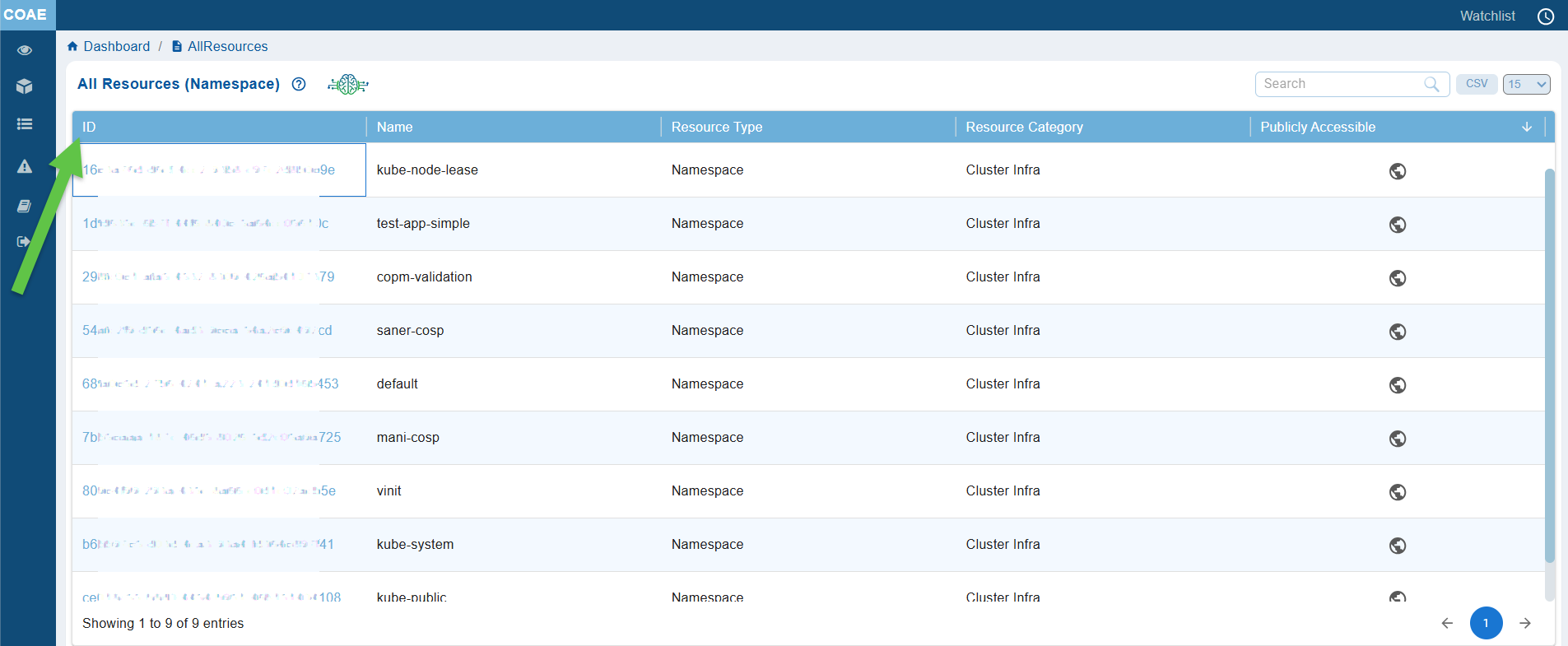
The Resource Details page opens, displaying comprehensive information about the selected resource, including its metadata, configuration, specifications, status, and other resource-specific properties. Click the icons on the top-right of the to see the details in Summary view and JSON view.

Monitor Images

In Kubernetes Container Orchestration, a container image is an executable software package that includes everything necessary to run an application, such as the code, runtime, libraries, dependencies, and configuration files.
Saner COSP displays the Image count, helping administrators maintain visibility and control over the container ecosystem. A high or rapidly increasing image count may indicate the presence of redundant or outdated images, which can lead to misconfigurations and inefficient resource usage. Monitoring this metric helps administrators to identify unapproved or unscanned images, enforce standardization of base images, and ensure that only trusted, up-to-date versions are in use.
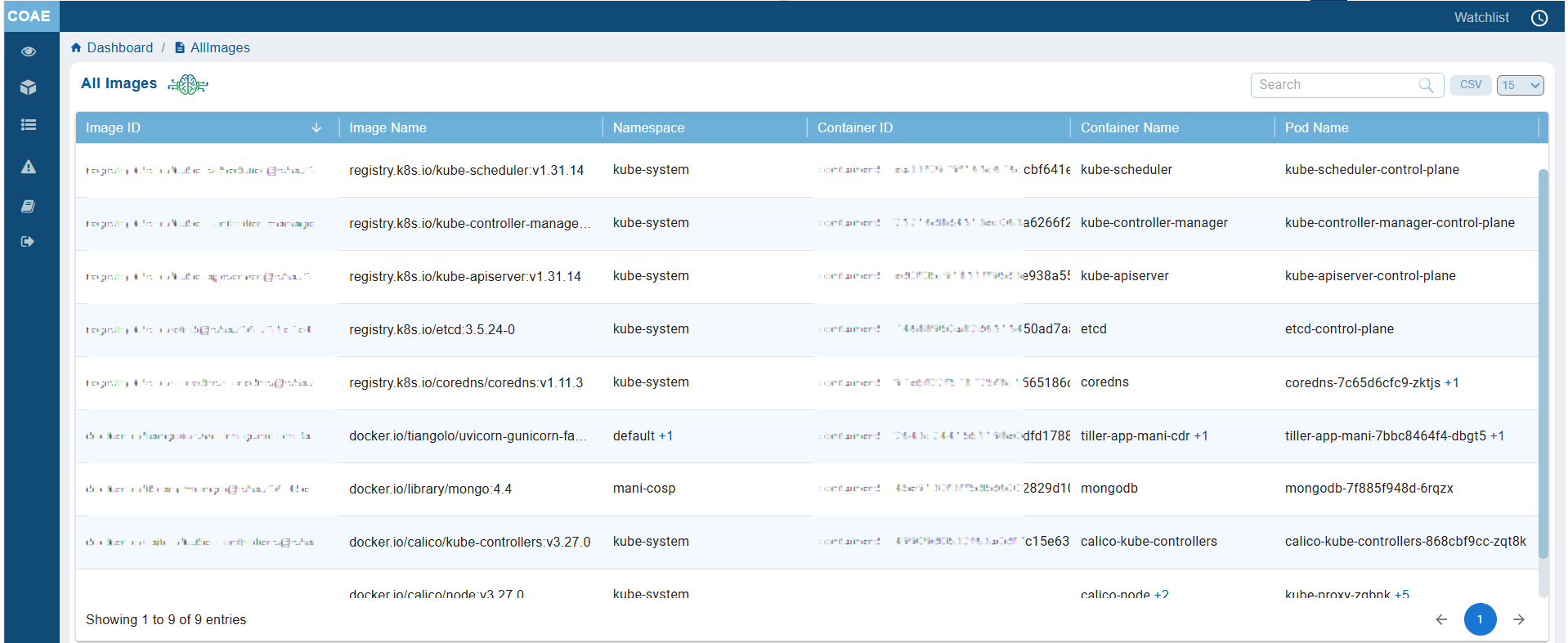
Clicking on the image count from the dashboard block navigates you to the All Images details page, providing information on the Image ID, Image Name, Namespace, Container ID, Container Name, and Pod Name.
Manage Active Namespaces in Kubernetes

In Kubernetes Container Orchestration, namespaces act as logical partitions within a cluster. They allow teams to organize, isolate, and manage resources such as pods, services, and configurations independently. Namespaces help enforce security boundaries, implement role-based access controls (RBAC), and define resource quotas for improved governance.
Active namespaces are those that currently host running workloads or demonstrate operational activity, such as ongoing deployments, updates, or monitoring metrics. Together, namespaces and active namespaces facilitate efficient resource organization, workload isolation, and targeted policy enforcement, ensuring scalable, secure, and well-managed containerized environments.
In Saner COSP dashboard, Active Namespaces provides a real-time count of all namespaces currently running workloads. This helps administrators quickly assess activity levels, detect potential issues, and maintain optimal cluster performance and compliance.
Identify Control Plane and Worker Nodes

Control Plane
Represents a Control Plane node that manages the cluster. These nodes are responsible for maintaining the cluster state, exposing the Kubernetes API, scheduling workloads, and running core control-plane components such as the API server, scheduler, controller manager, and etcd.
Worker
Represents a Worker node where application workloads are executed. Worker nodes host pods and containers, communicate with the control plane, and run essential components such as the kubelet, container runtime, and kube-proxy to ensure applications remain available and operational.
The Node Type column provides an at-a-glance view of each node’s function, helping administrators easily identify infrastructure nodes and workload nodes while managing the Kubernetes environment.
The All Resources (Node) page includes a Node Type column that identifies the role of each node in the Kubernetes cluster. This helps administrators to quickly distinguish between Control Plane and Worker nodes, making it easier to understand the cluster architecture, monitor infrastructure components, and troubleshoot node-specific issues.

View Service Resources

The Services view provides centralized visibility into all Kubernetes service resources within the cluster. Its primary objective is to help administrators identify, monitor, and manage services by presenting essential information such as resource identity, namespace, type, category, and public accessibility. This enables users to quickly assess service exposure, locate specific resources, and support security, operational, and configuration management tasks.
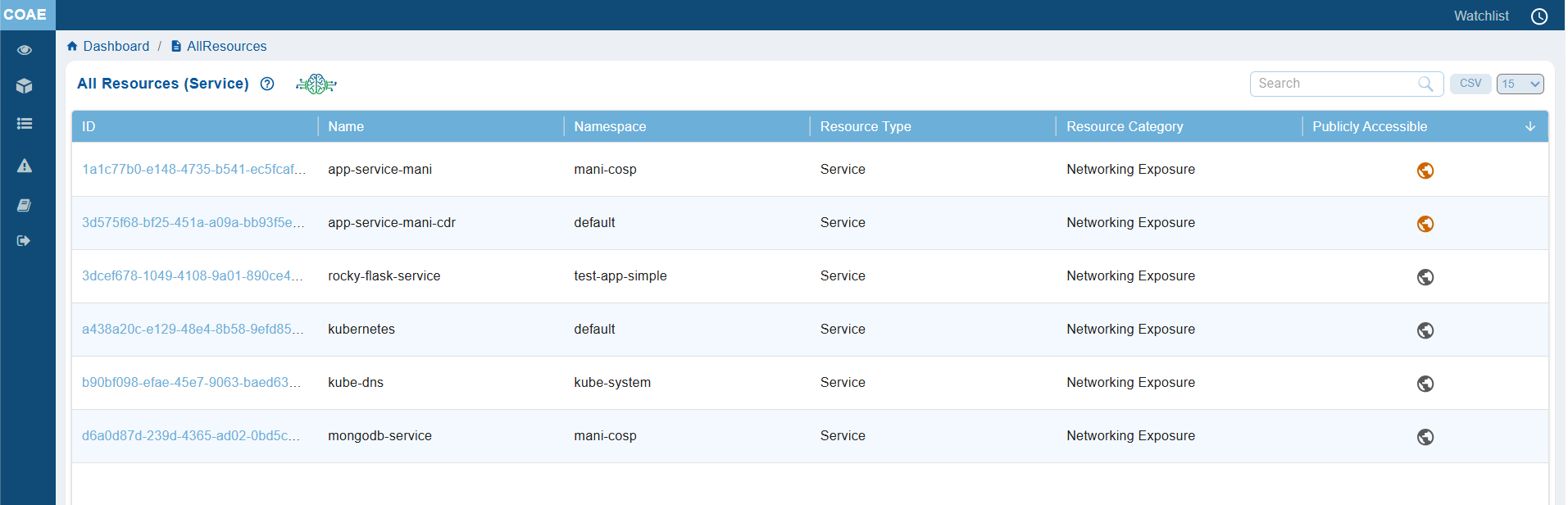
Clicking the Services view opens the All Resources (Services) page, which provides a consolidated list of all service resources discovered in the Kubernetes cluster.
The page displays key details for each service, including the Resource ID, Resource Name, Namespace, Resource Type, Resource Category, and whether the service is Publicly Accessible. This centralized view helps administrators quickly identify, filter, and review service resources, making it easier to monitor exposure, manage cluster services, and assess their accessibility.
Identify Exposure with Container Orchestration Asset Exposure(COAE)
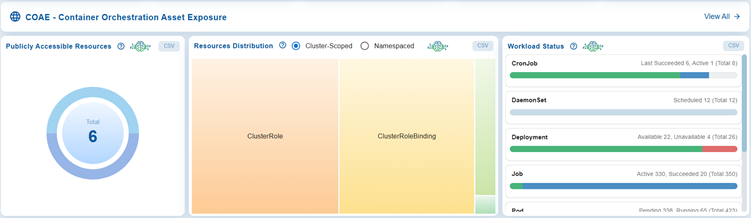
The COAE(Container Orchestration Orchestration Asset Exposure) view focuses on identifying exposed assets within the Kubernetes environment. It highlights open port distribution across workloads, differentiates between cluster-scoped and namespaced resources, and provides the status of workloads for example, Deployments, StatefulSets, DaemonSets, CronJobs and so on.
The objective is to minimize the cluster’s attack surface by tracking exposure levels and workload health.
Click the View All button on the top-right corner of the COAE – Container Orchestration Orchestration Asset Exposure dashboard view to access all the security insights gathered about exposure.
Follow the link for detailed information on working with the different dashboard views in COAE.
Identify Configuration Gaps in Compliance Posture with COPM
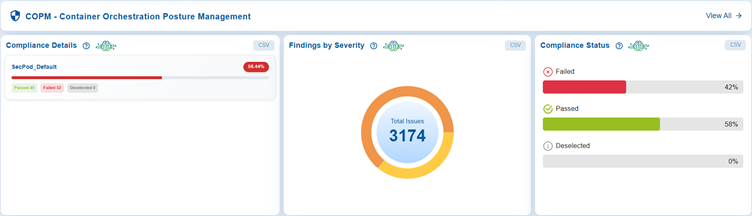
The COPM(Container Orchestration Posture Management) view ensures compliance with established security framework and policies. It presents the SecPod Default compliance scores(expressed in percent) and maps them against standards like CIS, NIST, PCI DSS, and HIPAA, and categorizes issues by severity. It also tracks compliance status to show which checks have Passed, Failed, or Deselected(remain unchecked).
The objective is to continuously strengthen security posture by identifying and remediating configuration gaps.
Click the View All button on the top-right corner of the COPM – Container Orchestration Posture Management dashboard view to access the details on deviations from compliance standards and appropriate remediations that can be triggered conveniently.
.
Control and Optimize Access Permissions with COEM

The Container Orchestration Entitlement Management (COEM) detects and manages excessive permissions across different identities and roles in the cluster. It highlights risks associated with users, groups, service accounts, cluster roles, and roles with permissions beyond necessity. Risks are classified as high, medium, or low. The objective is to enforce least-privilege principles and reduce the likelihood of insider threats or privilege escalation.
Each block highlights where excessive permissions are concentrated, so administrators can review and remove unnecessary permissions, enforce the principle of least privilege, reduce the attack surface, and minimize the risk of insider threats, accidental misuse, or privilege escalation within the cluster. The dashboard enforces the principle of least privilege across users, groups, service accounts, and roles at both cluster and namespace levels.
Users
Track individual accounts and make sure the user accounts only have the permissions necessary for their role. This view also helps prevent privilege creep where users accumulate unnecessary rights over time.
The Users section lists all individual accounts with access to the environment and highlights those with excessive permissions.
Groups
The Groups view helps manage collections of users with shared permissions. By making sure that group-level access is properly scoped you can avoid configured groups that unintentionally grants broad access to many users at once.
Groups provide a summary of all configured access groups and highlights those with permissions that exceed operational requirements.
Service Accounts
Service Accounts focus on accounts used by applications or automated services with the goal to keep these accounts tightly controlled, since they often run continuously and can be exploited if over‑privileged. It highlights service accounts with elevated privileges, which are frequently overlooked but present significant security risks if compromised.
Cluster Roles
Govern permissions that apply across the entire cluster, so the focus is on reducing excessive rights to minimize cluster-wide security risks.
Cluster Roles provide insights into access policies at the cluster level that affect multiple namespaces or services. It emphasizes roles with extensive or administrative permissions, allowing administrators to evaluate and improve security boundaries across the cluster.
Roles
Defines permissions at the namespace level to ensure fine-grained access control within specific environments, preventing unnecessary escalation of privileges beyond what’s needed locally.
Roles address access roles specific to namespaces or projects. It aids in identifying localized roles with excessive privileges, allowing for precise control over permissions and ensuring strong internal access segregation.
Detect and Investigate Security Anomalies with COPA
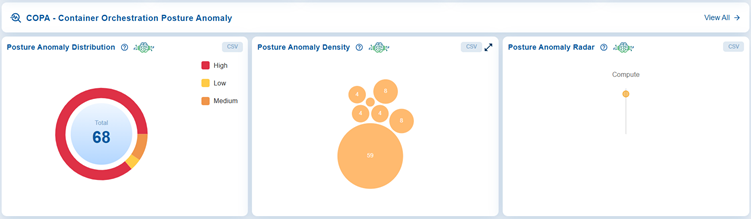
The COPA dashboard offers a centralized view of posture anomalies in Container Orchestration environments, helping administrators quickly identify and prioritize risks. In this case, the dashboard block displays a total of 68 anomalies, categorized by severity levels (high, medium, and low) using a circular chart. Additionally, it highlights anomaly density through a bubble chart, where the largest cluster consists of 59 issues. The dashboard also identifies affected categories with a radar visualization, which currently shows that anomalies are concentrated in the “Compute” area. Together, these blocks provide a clear overview of system health, enabling proactive monitoring and remediation of security posture issues.
Click the View All button on the top-right corner of the COPA – Container Orchestration Posture Anomaly dashboard view to access the overall container orchestration posture anomaly dashboard.
Follow the link for detailed information on working with the different dashboard views in COPA.
Monitor Patch Remediation Across Container Environments with CORM
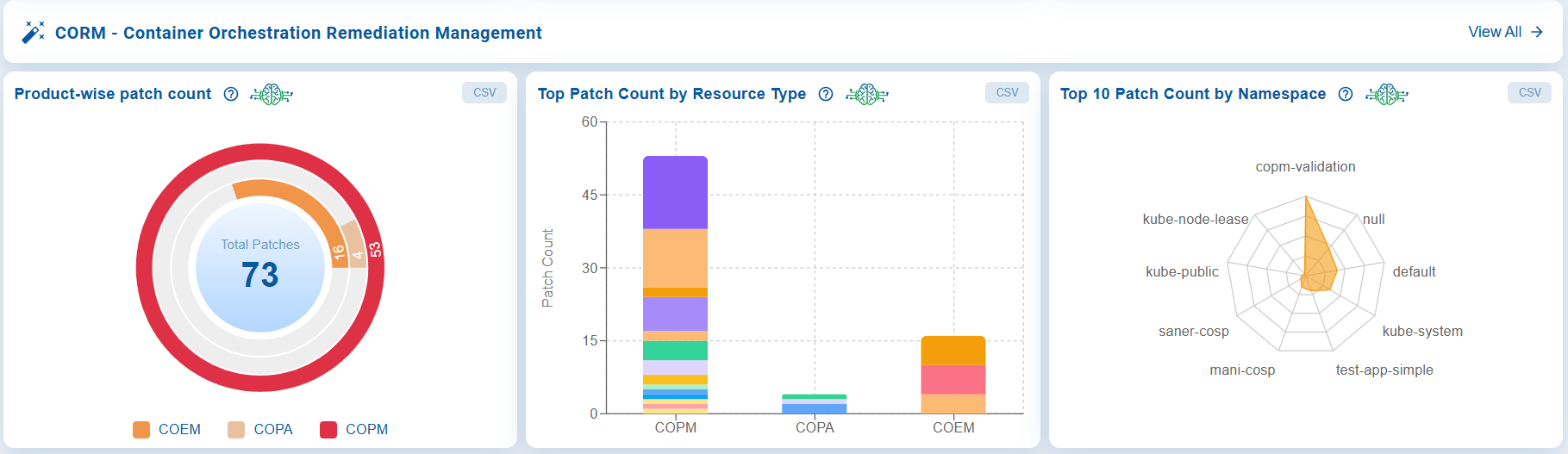
The Container Orchestration Remediation Management (CORM) dashboard provides a centralized view of patch remediation across container orchestration environments, helping administrators monitor patch distribution and prioritize remediation efforts. It displays the total number of patches by product (COEM, COPA, and COPM), highlights the resource types with the highest patch counts, and identifies the top 10 patch count by namespace that help prioritization of remediation efforts toward the most affected resource types. By consolidating this information into a single view, the dashboard helps administrators focus on the most affected workloads, optimize patching activities, and strengthen the security posture of Kubernetes clusters.
Click the View All button on the top-right corner of the CORM – Container Orchestration Remediation Management dashboard view to access all available remediation to secure your cluster and achieve compliance.
Follow the link for detailed information on working with the different dashboard views in CORM.
Generate Reports and Visualizations
Access COSP Reports
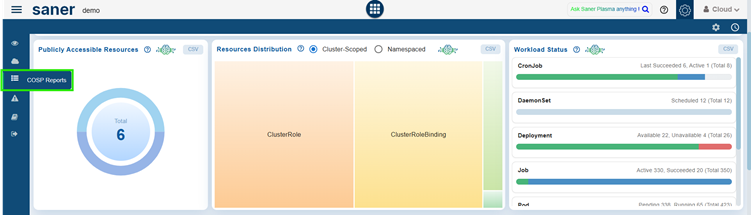
From the side bar, click on the COSP Alerts menu.
Create Custom Report Views
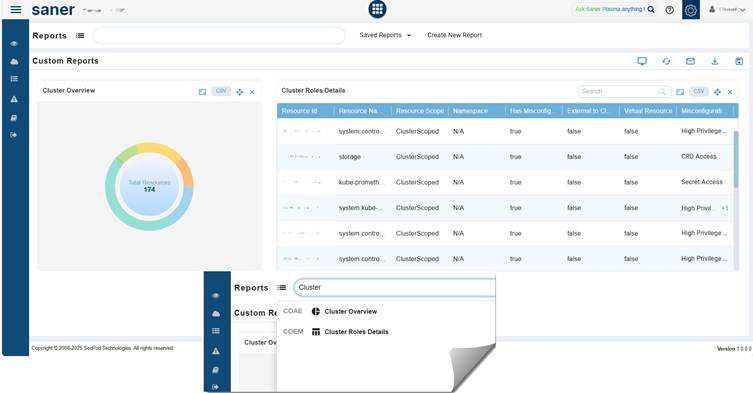
Just go ahead and key in the report name within the Report APIs textbox. The system extracts the report from the Container Infra dashboard and embeds in the Custom Reports section.
View Based on Cluster Overview and Cluster Role Details
Cluster Overview provides the big picture of resource distribution that could pose security risks.
Cluster Roles Details drills down into specific roles, highlighting misconfigurations and privilege levels that could pose security risks. This report provides a detailed tabular view of cluster roles and their configurations.
Column details as follows:
- Resource ID: Unique identifier for the role
- Resource Name: Name of the resource
- Resource Scope: Indicates if the role is cluster-scoped or namespace-specific
- Namespace: Shows the namespace (N/A for cluster-scoped roles)
- Has Misconfigurations: Boolean flag indicating misconfiguration presence
- Is Inactive: The Is Inactive column indicates if a role has been unused for the last 30 days. This helps administrators identify unused roles that can be reviewed and removed to reduce unnecessary permissions.
The system marks a role as Inactive (true) when:- a role is created but no user, group, or service account uses it for 30 consecutive days
- a role was used earlier but has not been used for the next 30 consecutive days
- Is Built-in: Identifies if a role is a default Kubernetes role or a custom role created within the cluster. A value of true indicates the role is a built-in system role provided by Kubernetes, while false indicates it is a user-defined role. This distinction helps administrators differentiate between system-managed roles and custom entitlements when reviewing permissions, investigating misconfigurations, or deciding which roles can be modified or removed.
- Misconfiguration Category: Describes the type of issue (for example, High Privilege, CRD Access, Secret Access)

