
Automation Rules allow you to automatically remediate container misconfigurations as soon as they are detected. Once configured, CORM continuously evaluates findings against the defined rule and initiates remediation based on the configured schedule. This reduces manual effort, accelerates compliance, and helps maintain a secure container posture. Automation rules can be modified, paused, resumed, or deleted at any time.
Step 1: Access Automation Rules
- Navigate to CORM from the App Launcher.
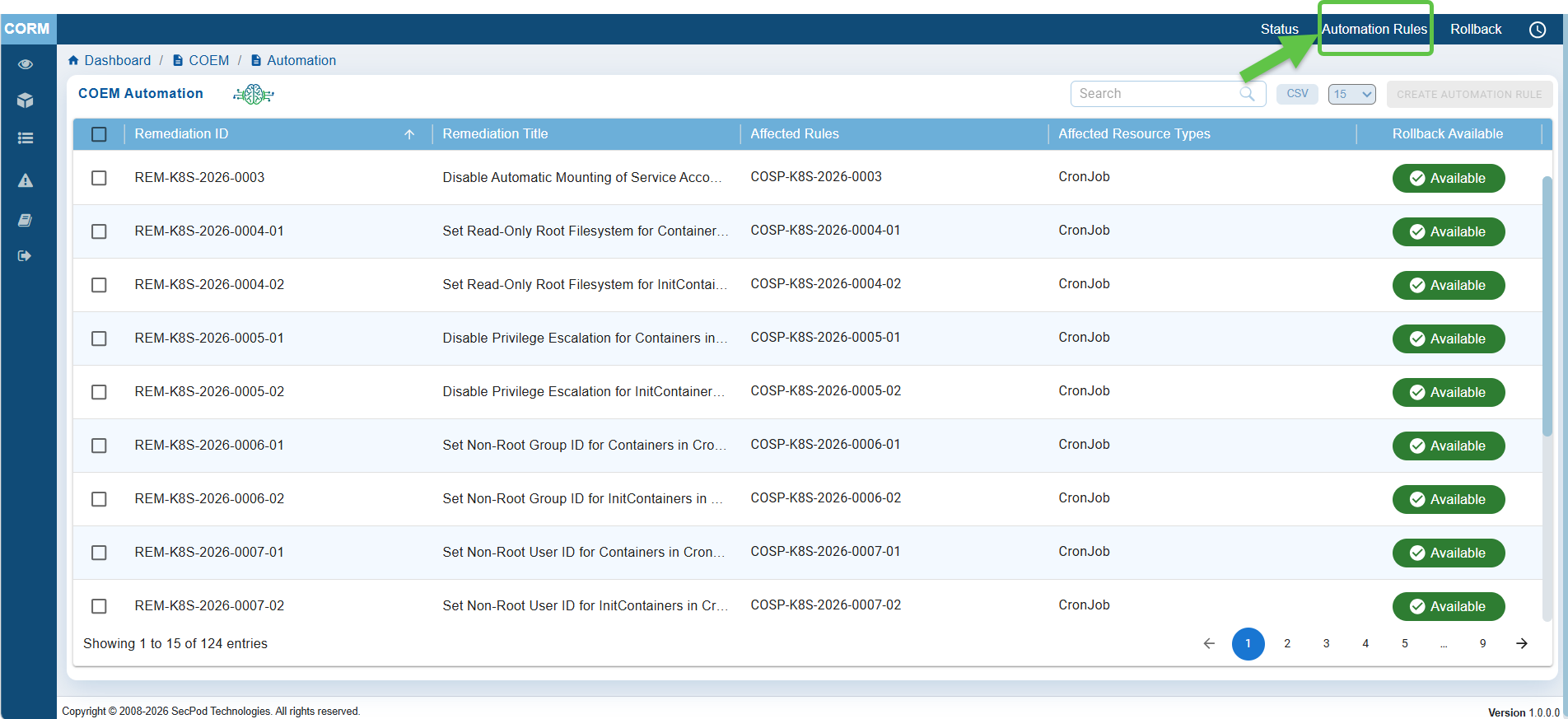
- Click “Automation Rules” from the top-right corner of the page.
The Automation Rules page displays the available remediation IDs for which automation can be configured.
Step 2: Create Automation Rule for One or More Misconfigurations
- Select one or more Remediation IDs corresponding to the misconfigurations you want to remediate automatically.
- Click Create Automation Rule.
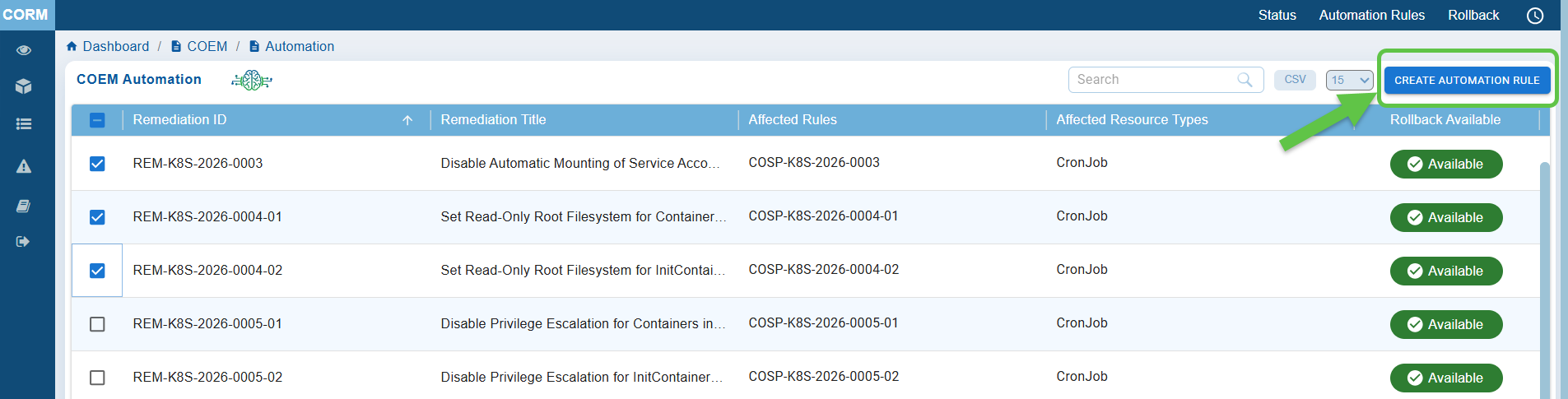
The Create Automation Rule wizard opens.
Step 3: Review the Remediation Template
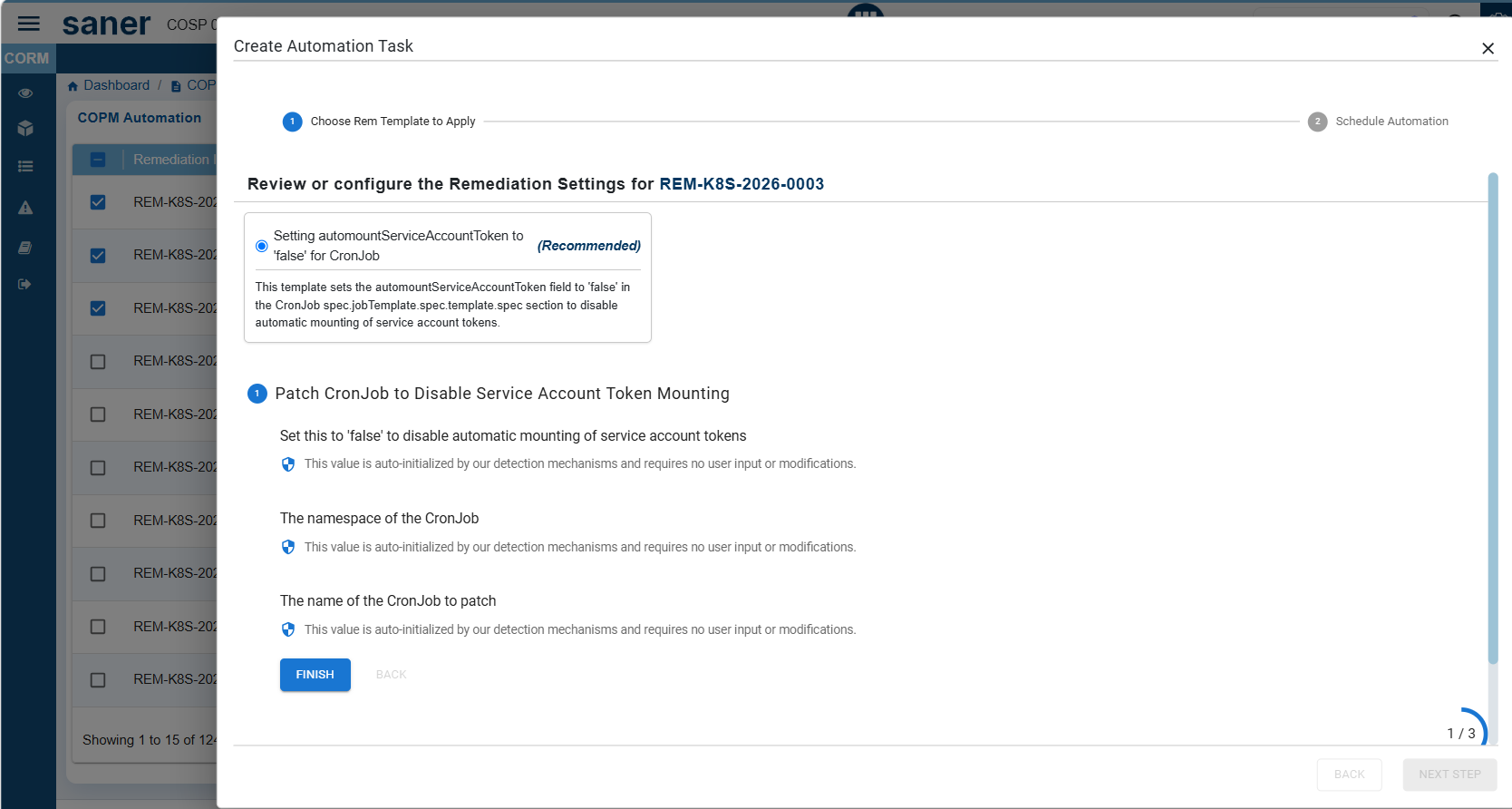
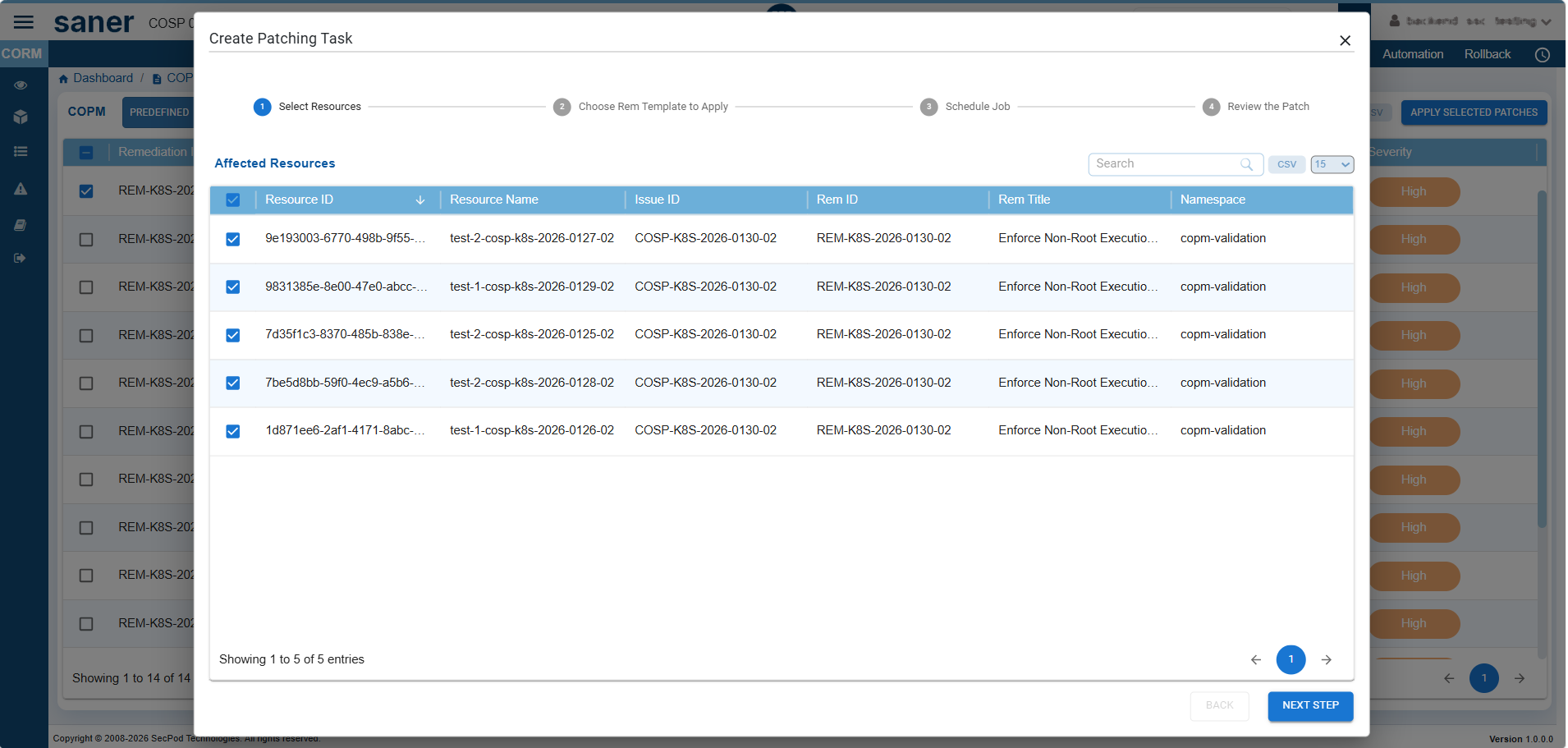
Review the remediation template associated with the selected misconfiguration(s) before proceeding to the next step.
Step 4: Provide Rule Details
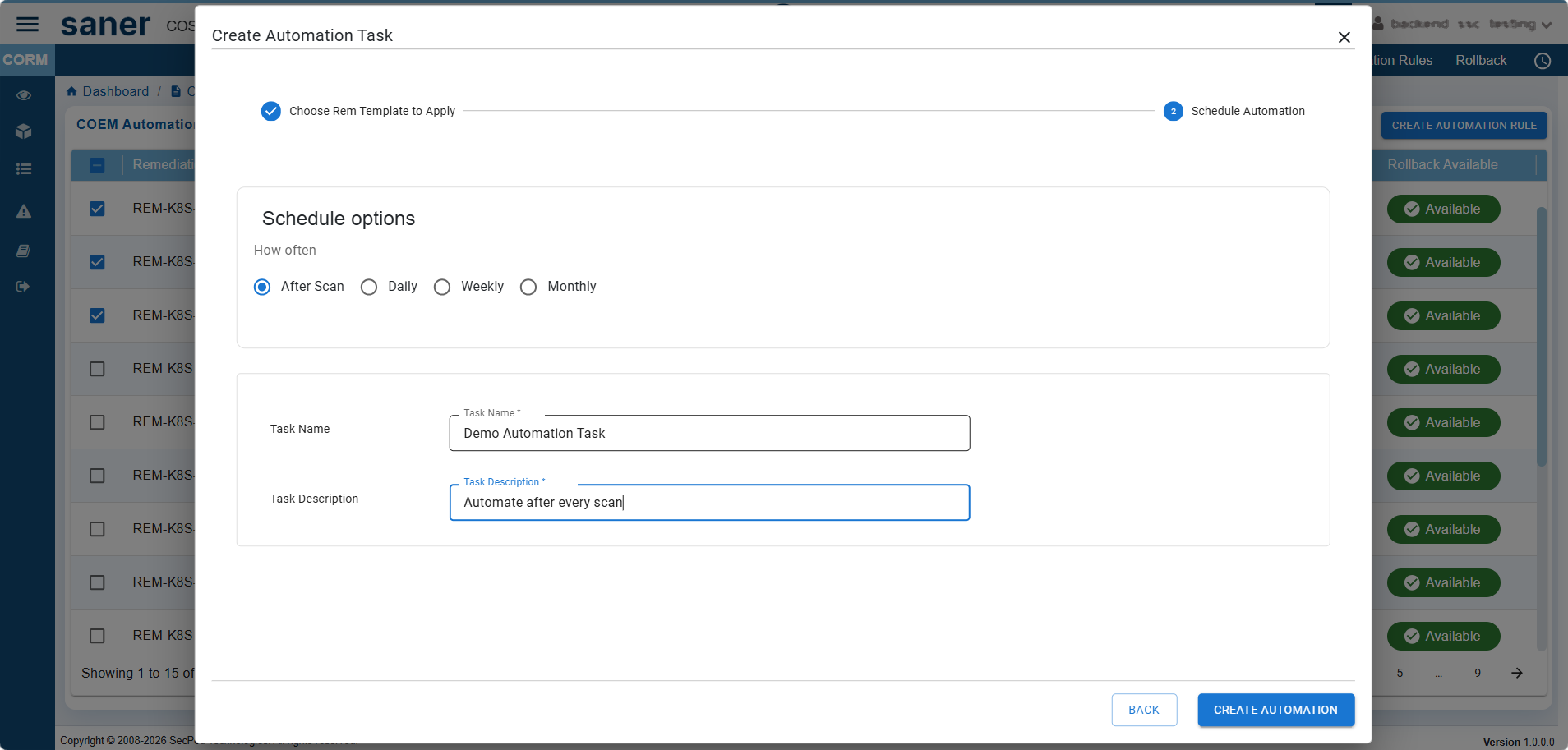
Choose when the remediation must run.
Available schedule options include:
- After Scan – Executes remediation immediately after every cloud scan
- Daily – Runs once every day at the specified time
- Weekly – Runs on selected day(s) of the week at the specified time
- Monthly – Runs on the selected week(s), day(s), and time each month
Scheduling the remediation makes sure that the newly detected misconfigurations are addressed automatically without the need for manual intervention.
Next, specify the following information:
- Automation Rule Task Name
- Description
Step 5: Complete the Automation Rule Creation
After providing all the configuration details to setup the remediation automation, go ahead and click the Create Automation button.
The automation rule is saved and becomes active. Future scans automatically trigger remediation according to the configured schedule.
Perform Additional Operations
After an automation rule is created, it appears in the Automation Rules list. From this page, you can perform the following actions:
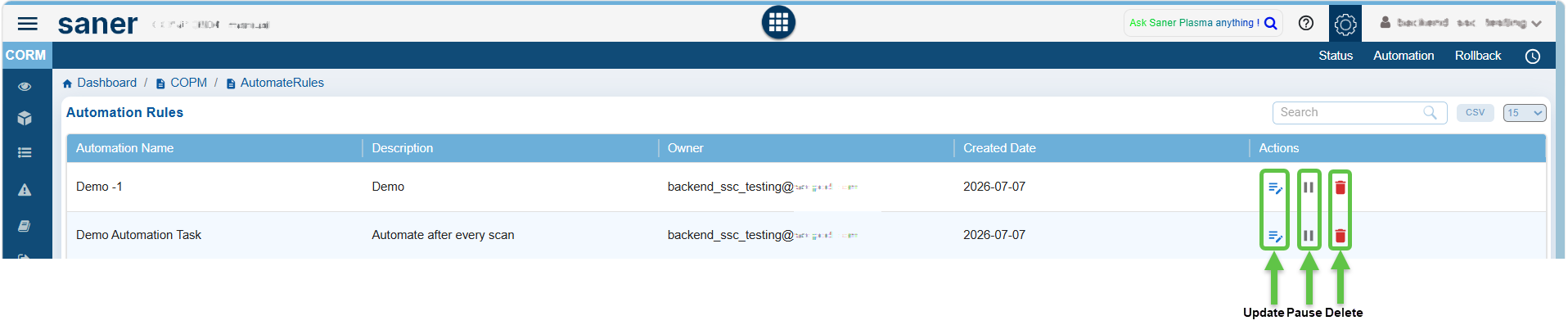
- View the automation rule details
- Update the rule to modify remediation settings or schedules
- Pause or Resume automation without deleting the configuration
- Delete the automation rule if it is no longer required
Related Topics
Container Orchestration Remediation Management(CORM) Userguide

